User account for Auto-logon
Unlike ibaCapture Server, the iba video encoder program that is needed for hardware acceleration on video encoding, runs as a program and not as a service and thus requires a logged on user account.
In order to grant automatic restart of the system, create a user account, which automatically logs on at system start. The installation of ibaCapture Server registers the video encoder program for automatic startup.
How to create a user account (local user) for Auto-logon under Windows
-
Click on the <Start> button, enter the command netplwiz in the search box and press <ENTER>. The dialog for the user account configuration opens.
-
In the User tab, uncheck the option "Users must enter user name and password".
-
Click on <Accept>.
-
When the dialog "Automatic login" opens, enter the user name for automatic login under Windows. Enter also the corresponding password.
-
Click <OK> and close the dialog "User accounts" by clicking <OK>.
How to create a user account for domain users
If the user is logged-in as domain user, the selection field "Users must enter user name and password" is not shown as default in the "User account" dialog and thus cannot be deactivated for individual users. If the appropriate setting has been done in the Windows Registry, the selection field is shown.
-
Click on the <Start> button, enter the command regedit in the search field and press <Enter>. The Registry Editor is opened.
-
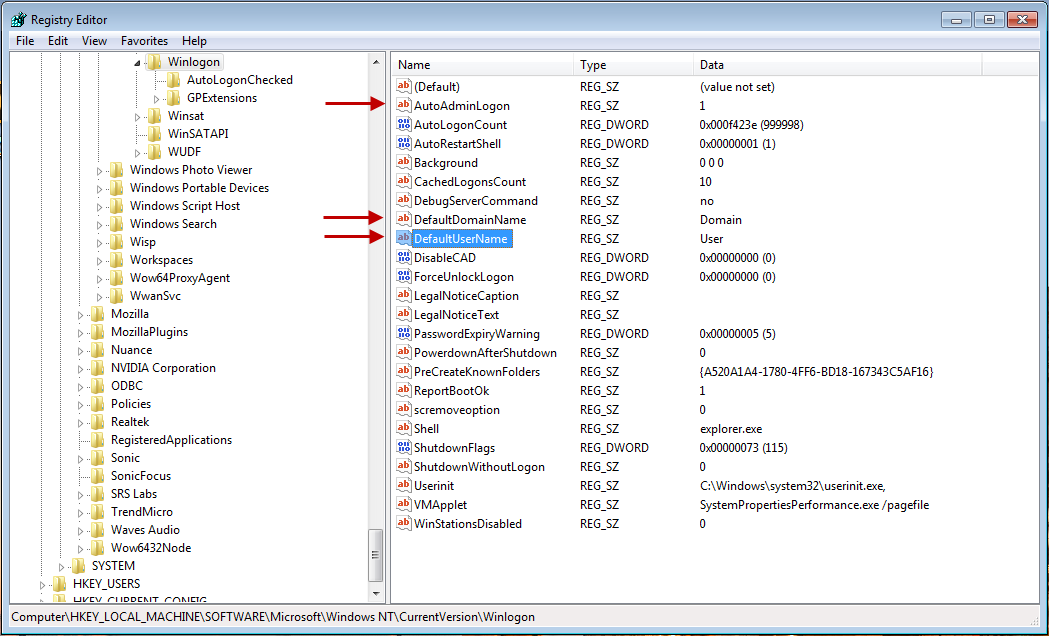
Navigate in the Registry Editor to the path "HKEY_LOCAL_MACHINE\SOFTWARE\Microsoft\Windows NT\CurrentVersion\ Winlogon"
-
Change the value for "AutoAdminLogon" to 1.
-
Click again on the <Start> button, enter the netplwiz command in the search field and press <Enter>. The dialog for configuring the user accounts is opened.
-
Select the user you want to log in automatically and deactivate the checkbox "Users must enter user name and password".
-
In the following dialog, you will be asked to enter the user password. Enter the password and confirm with <OK>.
-
Call once again the Registry Editor.
-
Change the setting for "DefaultDomainName" to the domain the user belongs to.
-
Enter under "DefaultUserName" the user that is to be logged in automatically.
-
Close the Registry Editor and reboot the computer. Now, the user should be logged in automatically.

User account control settings (UAC):
Set notification level to "Never notify". You can open these settings by clicking on the <Start> button and entering "UAC" in the search box.
Adjustments are only necessary here if the automatic start is blocked by the user account control.
