You can save camera positions (presets) and move the camera to the defined positions by mouse click.
The PTZ configuration can be controlled using these buttons:
 |
Move the camera to the selected preset |
 |
Save the current position to the selected preset |
 |
Remove the selected preset |
 |
Rename the selected preset |
 |
Create a new preset for the current camera position |
 |
Refresh the preset list |
Create a new preset
-
Move the camera to the selected preset.
-
Click on the Create new preset... button and
 enter a name for this setting in the dialog.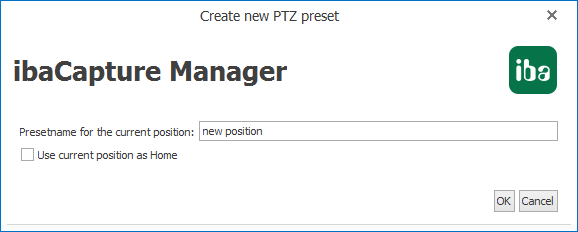
-
The position can be set as home position by setting a checkmark in the box below the textfield.
-
Click on the <OK> button to save this setting.

Move camera to the preset position
-
Select the desired position in the preset list and click on the button

The green markers on the pan, tilt and zoom sliders show the absolute pan, tilt and zoom values of the saved camera position.
The values for the current position retrieved by the camera can deviate from the actual values, e. g. due to firmware implemented incompletely in the camera. This depends on the model.
Change preset position
-
Move the camera to the desired position.
-
Select the position to be changed in the preset list and click on the button

Change preset name
-
Mark the preset name that you wish to modify and click on the button

-
Change the name in the text field of the dialog and confirm with <Yes>.
Note |
|
|---|---|
 |
Before you change a preset name, move the camera to the preset position by clicking
on the |
Delete preset position
-
Select the preset you wish to delete and click on the
 button.