Video sequences from multiple cameras can be exported as MP4 file. When user management is enabled, only authorized users can export videos.
When exporting videos to a file ibaCapture can transcode the video to a different format and resolution. This can be used to archive recordings in a more compact format (e.g., a lower resolution, bitrate or with the more efficient encoding). When exporting, overlay images and the timestamp of the video can be inserted into the video.
To transcode a video, an encoding profile must be configured. See also chapter Export settings.
How to export video:
-
First, specify a time range with the range markers.
-
Click Export in the ribbon
 or open the context menu of the timeline and select Export. The video export dialog will open.
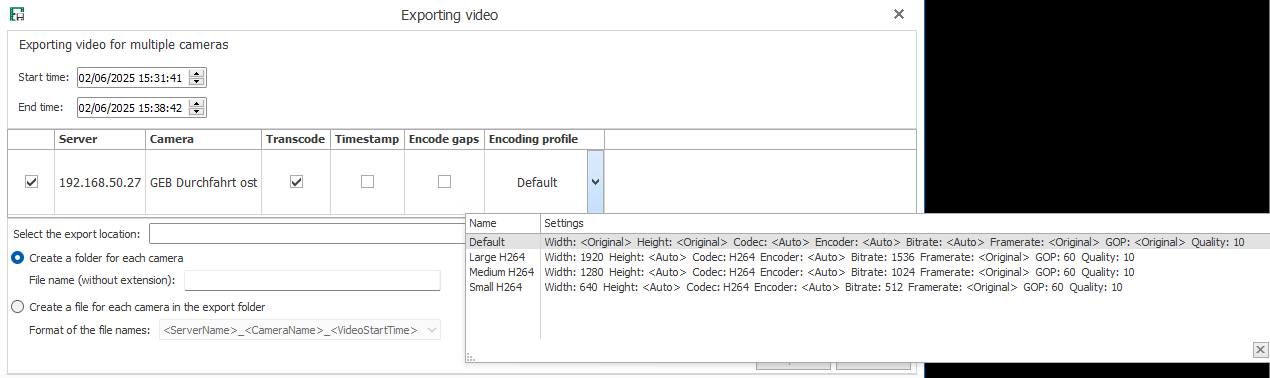
By default all currently opened cameras are selected. The marked region is given as start and end time. It is possible to uncheck single cameras if no video shall be exported.
-
You can specify for each camera individually whether the video file should be transcoded by selecting the Transcode option. The following settings are possible:
Timestamp: If you enable the Timestamp option, a timestamp with the settings configured under Export settings is displayed.
Encode gaps: If you activate Encode gaps, video gaps are encoded as frames in the file, including an optional timestamp. If the option is disabled, video gaps will be added as skips in the file.
Encoding profile: Select one of the configured profiles for this camera from the drop-down menu.
With the Default profile, the settings for the exported video and the stored video are the same. This can be useful if, for example, a video with an overlay image is to be re-encoded.
Note

If you are using an ibaCapture Server version older than 5.3, no encoding profiles can be configured. Instead, three default profiles will be provided for selection. These cannot be modified.
-
Specify the storage location for the video files. One video file will be created for each selected camera. Possible file locations:
Create a directory in the export location root for each camera and define a filename. Each camera will generate the same filename in its own directory.
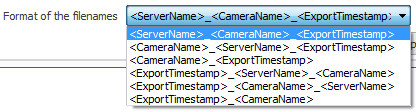
Create all files in the export location root. Since all files should have distinctive names in this case, you can select a format for the filename.
As soon as the export is started, progress bars are shown for each camera.
-
It is possible to cancel the export for each player with a click on the <x> button. Closing the dialog will cancel the export of all players.

