Depending on the installed HALCON version, ibaVision can be installed as 32-bit or 64-bit version. The 32-bit ibaVision version will be installed with a 32-bit HALCON library and the 64-bit ibaVision version will be installed with a 64-bit HALCON library. During installation you have to select whether to install the 32-bit or the 64-bit version of ibaVision.
Starting with HALCON v20.11, 32-bit versions of HALCON for Windows are no longer available.
When multiple HALCON versions are installed on the system, the ibaVision installer will evaluate the %HALCONROOT% environment variable to determine the appropriate version.
Selecting the Python plug-in will only be possible with a 64-bit version of ibaVision.
Note |
|
|---|---|
 |
If ibaVision, ibaPDA or ibaCapture are installed on different PCs then separate dongles are required for the corresponding licenses. If ibaVision is installed on the same PC as ibaPDA or ibaCapture then the ibaVision license is stored on the common iba dongle. |
ibaVision version 3.2 and higher
Beginning with version 3.2.0, ibaVision can now operate as a background Windows service. This allows configured programs and vision processing tasks to run independently of any logged in user. As a result:
-
ibaVision can start automatically at system boot.
-
Processing continues even when no user session is active, improving uptime and reliability for production environments.
When upgrading from previous ibaVision versions to v3.2.0, system specific configuration files are automatically migrated:
-
From (< v3.2): C:\Users\<Username>\AppData\Local\iba\ibaVision
-
To (beginning with v3.2.0): C:\ProgramData\iba\ibaVision
Notes on using HALCON |
|
|---|---|
|
After updating from an earlier version to ibaVision v3.2.0, you must explicitly specify the Halcon installation path the first time you run the program, e.g., “C:\Program Files\MVTec\HALCON-22.11-Steady”. The reason for this is: ibaVision v3.2.0 now runs as a Windows service, which means that ibaVision no longer has access to the user’s Halcon path when it starts up. In cases where no system-wide Halcon path is defined, the path must be entered manually. See also chapter Plugin settings. |
ibaVision version < 3.2
ibaVision version < 3.2 runs as a Windows process, not as service. When using ibaVision a user must be logged on at all times. iba recommends to create a user account which automatically logs on at system start, see chapter User account for Auto-logon
Procedure
-
To install ibaVision, execute the file "ibaVision_setup_vx.y.z.exe" in the directory "\01_iba_Software\ibaVision" on the delivered data medium.
-
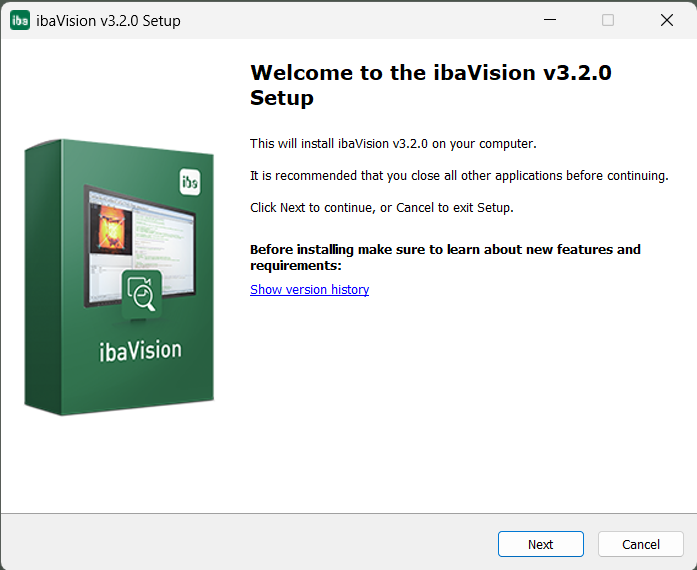
Follow the instructions of the installation wizard.
-
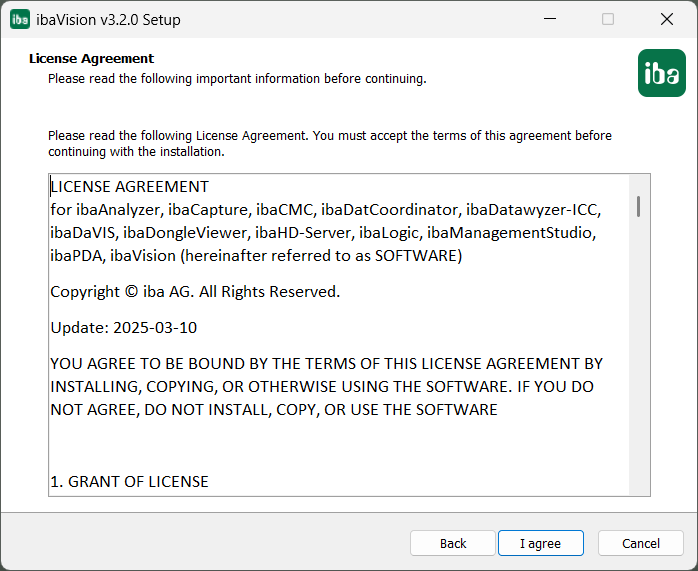
Agree to the terms of this license.
-
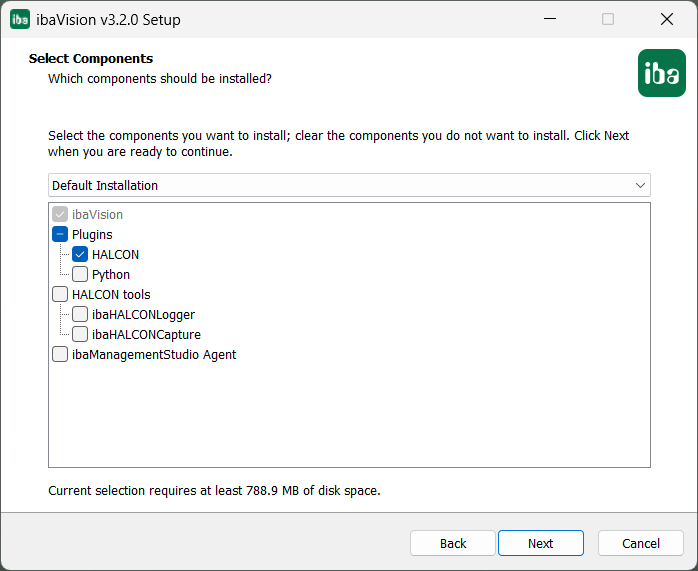
Select the components you want to install.
-
ibaHALCONLogger installs an operator for the currently active HALCON version that allows writing log messages to the log of the ibaVision process (see chapter Writing log messages from the HDevelop program for more information).
-
ibaHALCONCapture installs image acquisition interfaces for HALCON that can be used when developing in HDevelop (see chapter Accessing video data from ibaCapture in HDevelop for more information).
-
-
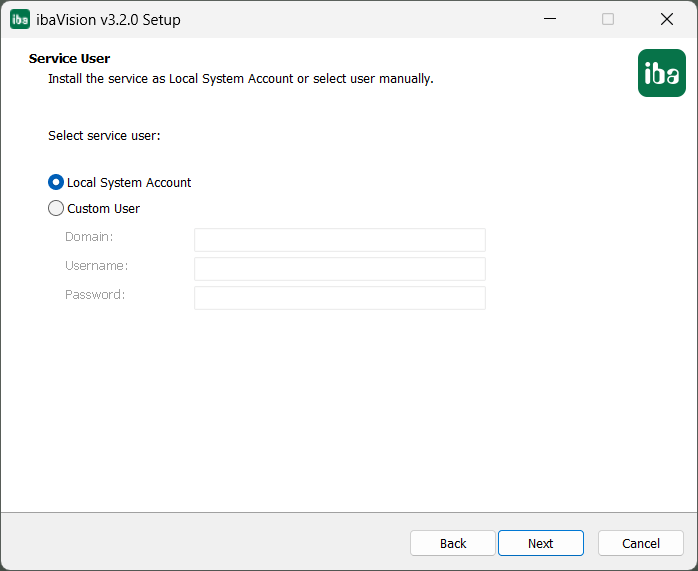
Select the user account
-
-
Local system account (default) The local system account has administrator rights for the local computer.
-
Custom user Select this option if you want to run ibaVision under a specific user account. Possible reasons for this are e.g. IT security aspects.
-
-
Click on <Install> and the installation process starts.
-
At the end, click on <Finish> to complete the installation.


