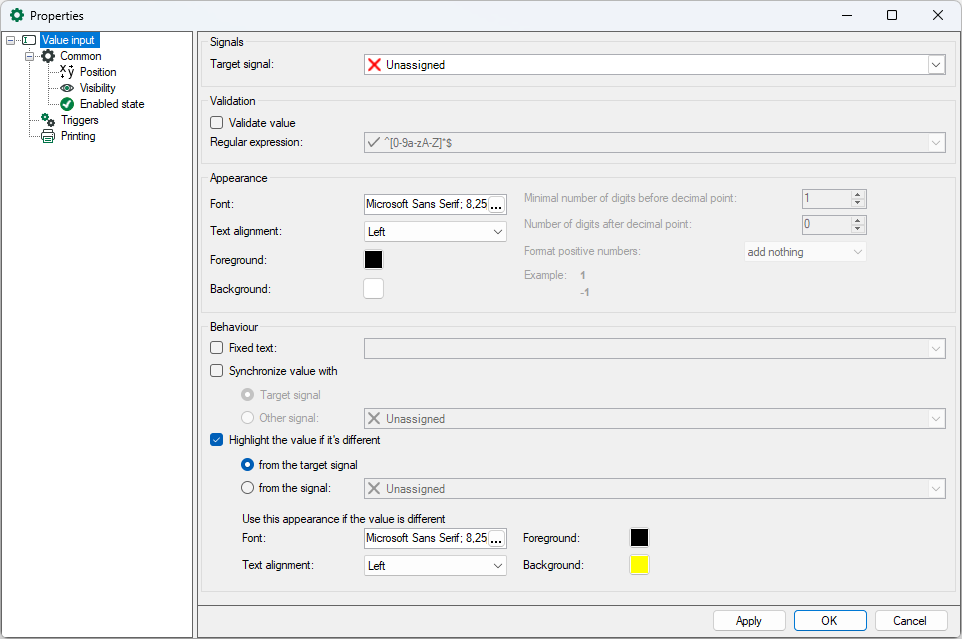
Target signal
First, a target signal should be selected. This can either be an ibaQPanel input or an ibaQPanel text input. The value is applied with the <Enter> key, the <Apply> button or with a trigger signal and is then saved in the target signal.
Validation
With the Validate value option, the value can be validated using a regular expression to ensure that the text only contains defined, valid characters. The text is compared with the regular expression pattern. The regular expression can also be specified in the client preferences. Select the menu Configuration - Client preferences in the ibaPDA client. The regular expression can be a static text or a a text signal.
-
Static text as patternEnter a static text in the Regular expression field. By default the pattern ^[0-9a-zA-Z]*$ is predefined. It allows any characters from a-z, A-Z and 0-9, special characters are not allowed. When the pattern is changed, an icon and the tooltip at the end indicate whether the entered pattern is valid. If the pattern is invalid, the icon changes and the tooltip informs about the error.
-
Text signal as patternThe signal contains the pattern used to validate the text. This is especially useful if the pattern has to be changed dynamically.
Note |
|
|---|---|
 |
You can find examples of regular expressions and patterns as well as test tools on the Internet under the term RegEx or regular expression. |
Appearance
The font, alignment and colors can be set for the display of text in the text box. Number of digits before and after the decimal point and the format of positive numbers can be specified for the display of numerical values.
Behaviour
Fixed text:
If fixed text is activated, the value input control is read only and cannot be modified. The text defined here is written to the target signal.
Synchronize value with
This option allows the value input control to synchronize the current value with either the target or a selected signal. This way, the value input control is always updated with the latest value of the selected source.
If there’s a pending change, e.g the value input control is focused or the value has been changed without applying it, the value will not be synchronized to prevent overwriting the user’s changes.
Highlight the value if it’s different
This option allows you to change the display of the value if the value is different from either the target or a selected signal.
In both cases, the current value in the value input is compared with the target signal or the selected signal. The font, alignment and colors can be set for the appearance of the highlighted text.