Function
The value input control is intended for manual text input or numerical values which are written on a signal. To do this, a virtual signal of the type ibaQPanel input or ibaQPanel text input is required, which can be defined in the I/O manager of ibaPDA.
The virtual signals can be found in the I/O Manager in the Analytics tab. The ibaQPanel input module offers analog and digital signals for the input or output of numerical values, the ibaQPanel text input module is used for texts. Changes of the values can be applied with a button.
Converting text input controls to value input controls
The value input replaces the text input. If you have previously used text input, you can convert these into value input. In design mode, open the context menu of the text input and select Convert text input to value input.
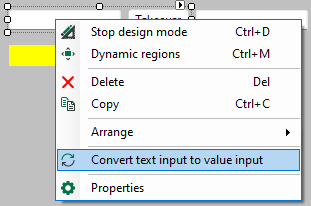
All settings of the text input are taken over into the value input, as well as the position and the size of the text input control.
Configuration
If you drag a value input onto the panel, it is without a button by default. You can add the button by opening the context menu and selecting Add apply button.
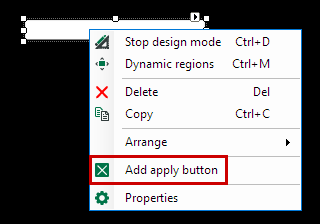
The Apply button is placed next to the input field. You can apply pending changes with one click.
It is also possible to select several value inputs at once. In this case, the Apply button is added to each selected element.
Button configuration
To control the value input, the Trigger value input control command is available for the button. The command is selected by default and a list appears with all available value inputs of the current ibaQPanel. One or more entries can be selected in the drop-down list. If you click on the button, each selected value input is triggered and the pending changes are saved.
See also chapter Button.
Multiline display
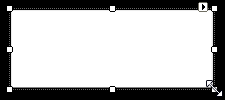
If you change the size of the value input, a multi-line display is possible. A vertical scroll bar is automatically added if the text exceeds the height.
Note |
|
|---|---|
 |
Press the <RETURN> key to apply the current value. To enter a new line, use <CTRL> + <RETURN> or <SHIFT> + <RETURN>. |