Select the trigger signal in the Trigger node.

General
Here, the trigger signal is selected. Normally, this is the first signal from the signal tree to be dragged onto the scope view. Via the drop-down menu, another signal can be chosen.
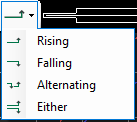
There are four triggering slopes:
-
Rising: Trigger can only fire on the rising edges of the trigger signal
-
Falling: Trigger can only fire on the falling edges of the trigger signal
-
Either: Trigger can fire on both falling and rising edges of the trigger signal.
-
Alternating: If a trigger previously fired on a rising/falling edge, it will now fire on a falling/rising edge.
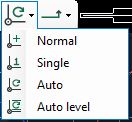
There are four trigger modes:
-
Normal: Trigger fires every time the trigger signal passes the trigger value
-
Single: Trigger fires when the trigger signal passes the trigger value for the first time.
-
Auto: Like normal mode, but also fires when a time-out expires
-
Auto level: Like auto mode, but the trigger value is set to the trigger signal’s center value
The trigger mode and slope can be set in the toolbar or in the properties dialog of the view.
(See also chapter Overview)
Data
-
Memory position: Displayed position within the memory segment.
-
Auto interval: Is used in auto/auto level mode. Maximum time until the trigger is set again. It is possible to automatically trigger before since the input data is always scanned.
-
Value position: With this, the Y trigger will be preassigned to a fix value.
-
Holdoff interval: During this time, the input data will not be scanned when the trigger was fired. With this, the activation of a trigger can be prevented for a certain time.
To activate the trigger, click the Play button  in the toolbar. To disable the trigger, click the Stop button
  . If the trigger is disabled, it will not scan incoming samples.
The view’s trigger is visualized on the chart by a little circle with a dot inside. If the trigger can be moved, trigger markers appear at the side of the chart, near the base and value axes. The trigger can be moved by dragging these markers.