In ibaPDA, the GUI language can be switched using the View - Language menu command. As default, German, English and French are available. The availability of further languages depends on the language pack installed. In ibaQPanel, you can switch the language of text-based objects using the language switch of ibaPDA, too. The prerequisite is that the text belonging to the objects, is available in a language dictionary for the different languages.
The language switch can only be realized for static texts. Dynamic texts from text signals will be displayed as they have been saved in the text signal.
The language switch can be controlled by the button object, too. For this purpose, the Change language command is available, see chapter Button.
Creating different languages

Open the drop-down menu for the text field which should be language-dependent and select Edit QPanel dictionary....

The dictionary dialog opens. Enter an ID (key) for the word and the translation in further languages. With the <Save> command, the word will be added to the dictionary.

The entry is now marked with a flag  symbol.

The text will now be displayed depending on the selected language:
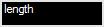
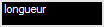
If the translation is missing in the chosen language, the key word is displayed in brackets:

The text will now be displayed depending on the selected language:
Editing the dictionary
In the View – QPanel language dictionary menu, the whole dictionary can be opened and edited.

In the dictionary, you can edit, add and delete entries as well as add new and delete existing languages. You can enter a new entry in the empty line. You can edit an existing entry directly in the line.

For editing the dictionary, the following commands are available:
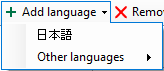 : adds a new language. Select the language that you want to add from the drop-down
menu.
: adds a new language. Select the language that you want to add from the drop-down
menu.
 : removes a language. Select the language you want to remove from the drop-down menu.
The languages installed in ibaPDA will be displayed. English is set by default and cannot be removed.
: removes a language. Select the language you want to remove from the drop-down menu.
The languages installed in ibaPDA will be displayed. English is set by default and cannot be removed.
 : copies the whole dictionary into the clipboard. By doing so, you can insert the
dictionary into an Excel table.
: copies the whole dictionary into the clipboard. By doing so, you can insert the
dictionary into an Excel table.
 : adds the content of the clipboard to the dictionary.
System language
When adding a new language, numerous supported languages are available for selection in the Other languages submenu. You can also add these languages to the dictionary.

If one of these languages is set for the system, this language can also be used for ibaQPanel, if you select System when selecting the language.
Selecting a language in ibaPDA: View - Language menu:

Selecting a language with the button object:

Note |
|
|---|---|
 |
General information about the language settings in Windows can be found in the FAQ section of the iba website at www.iba-ag.com under the heading General. |