You can use the Curve element to link signals to positions on the base axis and display them as points or bars, for example.

General
Every curve has to be connected with a base axis and a value axis, which can be chosen in the drop-down menu.
Visuals
For the display of the curve, several options can be selected. With the options bars or dots, a signal on a position defined by the base axis will be displayed as “growing” bar or rolling dot. With the option curve it is possible to connect several signals with a curve.

For the display styles dots and curve, a thickness and width as well as a filling can be defined, which can be opaque or transparent. The transparency can be configured steplessly with the slider from 0% (completely transparent) to 100% (opaque).
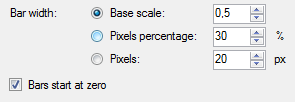
The bar width can be configured in different ways:
-
-
Base scale: based on the scale of the assigned base axis (default setting)
-
Pixels percentage: percentage of the available gap
-
Pixels: bar width in pixels
-
If the option Bars start at zero is selected, the bars start on the value axis at zero, otherwise at the bottom of the chart (like BARS 2 in the example above).
A drop-down menu lists the selection of colors for the curve.
Limit visualization
If the option Overall limits is selected, it is possible to assign dynamic colors to the graph. With this, limit values can be especially highlighted. The dialog for configuring the limits can be opened with the <Configure> button. Here several limit values which are either fixed or dynamically given by a signal, can be specified.
In the upper list, the limits can be specified beginning with the highest limit to the lower limits. A color can be selected for the curve above the specified limit. For better detection, the limit values can be displayed as lines with selectable line style, thickness and color.
In the lower list, the limits can be specified for the lower limits.
Note |
|
|---|---|
 |
The limits must be entered in the right order, i.e. the highest limit must be entered in the first line. Using the button |
 the list can be correctly sorted.
The buttons on the right facilitate the editing of the list:
|
|
Shifts the selected line upward or downward |
|
|
Sorts the list in descending order |
|
|
Deletes the highlighted line |
|
|
Copies the content of the list in the clipboard and can be inserted in e.g. MS Excel |
|
|
Inserts the clipboard content in the selected line |


In the example below, the curve above the highest limit value is marked in orange. Between this limit and the second limit value, the curve is marked in green and below the lower limit value in red. Two limit values are shown as lines in different styles.

Signals
In the range “Signals”, you can assign a signal to each position which is defined in the corresponding base axis. In the column “Signal”, the signals can be selected in the drop-down menu. Click in the range below the table, then a new line appears, click in the column “Signal”, then a drop-down menu appears.
The signals will be assigned to the positions in increasing order (from left to right); the positions and corresponding labels have already been specified.
In online mode, signals can be dragged onto a chart via drag & drop. For these signals,
a new base axis and a new value axis are created. If more than 5 signals are dragged
onto a diagram, a dialog appears in which the base and value axis can be chosen. With
the buttons  and
and  it is also possible to add new base and value axes.

It is also possible to display vector signals in the chart. Choose the option “Vector” and choose a vector signal from the drop-down menu. With vectors, the corresponding signals will be displayed in a list.

Examples:
 |
 |
|
Display of 6 signals as bar with dynamic color assignment from an upper and lower limit value |
Display of these 6 signals as a curve, dynamic color assignment as with the column display |