ibaPDA-Request-S7-DP/PN/ibaNet-E cannot establish a connection to a S7-CPU if the parametrization "AUTO" for an access point (MPI-adapter or CP) has been set in the SIMATIC Manager.
There are 2 possible remedies:
Changing the interface with remaining access point name
Change interface in the SIMATIC Manager e.g. from "CP5622 (AUTO)" to "CP5622 (MPI)" or "CP5622 (PROFIBUS)".
Disadvantage of this method: If the setting of the access point is changed again in the SIMATIC Manager, the measurement does no longer work because ibaPDA has no longer access.
Adding a special access point for ibaPDA
To avoid conflicts with the setting of SIMATIC Manager and ibaPDA when both programs run on the same computer, you can define a new access point.
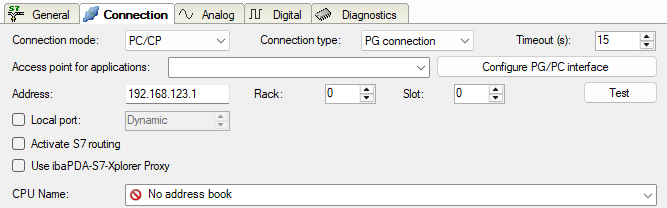
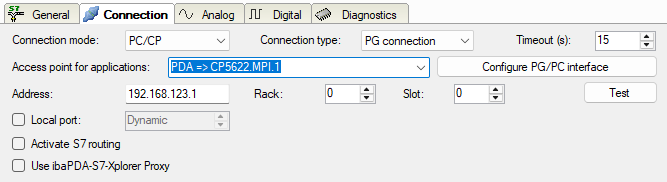
There is the <Configure PG/PC interface> button in the dialog window of the module. With this button, you can open the dialog for configuring the PG/PC interface.
The setting for the SIMATIC Manager is also changed.
Procedure
-
Open the dialog for configuring the PG/PC interface with the <Configure PG/PC interface> button.
-
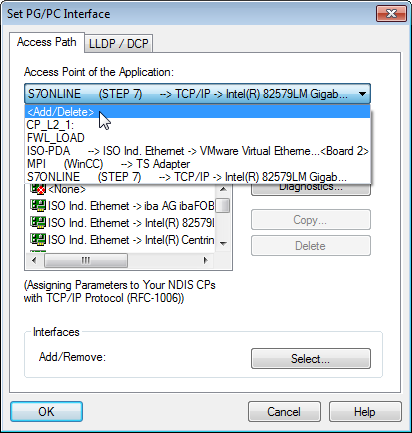
Under Access Point of the Application select the row <Add/Delete>.
-
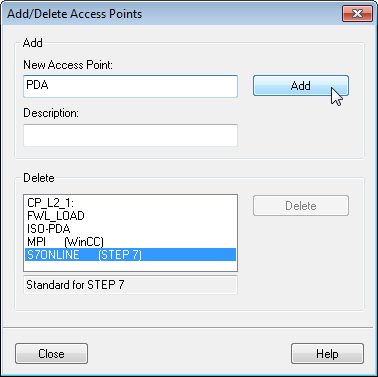
Define a new access point: Enter a name, e.g. "PDA", and optionally a description for a better understanding. Confirm your entries with <Add> and <Close>.
-
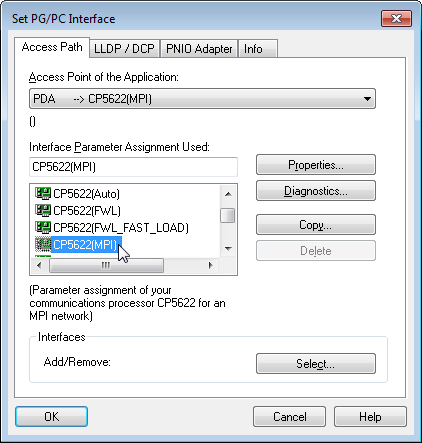
Add an interface to the access point, e.g. "CP5622 (MPI)".
-
Exit the configuration with <OK>.
ibaPDA subsequently displays the newly defined access (e.g. "PDA --> CP5622.MPI.1") in the connection dialog under Access points for applications.
Notes on the different access points
Depending on which access points have been configured in the engineering computer, there are different access points available for selection in the ibaPDA system.
Basically, there are 3 types of access points:
-
TCP/IP
-
ISO
-
Bus system PROFIBUS or MPI
TCP/IP
If you select an access point using TCP/IP, you need to enter the IP address, rack number and slot number of the CP in the module configuration dialog. If you do not know the rack number or slot number, enter "0" for slot and click on the <Test> button.
ISO
If you select an access point using an ISO interface, you need to enter the MAC address, rack number and slot number. If you do not know the rack number or slot number, enter "0" for slot and click on the <Test> button.
Bus system PROFIBUS or MPI
If you select an access point using a bus interface, e.g. PROFIBUS or MPI, you need to enter the bus address, the rack number and slot number. You can also use the <Test> button and then click on one of the CPU links found to test the connection.