An advantage of this way of access is that the symbol addresses are applied automatically in ibaPDA as signal names.
Requirements for this method of access:
-
The signals to be measured already have an entry in the S7 symbol table, the PLC variable list or in a data block.
-
An address book has been created (see chapter Address books).
Integrating an address book into a module
-
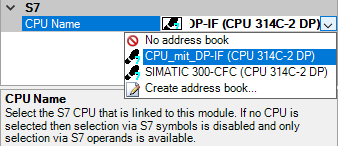
In the module's General tab under CPU Name, select the S7-CPU you want to assign this module to.
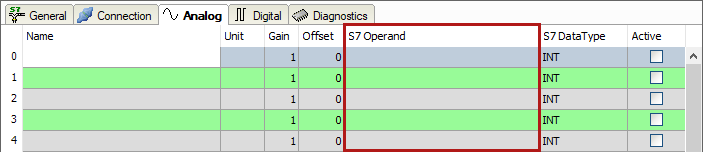
In the Analog and Digital tabs, an additional column S7 Symbol is displayed.
Now you can access symbol addresses using the S7 CFC- and Symbol Browser (in short: symbol browser).
Selecting signals via the symbol browser
You have two options to select the signals to be measured:
-
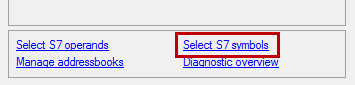
In the module's General tab, click on the Select S7 symbols link.
The symbol browser opens.
In the symbol browser, you can select all symbols of the address book. ibaPDA enters the selected signals automatically in the appropriate table Analog or Digital. You can add several signals successively.
-
On the Analog or Digital tab, click in a cell of the S7 Symbol column.
The button <…> appears. Click this button to open the symbol browser.
In the symbol browser, you can only select symbols with the data type matching the table. ibaPDA enters the symbol in the previously selected row of the signal table. After every selection, the symbol browser closes.
User interface of the symbol browser
In the symbol browser, you have the following options:
-
CFC variables: On the CFC tab, you can select the configured CFC variables consisting of the configured names of chart, block and connector.
-
DB variables: On the DB tab, you can select the individual data blocks and their variables.
-
Symbol table: On the Symbols tab, you can select the entries of the S7 symbol table.
-
Search tab: You can search the variables with a part of their name.

After selecting the variable, the symbol browser shows the operand address, the data type and a comment.
The variables have the following colors:
|
Green |
The operand is valid. You can transfer it to the signal table with <Add> or <OK>. |
|
Yellow |
The operand has a data type that does not match the selected row or table, e. g. in case you have selected a Boolean variable as analog value or an integer value as digital value. |
|
Red |
The operand has a data type that is not supported by ibaPDA, or the operand is a constant. |
Show only allowed operands
If you activate this option, the symbol browser shows only operands and symbols that ibaPDA supports or that match the signal table from which you opened the browser (i.e. no red and yellows ones).
Signal name, signal comment 1 and 2
Usually, ibaPDA adopts the symbolic signals name from STEP 7 as signal name in the I/O Manager. Using these three drop-down menus, you can change the signal name and both comments.
Please select an option from the alternatives offered. If a signal name or comment in the signal table should not be changed, select Do not change.
Looking up symbols in the signal table

ibaPDA can look up the symbol that corresponds with an operand.
Right-click on the table header of the signal table.
-
Select Lookup missing symbols to search only for the missing symbols.
-
Select Lookup all symbols to search and replace all symbols. The command executes a backward resolution of the S7 symbols out of the S7 operands. ibaPDA searches the symbol table first, then CFC and finally the DBs for the operand.