To configure a module, select it in the tree structure.
All modules have the following setting options.
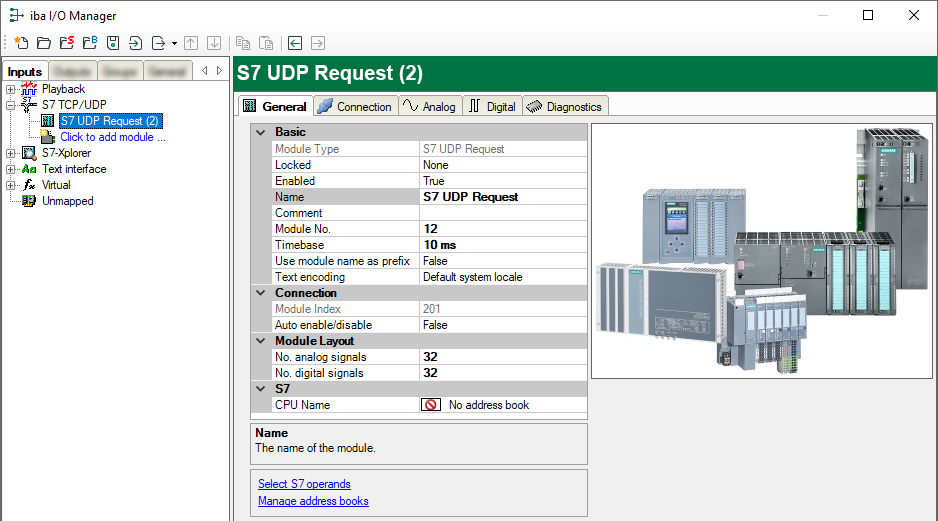
Basic settings
Module Type (information only)
Indicates the type of the current module.
Locked
You can lock a module to avoid unintentional or unauthorized changing of the module settings.
Enabled
Enable the module to record signals.
Name
You can enter a name for the module here.
Comment
You can enter a comment or description of the module here. This will be displayed as a tooltip in the signal tree.
Module No.
This internal reference number of the module determines the order of the modules in the signal tree of ibaPDA client and ibaAnalyzer.
Timebase
All signals of the module are sampled on this timebase.
Use module name as prefix
This option puts the module name in front of the signal names.
Text encoding
You can select the type of text encoding or the code page here for a correct interpretation and display of the received text data for inputs as well as of the text data to be sent for outputs. Available for selection are, beside system locale according to the Windows system settings (default) and UTF-8 Unicode, all other encodings.
Connection
Module index (information only)
Internal reference number of the module.
Auto enable/disable
If TRUE, the acquisition is started, even if no connection can be established to the S7-CPU. The module is deactivated. During the acquisition, ibaPDA tries to reconnect to the S7-CPU. When it succeeds, the acquisition is restarted with this module enabled. If FALSE, the acquisition is not started, if a connection to the configured S7-CPU cannot be established.
Module Layout
No of analog signals/digital signals
Define the number of configurable analog and digital signals in the signal tables. The default value is 32 for each. The maximum value is 1024. The signal tables are adjusted accordingly.
S7
CPU Name
Select the S7-CPU that is connected to this module. When selecting a S7-CPU (incl. the address book), you can select the signals symbolically. Otherwise, you select the signals via the S7 operand.
This requires that address books have already been generated. Otherwise, the selection list is empty. Using Create address book in the selection list, you get directly to the address book generator, see Creating address books offline from S7 project.