The signals you want to acquire are selected in the I/O Manager. You have multiple options to specify the variables to be acquired:
-
Enter the required parameters directly in the analog or digital signal grid or select them via a drop-down menu.
An NCK variable is determined by 5 parameters, which are shown in both the analog and the digital signal grids: Area, Area Number, Module, Column and Row. Each analog variable also has a data type, which is determined by the NCK.

-
Open the NC-Var Selector file via the corresponding link in the General tab. This link opens the file browser, in which you can select a variable file (*.var). All variables contained in the VAR file are added. You can create VAR files with the NC-VAR-Selector. The NC-VAR-Selector program is bundled with the Siemens SINUMERIK Toolbox for both STEP 7 and TIA Portal.
-
Reading GUD variables and R parameters, description see chapter Reading GUD variables and R parameters.
-
Use the SINUMERIK symbol browser, see description below.
If the option Dynamic addressing is enabled in the General tab, two additional columns are added to the signal grids: Row Source and Col Source, see description below.
Opening SINUMERIK symbol browser
You have two options to open the SINUMERIK Symbol browser:
-
In the module's General tab, click on the Select symbols link.

The symbol browser opens.
In the symbol browser, you can select all symbols of the address book. ibaPDA enters the selected signals automatically in the appropriate table Analog or Digital. You can add several signals successively.
-
On the Analog or Digital tab, click in a cell of the Symbol column.
The button <…> appears. Click this button to open the symbol browser.
In the symbol browser, you can only select symbols with the data type matching the table. ibaPDA enters the symbol in the previously selected row of the signal table. After every selection, the symbol browser closes.
Using the symbol browser
All available signals are displayed on the tabs:
-
NcData (NCK variables)
-
Sinamics Servo (drive variables from the Integrated SINAMICS in an NCU)
-
GUD (signals configured on the controller)
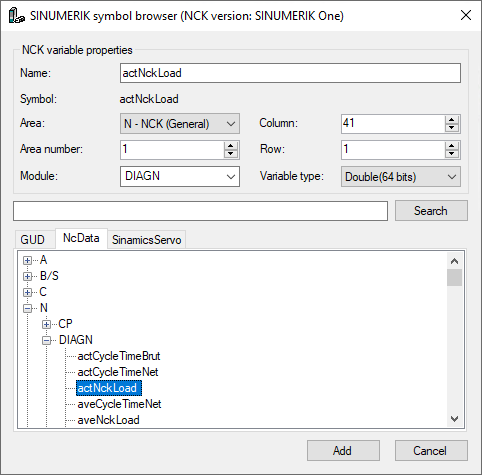
Variables with Bool data type are digital signals, others are analog. If you want a digital signal to be shown in the analog tab, you can change its data type to char or byte.
Note |
|
|---|---|
 |
If you use NCK variables and drive variables at the same time, the update time will be longer. |
<Search>
By means of the Search tab, you can search for symbols with their name. The tree with the search results works exactly the way as the whole symbol tree.
Hide symbols with an unsupported data type
If you activate this option, you hide all data types that are not supported.
Other documentation |
|
|---|---|
 |
You can find information about the available signals in the Siemens list manual SINUMERIK 840D sl, NC variables and interface signals. |
Dynamic addressing
If the option Dynamic addressing is enabled in the General tab, two additional columns are added to the signal grids: Row Source and Col Source.
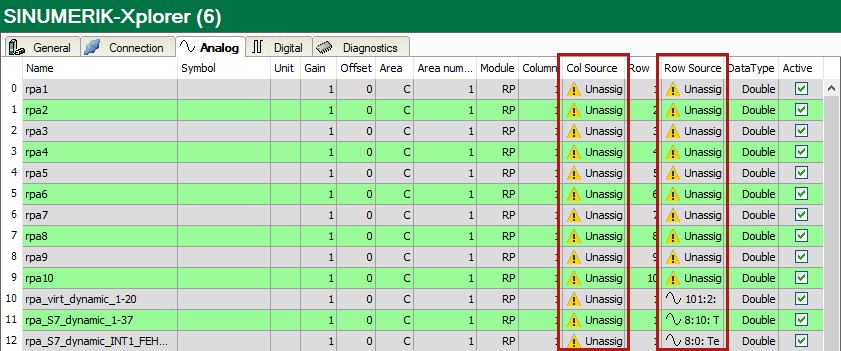
Open the drop-down menu and select a reference signal in the respective field. The value of this signal is then used as row number or column number.
If you do not want to use this feature in a signal, leave it "Unassigned".
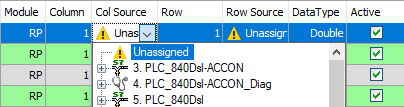
During validation, ibaPDA uses the values in the columns Column and Row. During acquisition, ibaPDA uses the values in the columns Col Source and Row Source. If there is an invalid value in the selected reference signal, ibaPDA uses the last valid value.
The data types of these values must be known and always the same. You can only use reference signals from the same module.