This mode activates a connection over the interface cards of the computer that are configured using SIMATIC Net.
The interfaces configured in SIMATIC Net can be used, for example:
-
PROFIBUS (CP5611, CP5622)
Note |
|
|---|---|
 |
If you want to use this connection type, the Siemens software SIMATIC Net (e.g. SIMATIC Manager or Softnet) has to be installed. When using the modules CP55…, CP56… and the MPI adapter, the installation of the device drivers is sufficient. |
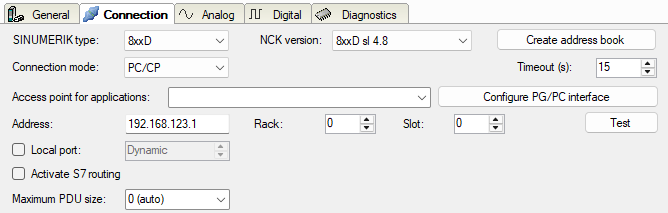
SINUMERIK type
Select the device type. All controllers that are not SINUMERIK One are grouped as 8xxD.
NCK version
Select the version of the NCK software. You can find it on the flash drive in the SINUMERIK controller, also referred to as the firmware version of the NCU. The version specifies the symbols in the symbol browser that are documented to work with the selected firmware. You can select the version via the drop-down list.
How to determine the NCK version is described in chapter NCK version.
For SINUMERIK One, there is only one option currently.
Connection mode
Selection of the PC/CP connection mode
Timeout
Specify a value for the timeout in seconds for establishing the connection and for read access. If the time set here is exceeded, ibaPDA declares the controller as not accessible or not responsive.
Access point for applications
Selection of the access point to be used
For more information on creating and configuring an access point, see Setting PG/PC interface/defining new access point.

Note |
|
|---|---|
|
Configure available access points in SIMATIC Net with the "PG/PC interface settings" tool by Siemens. For the connection of ibaPDA-Interface-SINUMERIK-Xplorer to SIMATIC S7 via PC/CP connections, iba generally recommends setting a specific access point for ibaPDA when ibaPDA-Interface-SINUMERIK-Xplorer and SIMATIC Manager run on the same computer. With an own access point, there is no longer the risk that the access for ibaPDA-Interface-SINUMERIK-Xplorer will be disturbed in case the standard access point is changed in the SIMATIC Manager. |
<Configure PG/PC interface>
This button opens the dialog box for setting the PG/PC interface of SIMATIC STEP 7.
Address
IP address of the NCK
Port
Number of destination port on the NCK
Note |
|
|---|---|
|
For the communication with the CPU, the port that is specified here must be allowed in the target system. If data traffic passes through an external firewall, you must also allow the specified port in this firewall. |
Rack
Rack number of the NCK
Slot
Slot number of the NCK in the rack
Local port
By default, Windows assigns the local TCP port for S7 connections dynamically. Here, you can specify a static port if required.
Activate S7 routing
Activate this option if the NCK and the ibaPDA computer are not in the same network, but only communicate over a gateway that supports S7 routing. Such a gateway can be e.g. an IE/PB link, over which the NCK can be reached without an Ethernet connection.
Two additional input fields appear:
-
Address of device acting as gateway: Enter the IP address of the gateway.
-
S7 subnet ID of target net: Enter subnet ID from STEP 7 NetPro or TIA Portal.
For more information on S7 routing, see S7 routing.
Maximum PDU size
You can limit the PDU (packet data unit) to a maximum size. You can select a value from the drop-down list or enter a value. If the value "0" (default setting) is set, ibaPDA automatically identifies the PDU size by the network protocol.
<Create address book>
You can use this button to create an address book containing GUD variables and firmware symbols that have been configured directly on the connected controller. In addition to the NC variables and drive variables, the GUD variables are then also available in the symbol browser.
<Test>
ibaPDA tests the connection to the NCK and displays available diagnostic data.