In the Connection tab, configure the relevant settings to establish a connection.

Connection
Broker address
Enter the address of the broker here. The address can be an IP address, hostname or URL.
Port
Port to use for the connection. The standard MQTT port is 1883, or 8883 when using SSL.
Client ID
When connecting to a broker, each client must choose a unique name that is used only once for this broker. The ID is automatically filled in with ibaPDAMQTT followed by the module number.
Base Topic Path
This path is added in front of each registered topic (optional setting). The topic configuration can be made easier if all topics reside within a common path.
Note: Do not use a leading forward slash “/” in a topic, because this would add an empty path entry to the topic. Two separators next to each other (“//”) are also not allowed.
Persistent session
If the client is disconnected, it receives the last values sent to the broker when reconnecting with the same Client ID as before. For this, the QoS must be set to “Exactly once” or “At least once” not only for ibaPDA, but also for the sender who delivers the values to the broker.
Keep Alive
The time for sending a Keep Alive telegram to the broker to make sure the connection still is online.
max. QoS
The Quality of Service used when registering to a topic on the broker. Possible values are:

-
At most once (messages can be dropped)
-
At least once (messages are repeated if an acknowledgement is not sent within a certain time)
-
Exactly once (a secured handshake protocol for each message sent)
MQTT version
Select the used MQTT version
Use alias (only available for MQTT version 5.x)
Negotiation of an alias number for each topic between broker and client for the sake of a better bandwidth utilization.
Session expiration (only available for MQTT version 5.x)
Time limitation of client sessions after the connection to the server got lost.
Receive maximum (only available for MQTT version 5.x)
Adjustable property "Receive Maximum” for a stable and efficient connection between broker and client.
<Test Connection>
When clicking the <Test Connection> button, ibaPDA will try to establish a connection to the MQTT broker, using the selected security settings.
Security options
Authentication mode
The following are available:
-
None: without authentication
-
Login: Enter the user name and password as login when connecting to the broker. This option has to be configured accordingly on the broker, otherwise the connection will fail.
-
Certificate: The certificates that can be used are available for selection in the dropdown menu.
In addition more options can be selected:
-
-
No certificate: no certificate is used. However, this usually causes the validation to fail.
-
Manage certificates: opens the central certificate store, where certificates can be managed centrally in ibaPDA
-
Create new certificate: ibaPDA creates a new self-signed certificate. Enter the necessary settings in the following dialog, see below. When the certificate is successfully generated, the new certificate is selected.
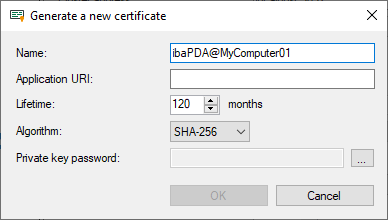
Enter a name for the certificate. You can change the default name.
Entering an Application URI is optional. Set the lifetime and select the algorithm. Available for selection are SHA-256 and SHA-1.
To enter the password for the private key, click the <...> button. For security reasons, you must enter the password twice in the following dialog. A password must be assigned, otherwise an error message appears. The password can be assigned arbitrarily, it does not have to meet any other requirements.
-

Use SSL connection
Use SSL instead of plain TCP connection. This option has to be configured accordingly on the broker, otherwise the connection will fail.
Last Will
Enable Last Will
If enabled, the absence of this client is announced to other clients, if the connection breaks without regular disconnect.
Topic
Enter a path to the topic used for the last will message. The base topic path is not applied to this topic.
Message
Enter a message which should be sent in the text field.
Retain
If enabled, the message in this topic is stored on the broker until it is overwritten.
QoS
The Quality of Service used for sending the last will message to other clients. The settings are identical to the settings above.
Connect Message
Connect Message has the same options as the Last Will, but the Connect Messages are sent on a regular connect or disconnect.