The following settings are required for the Kafka type:
<Test connection>
Click on the button <Test connection> to verify if ibaPDA can establish a connection to your Kafka cluster using the cluster address.
Cluster address
Enter the host name and port of one of the brokers in the Kafka cluster here. In case you want to address multiple brokers at the same time, separate the single entries by commas (e.g. 'hostname1:9092, hostname2:9092, hostname3:9092').
Cluster connection security
Different encryption and authentication methods are supported. Depending on the selected option, further entries are required.
-
PLAINTEXT
Data is exchanged in plain text, no further entries
-
SSL
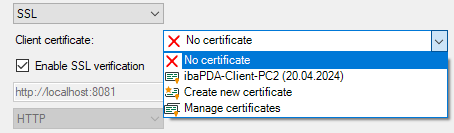
The SSL communication requires certificates. You can store and manage certificates in the central certificate store in ibaPDA . Detailed information about the certificate store can be found in the ibaPDA manual.
The certificates that can be used are available for selection in the Client certificate drop-down menu. In addition, more options can be selected.
-
-
No certificate: No certificate is used. However, this usually causes the validation to fail.
-
Manage certificates: Opens the central certificate store, where certificates can be managed centrally in ibaPDA .
-
Create new certificate: ibaPDA creates a new self-signed certificate. Enter the necessary settings in the opening dialog. When the certificate is successfully created, the new certificate is selected.
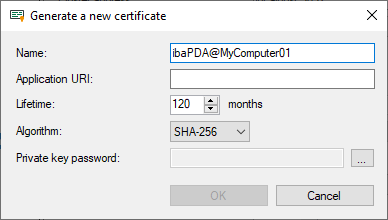
Enter a name for the certificate. You can change the default name.
Entering an Application URI is optional. Set the lifetime and select the algorithm. Available for selection are SHA-256, SHA-384 and SHA-512.
You have to assign a password in order to create a certificate. To enter the password for the private key, click the <…> button. For security reasons, you must enter the password twice in the following dialog. The password can be assigned arbitrarily, it does not have to meet any other requirements.
-
Enable SSL verification
If you enable the SSL verification, the certificate of the Kafka server is verified automatically. Among the certificates in ibaPDA , the issuer certificate with which the Kafka server certificate was signed must be available.
Note |
|
|---|---|
 |
Using chained SSL certificates In ibaPDA , you can also import chained certificates. When importing (e.g. PEM file or PFX file), the chained certificates are splitted into single certificates. After the import of a chained certificate, there are therefore several individual entries under the certificates. If the Kafka server certificate was signed using a chain of issuer certificates and you want to use the SSL verification at the same time, the configuration of the keystore in the Kafka server is important: If the keystore also contains the complete chain of issuer certificates in addition to the Kafka server certificate, then only the certificate of the root CA must be available in ibaPDA . If the keystore contains only the Kafka server certificate, then in ibaPDA the complete chain of issuer certificates must be available, so that the verification is possible. |
-
SASL/PLAINTEXT

First of all, select the SASL authentication mechanism:
-
-
PLAIN (all data is exchanged in plain text)
-
SCRAM-SHA-256
-
SCRAM-SHA-512
-
Enter the username and the password in the corresponding fields for logging in to the Kafka cluster.
-
SASL/SSL

As with SASL/PLAINTEXT, select the SASL mechanism and enter the username and password. The certificates that can be used are available for selection in the Client certificate drop-down menu.
For the activation and use of the SSL verification, the instructions from the section on cluster connection security with SSL.
Schema registry address
Enable this option if a schema registry is used in the Kafka cluster. Enter the host name and port of the schema registry. Depending on the connection security used, the address must start with "http://" or "https://". By default, this option is disabled.
Schema registry connection security
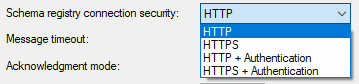
ibaPDA supports different methods for connection security. Depending on the selected option, further entries are required.
-
HTTP
No further entry required
-
HTTPS

The HTTPS communication requires certificates. The certificates that can be used are available for selection in the Client certificate drop-down menu.
The selection of a certificate is done as described above in the description for cluster connection security with SSL.
-
HTTP + Authentication

This method requires the input of username and password.
-
HTTPS + Authentication

Like HTTPS, additionally the input of username and password is required.
Message timeout
Time in seconds that ibaPDA waits for a response from the Kafka cluster. The value corresponds to the parameter message.timeout.ms in the library librdkafka.
Acknowledgment mode
-
None: Data messages are sent as a continuous stream, but without confirmation of whether the Leader received them or not. This is the fastest mode, but it is not guaranteed that the broker has acquired the data.
-
Leader: ibaPDA waits until the topic leader confirms the acquisition of the sent data. If the leader malfunctions after sending the confirmation and before the followers have replicated the dataset, the data is lost.
-
All: ibaPDA does not send new data until the topic leader and the followers have confirmed the respective recording of the data.
The value corresponds to the parameter acks in the library librdkafka.
Message Batching Time
Time in milliseconds that ibaPDA waits to send messages. If the value is 0, messages are sent as quickly as possible to the Kafka cluster. If the value is set to 100 ms, for example, packets with buffered messages are sent every 100 ms. This increases the latency time, but reduces the processing effort both on the ibaPDA side and on the cluster side.
The value corresponds to the parameterlinger.ms in the library librdkafka.
Additional parameters
You can configure additional parameters of the librdkafka library.

Parameters that have already been created are listed in the list with the name and value. Next to the list, there are buttons with the following features:
 |
Add parameters Enter the name and a value in the fields Parameter and Value. |
 |
Delete selected parameters |
 |
Import parameters You can import parameters as CSV files by selecting the CSV file in the file browser. |
 |
Export parameters You can export to a CSV file. Enter a file name and select a folder. |
Note |
|
|---|---|
|
Configured parameters in the list always have priority and overrule other settings. The documentation of the parameters available in the librdkafka library can be found at: https://github.com/edenhill/librdkafka/blob/master/CONFIGURATION.md |