In addition to users, groups can be created and assigned different permissions. If a user is member of a group, it gets the permissions of that group. If a user belongs to multiple user groups, the sum of all user group permissions applies to the user. If a user has more granted permissions than the user group, the user keeps its permissions.
The applicable permissions for the currently selected user, i.e., the user rights and group permissions, are shown as Effective permissions.
After the first installation, the "Administrators" group is available. This group has all permissions. You cannot disable the permission to change your own password for the "Administrators" group, because members of this group always have the right to change their own password.
Creating local groups
-
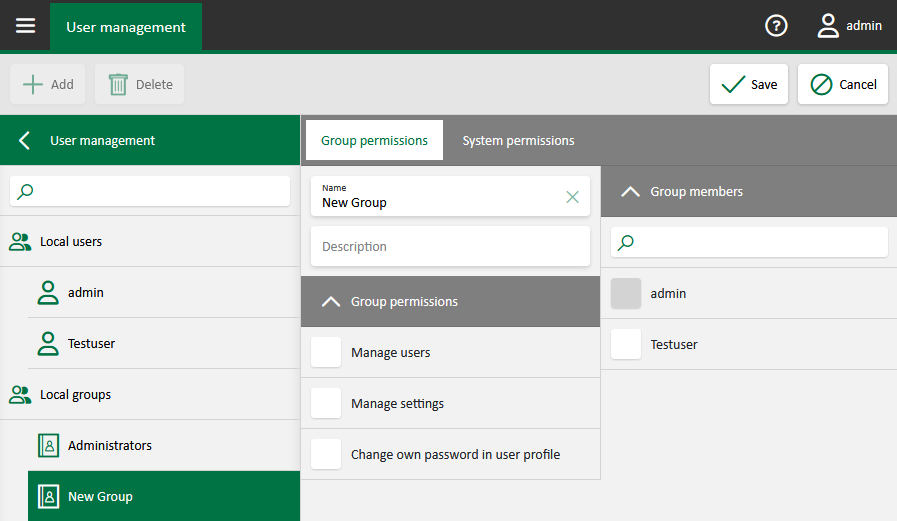
Create a new local group via the <Add> button and select <Add Local Group>.
-
Enter the group name and an optional description in the input fields.
Note

You can freely assign group names and descriptions.
-
Save your entries.

You can edit the group name and the description by clicking in the corresponding field and changing the entry.
Use the <Delete> button to delete the selected group/domain group.
Creating domain groups
-
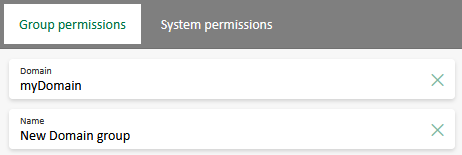
Create a new domain group via the <Add> button and select <Add Domain Group>.
-
Enter the group name in the input fields.
For domain groups, you additionally have to enter the domain name.
-
Save your entries.

In case the specified group is not in the domain, an error message appears.
Assigning permissions
You can assign different permissions to a group. The rights of the currently selected group are selected and listed in the Group permissions sub-tab.
Enable or disable the desired permissions for a group.
|
Option |
Description |
|---|---|
|
Manage users |
Allows you to create, change and delete users and user groups |
|
Manage settings |
Enables access to the Settings menu and thus to Systems configuration |
|
Change own password in user profile |
The permission to change the user's own password is enabled by default for all users, i.e., the checkmark is set. If users or groups are not allowed to change their own password, disable this permission. |
In the System permissions sub-tab, you can also assign system permissions to groups. For more details, see System permissions.
Adding users
Local users can only be assigned to local groups. For domain users, the group membership is fixed. If a domain group has been integrated and the individually created user belongs to this group, only this group affiliation is displayed; it cannot be changed (except for the IT domain management).
There are two ways to add users to a group.
-
The Group members sub-tab lists all users who can belong to the group. Members of the currently selected group are indicated via a checkmark.
Enable or disable the desired users per group.
-
The group membership of a user can also be set in their user profile, in User permissions under Group memberships, see Creating and managing users.