Systems on which you have installed the agent application of ibaManagementStudio can be added, edited, deleted or grouped under Settings – Systems configuration.

The table shows the following information:
|
ID |
internal ID of ibaManagementStudio |
|
Name |
Name of the connected system |
|
Alias |
changeable display name of the connected system |
|
Description |
Entered description |
|
Connection mode |
Connection mode of server and agent |
|
Host |
Agent host address |
|
Port |
Agent port number |
|
Access password |
Shows whether a password is set in ibaManagementStudio Agent Status |
|
Remote actions enabled |
Shows whether remote updates are allowed on this system |
You can sort the table in ascending or descending order by clicking on a column header.
Using the filter button, you can filter the table entries.
Information on Multicast
The UDP port 10517 is only required if you want to use the agent search from the ibaManagementStudio Server. If a multicast is not possible (e.g. with strict separation of OT and IT), the port is not required.
Adding a system
You can only add systems on which you have installed the ibaManagementStudio agent application.
We recommend manually adding systems with an agent-initiated connection. The server does not always find these systems automatically.
-
Click on <Add>.
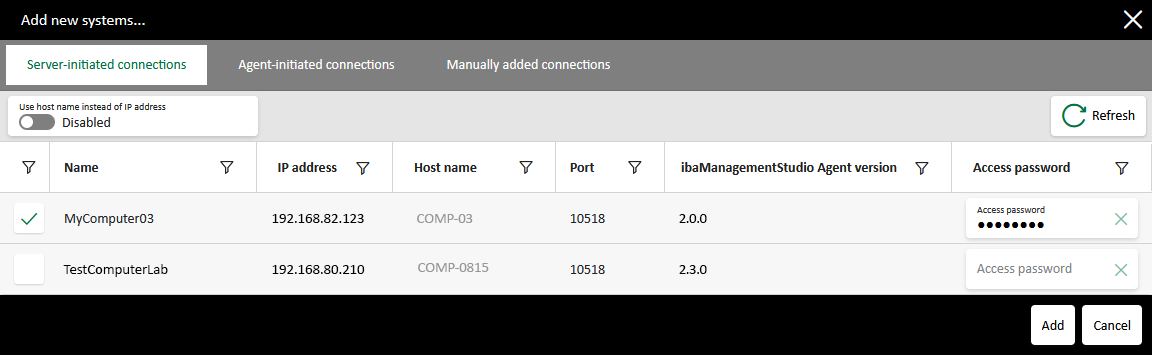
ibaManagementStudio searches for all reachable agents in the selected communication mode and lists these systems in a dialog window.
-
In the newly opened window, select the Server-initiated connections or Agent-initiated connections tab.
-
Select one or more systems.
Optional for Server-initiated connections: In the line of the newly added system, in the Access password field, enter the password that you have assigned in ibaManagementStudio Agent Status, see Settings in ibaManagementStudio Agent Status.
Optional for server-initiated connections: Select whether to save the new system with the IP address or the host name. If the IP address is not static, it is recommended to use the host name.
-
Click on <Add>.
The new system is now added to the system list.
-
Save the changes.
ibaManagementStudio then confirms the change and the system is successfully added.

Adding a system manually
If the desired system was not found during the automatic search of ibaManagementStudio, you can add the system manually.
-
Click on <Add>.
-
In the newly opened window, select the Manually added connections tab.
-
Specify the host name, port number and, if necessary, the password of the desired system and click the <+> button.
-
Select one or more systems and click on <Add>.
The new system is now added to the system list.
-
Save the changes.
ibaManagementStudio then confirms the change and the system is successfully added.
Editing systems
You can edit added systems afterwards, e.g. replace the system with another one or add a description.
Select a system and click on <Edit>. In the dialog, you can change the following: Alias, description, host name, port number, access password, permission for remote actions.
Note |
|
|---|---|
 |
You can always update the ibaManagementStudio Agent via the web client – even if you did not enable remote actions for the system. |
Click on <Reset> in the dialog to reset the settings made as well as the selection to replace a system.
Click on <Apply> in the dialog to confirm the changes for the system.
To finally apply the changes for all systems, click <Save> on the Systems configuration page.
Note |
|
|---|---|
|
If you want to change the connection mode of the system, you have to open ibaManagementStudio Agent status locally on the respective computer and make the change there, see Settings in ibaManagementStudio Agent Status. After that, you can replace the original system with the system that has the new connection mode. |
Replacing a system
Via the Edit system dialog, you can also replace the system. In doing so, ibaManagementStudio transfers the user permissions for the original system to the new system.
The Replace with area displays systems that you can use to replace the existing system.
If you click on a system in the Replace with area, the fields in the Settings area show the information on the new system.
Optional for server-initiated connections: Select whether to save the new system with the IP address or the host name. If the IP address is not static, it is recommended to use the host name.
Deleting a system
Remove a selected agent system with <Delete>.
The system is then deleted from the system management and folder structures.