Proceed as follows to generate a new certificate.
Note |
|
|---|---|
 |
When you generate a certificate in ibaHD-Server, the "Is CA" attribute in the certificate is set to "True" by default. However, some TLS implementations do not accept this setting, which can lead to problems when using the certificates. iba recommends using your own certificates that comply with the standards and requirements of your local IT policies. |
-
Click the
 button.
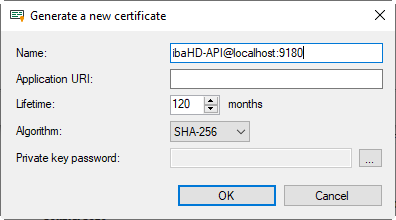
The following dialog opens.
-
Enter a name of your choice for the certificate or use the default name.
-
If required, enter an Application URI.
The URI (Uniform Resource Identifier) is a global unique identifier for the application. If you do not fill in this field, a standard URI will be generated, provided, that the OPC UA client verifies an Application URI which is made up of the machine name and application name:
urn:machinename:applicationName -
Define the desired validity period (lifetime) for your certificate.
-
Select the desired hash algorithm for the encryption.
You have the choice between the algorithms SHA-256, SHA-384 and SHA-512. Make sure that the other communication partners support the selected algorithm too.
-
Define a password for the private key.
If no password has been entered, the <OK> button remains inactive. To assign the password, click the <...> button and enter the password twice and confirm with <OK>. There are no special requirements for the password. Keep the password in a safe place so that the self-generated certificate can be exported and used for Windows or other applications.
-
Exit the dialog with <OK>.

You can now use the certificate you have just created as an API communication certificate.