The time period table can be used to display different time periods from multiple
time period stores in an ibaHD Server. A time period table is opened in the ibaPDA client by clicking on the  icon in the toolbar.


Select the time period store you want to display. There are various options for doing this:
-
Open the tree structure using the
 button in the toolbar. Select the time period store you want to display.
 -
Use drag & drop to drag a time period store from the HD signal tree to the table.
-
Select the time period store in the context menu of the time period table.
The toolbar for the time periods table contains the following controls:
 |
Starts the live display of the time periods. |
 |
Stops the live display of the time periods (pause). It is now possible to mark individual lines in the table. |
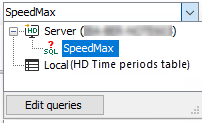 |
Drop-down list for selection of time period query. If you open the drop-down list you can see all available queries and select the one you want. A mouse click on the button <Edit queries> opens the editor for creating time period queries. |
 |
Carries out the SQL-query which has been selected in the drop-down list. If the query takes some time, a progress bar will be displayed in the status bar at the bottom of the table. Furthermore, there will be a link which you can use to abort the query in case it takes too long. |
 |
Refreshes the display according to the executed query. |
 |
Show/hide signal tree |
 |
Highlights automatically the most recently added line. |
 |
Copy the time periods which are selected in the table to the clipboard. Only possible in pause mode. |
 |
Exports the time periods which are selected in the table to an Excel or text file. Only possible in pause mode. |
In live mode, new rows are added when new time periods are created. The rows are updated when the end time or other info fields are updated.
Status bar
The status bar is at the lower edge of the table. It provides information about SQL queries carried out (e.g. status of the running query, number of results, error messages) and whether a filter is currently active.
Sorting
The table can be sorted in ascending or descending order of any column. Click on the header of the column which you want to use as the sorting criterion. The arrow shown (down or up) indicates the sort order (descending or ascending). The default setting is descending order of the Start time column, which means that the most recent time period is at the top.
Show/hide columns
If you right-click on the table, you can select the visible columns or hide columns in the pop-up menu.

In the upper section of the pop-up menu, you can select the standard columns, and in the lower section the columns for the info fields. The info field columns that appear in the pop-up menu can be configured in the properties of the time periods table, see next section.
Filter line
The upper row in the time period table is for filtering the table. A detailed description of the filter functions can be found in the appendix, chapter Advanced filter in tables
Open time periods ibaAnalyzer
Selected time periods can be opened directly in ibaAnalyzer . To do this, select a row in the time period table and select the Open in ibaAnalyzer command from the context menu. The info fields of the time period are displayed and the name of the time period is used as the file name.

Prerequisite is ibaAnalyzer version 8.1 or higher. If an older version of ibaAnalyzer is installed, the time period is opened but no info fields are displayed. The name of the file only contains the start and end time, but not the name of the time period. If a time period without an end time is opened in ibaAnalyzer, the current time is used as the end time.
If the time-period table is in pause mode, you can select several rows. Each line is then opened as a separate file in ibaAnalyzer .