In the following, you will learn how to migrate HD stores from one HD server to another HD server. The migration is started and executed on the destination HD server, while the source HD server is controlled remotely.
To avoid data loss during the migration, stop the ibaPDA data recording that writes to the store to be migrated.
Prerequisites:
-
ibaHD-Server has version 3.6.0 or higher on both the source computer and the destination computer.
-
Sufficient storage space is available on the destination HD server for the HD stores.
Procedure:
-
Select ibaHD Manager – Import tab – <Import HD stores>.

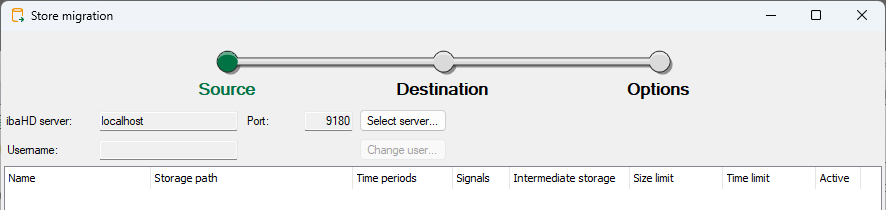
The import wizard opens and shows the settings for the Source.
-
To select the source HD server, click on <Select server>.
The server selection dialog opens.
-
Select the desired HD server and confirm with <OK>.
The available time-based HD stores of the source HD server are displayed in the table.
-
Select the HD store you want to display.
-
To continue, click on <Next>.
The settings for the Destination are displayed.
-
Make the settings for the destination HD server, see HD store migration – Destination settings.
-
To continue, click on <Next>.
The configuration is validated and the result is displayed in a window.
-
In the event that connection problems occur during the migration, optionally enter the maximum number of transfer attempts per file.
-
To start the migration, click <OK>.
A dialog shows the progress of the import.
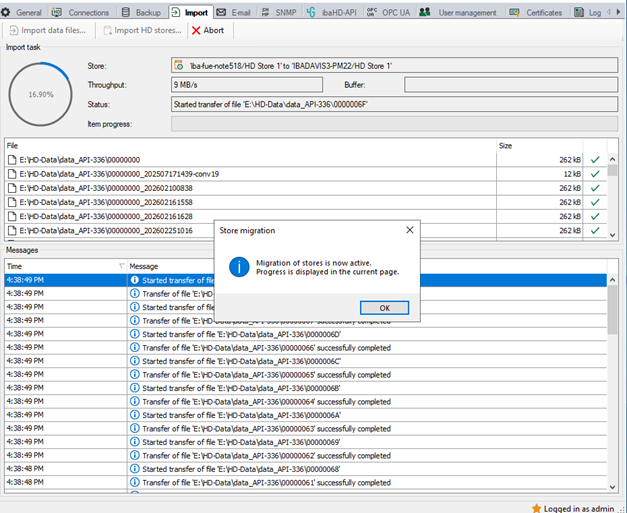
During the migration, the ibaPDA server cannot write any data to the source HD store. The store on the source HD server is deactivated.
All data in the HD store is transferred during migration. An intermediate store configured on the source side is migrated to the main store before the migration.
After successful migration, you will find the HD store and associated data under the configured and available stores on your computer, see HD stores.
-
Finally, adjust the configuration in ibaPDA and establish a connection to the new HD server there, see Select ibaHD-Server and HD store.


