In the ibaHD Manager, select the Backup tab – follow-up tab Restore, button <Restore backups…>.

In the Configure restore task dialog, make the necessary settings.
Path, user name, password
Enter the path of the backup file to be restored or select it using the browser. If necessary (network drive), specify a user name and password.
Use the <Test> button to check whether the file path is reachable.
Destination
Select in which store(s) the backup is to be restored.
-
Restore to the selected store
With this selection, you can specifically select an existing store in the field to the right.
-
Restore to its original store
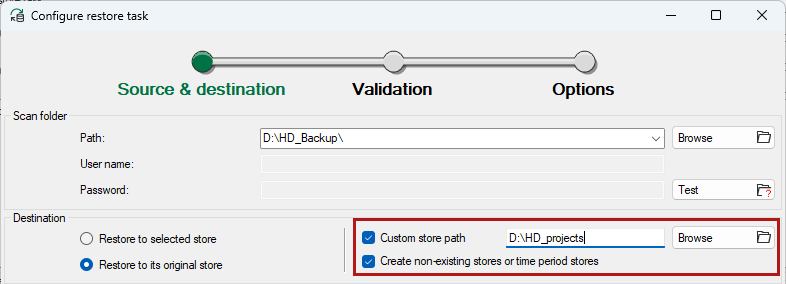
This option is preferred if several stores are contained in one backup. The information about the original store is included in every backup. If the folders contained in the backup do not exist on the ibaHD-Server, you can ensure their automatic creation during the restore by activating the option Create non-existing stores or time period stores. In the Custom store path field, you can select the path in which the store is created. The field only appears if the option Create non-existing stores or time period stores is activated.
Search results and search filter
Click the <Search> button to start the search for available backups.
In the Scan results table, the backups are listed that exist in the set file path and that correspond to the criteria set under the scan filter.
If you have selected a certain store under the destination, then you can disable the option Only show scan that originate from destination store. This option is enabled by default in order to list the backups matching the target.
If you have selected the restoration in the original stores under Destination, then this option is also enabled.
If many backups are contained in the source directory, the restriction of the time period in the overview helps.
If backups in the search results are not to be restored, remove the check mark in the column Restore.
Click on the <Next> button to go to the next step.