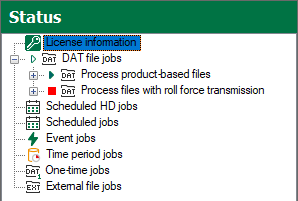
The Status view displays license information for ibaDatCoordinator as well as the current status of the configured jobs and tasks.
License information
If you select the License information node, you will receive details on the licenses used and the available license containers.
The Used licenses tab shows all tasks and the licenses required for them. In addition, information about the associated job, license, and license container is displayed for each task.
Tasks that do not require a license can be hidden above the table with the option Show only tasks that require a license. You can also group the tasks by job or container, for example. To do this, drag and drop the desired column header into the gray area above the table.
The License containers tab shows the license containers available on the server. The ID, the host and a list of the available ibaDatCoordinator and ibaAnalyzer licenses are displayed for each container.
For further information see Licenses.
Job status
The icons next to the configured jobs in the tree indicate the status of each running job:
 |
Job is running/all jobs of the job type are running |
 |
Job is stopped/all jobs of the job type are stopped |
 |
The job type includes running and stopped jobs |
If you select a job in the tree, the processed data records, e.g. the tasks per DAT file, are displayed in a table.
The columns for the file name and the number of previous attempts are always visible. For each task configured in the job, an additional column with the respective task name as the title is displayed. You can hide a task column by unchecking the corresponding checkbox in the tree. The <Show all columns> and <Hide all columns> buttons are also available above the table.
The icons in the columns indicate the status of the respective tasks:
|
Empty |
The task has not yet been executed or has not been started due to a defined condition. |
|
Task icon |
The task is currently being executed. |
|
Task icon with a blue checkmark |
The task was successfully executed or the condition was TRUE. |
|
Task icon with a red cross |
The task could not be executed or the condition was FALSE. |
|
Task icon with “No access” |
The DAT file currently cannot be accessed. |

You can also see the following information on the condition task icon:
|
|
The task was executed successfully, the result is TRUE. |
|
|
The task was successfully executed, the result is FALSE. |
|
|
The task could not be executed. |


Above the table you will find the job name as a link that leads directly to the configuration of the respective job. Below the table, the status of the selected job is indicated.
You can sort and filter the columns in the table as usual. For example, you can filter the task status column to display only files for which the task failed, was processed successfully, caused a timeout, etc.
The context menu of the table contains the following commands:
Open in ibaAnalyzer
Opens the processed file with ibaAnalyzer for further analysis.
This command is only available if the file can be found in its original location.
Open in ibaAnalyzer with PDO
Opens the processed file with ibaAnalyzer; in addition, the analysis file configured for the task is loaded. The PDO file offered depends on the column you click on.
Show full path
When enabled, the full path is displayed for all files shown in the table. Otherwise, only the file name will be displayed.
Clear filters
Resets active filters in the table.
Records with persistent errors are added to the Persistently failed DAT files list and displayed below the job in the tree. This list is only created if the Retry failed operations maximum option is enabled in the job configuration window and the set number of repetitions has been exceeded, see also DAT file job – settings.
In addition to the normal status view, you have the option of selecting one or more files and deleting or reprocessing them.
 Deleting files that show a constant failure.
 Cleaning up the files that show a constant failure.
