In the Configuration tab, activate the OPC UA function and define login rules, security rules, and endpoints for communication.

Enabled
Check this box to enable the OPC UA server function.
OPC UA server certificates
Select the certificate that the OPC UA server should use.
If you have not yet generated or imported a certificate, you can do so by selecting Create new certificate or Manage certificates from the list. You will then be routed to the central certificate store.
The handling of certificates is described in chapter Settings – Certificates
Login policies
At least one of the following login rules should be applied:
Anonymous
If this option is enabled, clients can log on to the OPC UA server without login credentials (user/password).
User name/password
If this option is enabled, clients can only log in if they can authenticate themselves by entering their user name and password in the dialog.
The <...> button is used to change the password.
Certificate
If this option is enabled, clients can log in if they can authenticate themselves by using a trusted certificate.
Security policies
At least one of the options must be enabled.
If you enable the option None, then connections without encryption are also supported.
For each of the other options or encryption types, you can select a security rule with signature and/or encryption:
-
Sign
-
Sign & Encrypt
-
Sign + Sign & Encrypt
Note |
|
|---|---|
 |
Basic128Rsa15 and Basic256 encryption are now obsolete. For security reasons, the use of Basic256Sha256, Aes128-Sha256-RsaOaep or Aes256-Sha256-RsaPss encryption is preferred. |
Endpoints
This area of the dialog lets you configure the local endpoints that the server will provide.
An endpoint is a combination of an IP address and a port number. Instead of entering a specific IP address, it is also possible to enter the computer name of the OPC UA server. This applies to all IP addresses of all network interfaces in the system. The URI (Uniform Resource Identifier) is formed from the IP address or computer name and the port number.

In the example above, OPC UA clients can connect to the OPC UA server from any network using port 48081 or 48082. In addition, clients can also connect to IP address 172.29.0.100 via port 49000.
The list of endpoints includes some controls:
|
Button |
Function |
|---|---|
|
|
Use this button to add a new endpoint. Initially, the new endpoint always has the same data as the local computer, which then needs to be edited. |
|
|
This button lets you duplicate the selected endpoint, which you can then edit. |
|
|
Use this button to delete the selected endpoint from the list. |


By default, the name of the local computer is already entered in the list.
If you click on an endpoint in the list, the button will appear. . Click on the button to edit the endpoint.
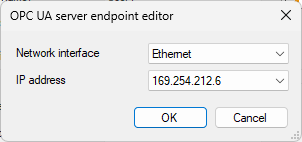
Select the desired network interface via which the OPC UA clients should communicate. The dropdown list shows all of the computer's available network interfaces with all IP addresses.
Click <OK> and the selected IP address will be displayed in the list.
Note |
|
|---|---|
|
Currently only IPv4 addresses are supported. |