In the Configuration tab, you can configure the settings for the events for the HD offline event task.
Trigger

Active
When enabled, the relevant event is written with the current task. When activated, the event icon turns yellow. The event is also automatically marked as active when you make changes to the event configuration. New events defined in the current task are automatically active.
Note |
|
|---|---|
 |
You can also modify the configuration of an existing event that was not originally written by the current task. The changes are saved on the ibaHD-Server and applied to all clients that use the event. If an ibaPDA client is currently writing the relevant event, the changes will only take effect after restarting the recording in the ibaPDA client. If you change event names, number fields, or text fields, the configuration will not be accepted after a simple restart, and you will be prompted to make the appropriate adjustments in the ibaPDA data recording configuration. Therefore, the urgent recommendation: Do not change the configuration of events written by other clients. This can result in incorrectly configured events or data loss! |
Generate one event occurrence per processed file
Select this option if you only want to enter the event once per task processing, i.e., per data file or HD query.
Event time
This allows you to determine the time stamp of the generated event. The selection list contains two predefined times, "Start time" and "End time," which refer to the start and end times of the data file or the HD query.
You also have the option of selecting an expression or an info field from the PDO file instead, which is used to determine the time. You can even enter an expression manually in the field. In any case, the expression must show the number of seconds since the start of the data file/HD query as a floating point value.
Please note that all signals are calculated at the specified time.
Recommendation: Use constant values when a specific value is to be written.
Generate one event per processed file
Choose this option if you want the event to be written multiple times depending on a trigger signal with reference to the loaded data file or HD query. In this case you also have to select an appropriate trigger pulse signal.
The trigger signal can be part of the measurement file, the HD query, or the analysis file. The signal can be a virtual signal, computed by ibaPDA or any other digital signal, e. g. from a PLC.
Non-constant numerical values are averaged over the duration for which the trigger signal is TRUE.
The event will be written with every falling edge of the trigger signal at the corresponding instant of time.
Example Limit violation
Configure a virtual signal in ibaPDA by an expression which compares a measured value and a limit value. If the measured value is higher than the limit, the pulse signal is TRUE, else it is FALSE. Make sure that the pulse signal is recorded in the data file.
If the limit has been exceeded several times over the time range of the data file or HD query, multiple rising edges are available in the data recording.
In the event configuration of the HD offline event task, select the virtual trigger signal from the signal tree of the data file. The next time the task is executed, the limit violations will be entered as events in the HD recording.
If you perform an HD query later with ibaAnalyzer you will find the event occurrences at the correct instants of time.
General
Name
Here you enter the name of the event. The event is displayed under this name in the left tree.
Priority
Here, you can select a priority for the event. The three priority groups High, Normal and Low are predefined in the drop-down list.
However, you can also add your own priority classes to the list by simply writing the desired plain text (e.g. "error", "warning", "information" into the field. After accepting the configuration, this priority class is also available in the drop-down list. There is no need to assign a priority to an event.
Comment 1 or comment 2
Just like for an analog or digital signal in the I/O Manager of the ibaPDA, you can enter every additional information in the fields Comment 1 and Comment 2.
URI
Here you can specify a URI that opens in the default browser as soon as the ibaPDA user clicks on the corresponding field in the event table.
Tip |
|
|---|---|
 |
You can also set or reset the property Active for a folder. Hereby, all events which are in the folder are activated or deactivated. |
Message
Here you can enter a message which will be put out while triggering the event.
The entered text can contain placeholders for numbers and texts which refer to analog/digital signals and text signals of the I/O manager. When configuring offline events with ibaDatCoordinator the placeholders can be used for numeric values or texts from a data file or HD query and from a PDO file. While triggering, these placeholders in the text of the message are filled dynamically with the current value of the signal or technostring.
How to define the placeholders is described under "Numeric fields" and "Text fields".
Numeric fields
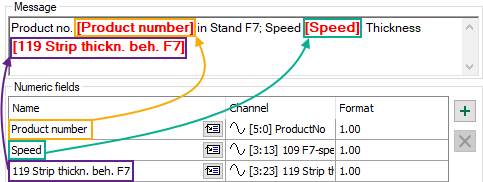
In the table, you can define up to eight placeholders for numbers which can be used in the message.
Column Name
Here, you enter an arbitrary name for the numeric field.
Column Channel
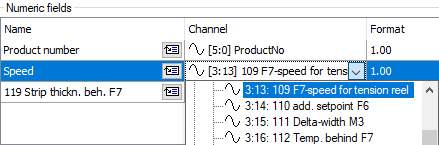 |
Here, you select the signal whose current value has to be entered into the message while triggering the event. |
Column Format
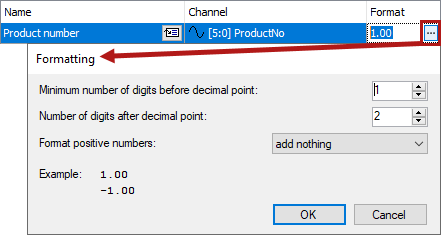 |
Clicking on the <…> button opens the window for entering the number format. Define the format which will be used to display the current value in the message here. |
You enter a placeholder for a numeric field in the message text by placing the cursor
on the right place in the message and by clicking on the icon  at the desired numeric field. The placeholder is automatically entered at the cursor
position (marked by square brackets and red bold printed text).
at the desired numeric field. The placeholder is automatically entered at the cursor
position (marked by square brackets and red bold printed text).
Text fields
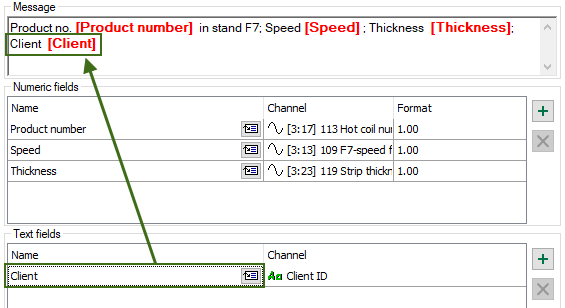
In the table, you can define up to eight placeholders for texts which can be used in the message.
Column Name
Here, you enter a random name for the text field.
Column Channel
Here, you select the text signal whose current value has to be entered into the message at the triggering of the event.

You enter a placeholder for a numeric field in the message text by placing the cursor
on the right place in the message and by clicking on the icon at the desired numeric field. The placeholder is automatically entered at the cursor
position (marked by square brackets and red bold printed text).
Note |
|
|---|---|
|
The signals for channels in the table for number or text fields can be selected via the drop-down menu and also via drag &drop from the signal tree displayed in the left-hand area of the configuration window. Thereby only the correct signal types in the correct tables are accepted (analog or digital signals for number fields, text signals for text fields). |
Note |
|
|---|---|
|
The names of the number and text fields for an event have to be unique! |
Note |
|
|---|---|
|
All used expressions need to be timebased! Lengthbased signals can be converted to timebased signals using the function ConvertBase ([lengthbased_expression],1,0). |
Additional text elements for HD offline events
When configuring HD offline events, additional elements are available in the "Channel" column.
Client ID
HD offline events can be generated from various sources and stored in the same event store. To make it easier to identify the origin of an event, i.e., its creator, in the event display later on, you can insert the client ID in the message text. The client ID is available as a text signal in the signal tree of the "Channel" column.


Name of the processed data file
The name of the processed data file is another piece of additional information that is available by default and can be inserted into the message as a text field. This will give you a reference to the data file that was used for the respective event.

Use of the data file name in the message:
