To start the ibaDatCoordinator client and connect to the correct server, proceed as follows.
Note |
|
|---|---|
 |
When installing ibaDatCoordinator as a standalone executable file, it is not necessary to establish a connection to a server. |
-
Open the ibaDatCoordinator client via the corresponding path in Windows or via the ibaDatCoordinator status app.
See ibaDatCoordinator Status app.
The client automatically attempts to connect to the last connected server. The currently connected server is displayed in the status bar of the application (bottom right).
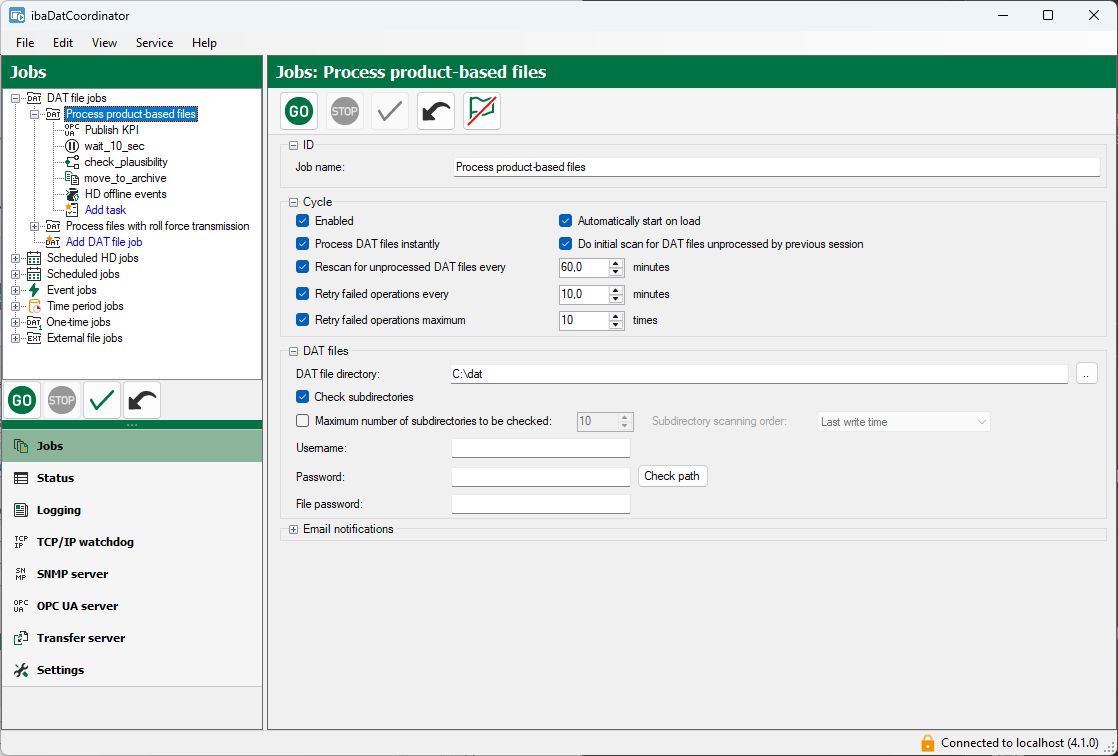
The color of the window title indicates the connection status to the server:
-
Green: The client is connected to the server and processing is active.
-
Orange: The client is connected to the server and is in read-only mode.
-
Red: The client is not connected to any server.
See User interface and configuration.
Note
Communication is normally encrypted. The configuration is only transferred unencrypted if the ibaDatCoordinator service version does not support this.
-
-
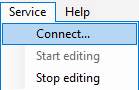
To connect the client to another server, in the menu click on the Service – Connect.
-
In the following dialog, select the server that is to be connected to the client.
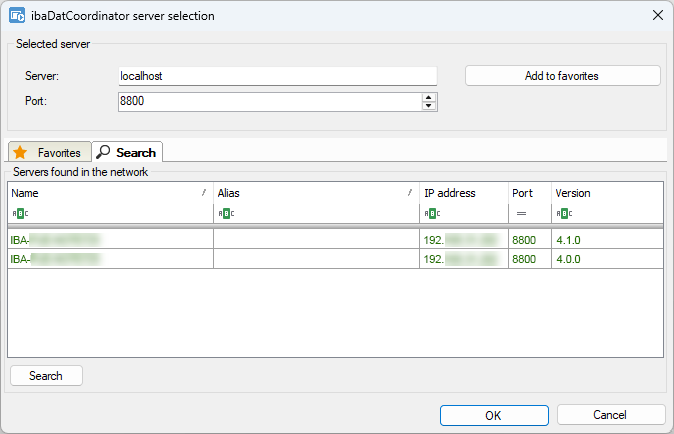
Use the <Search> button to start or stop searching for active ibaDatCoordinator servers on the computer and in the network.
If the server is not found in the network, you have the option of entering the IP address (Server). and port manually. The standard port is 8800.
-
Confirm your selection with <OK>.
The client attempts to connect to the selected server via the specified port.
-
If you exit the dialog with <Cancel>, the client remains connected to the previously connected server.


