You can flexibly arrange and resize tiles in the dashboard's editing mode. Please note that the display and resolution automatically adapt to the end device (desktop, tablet or smartphone) thanks to responsive design.
-
Open the dashboard via the dashboard overview or the main menu.
-
Tap on <Edit>.
-
Tap on the tile name and drag & drop the tile to the desired position.
Hold down the left mouse button in the desktop view.
If Free tile positioning is enabled in the dashboard settings, you can arrange the tiles as you wish. Otherwise, the tile will be aligned to a defined grid.
-
To change the tile size, tap on one of the double arrows at the bottom of the tile and drag the tile to the desired size.
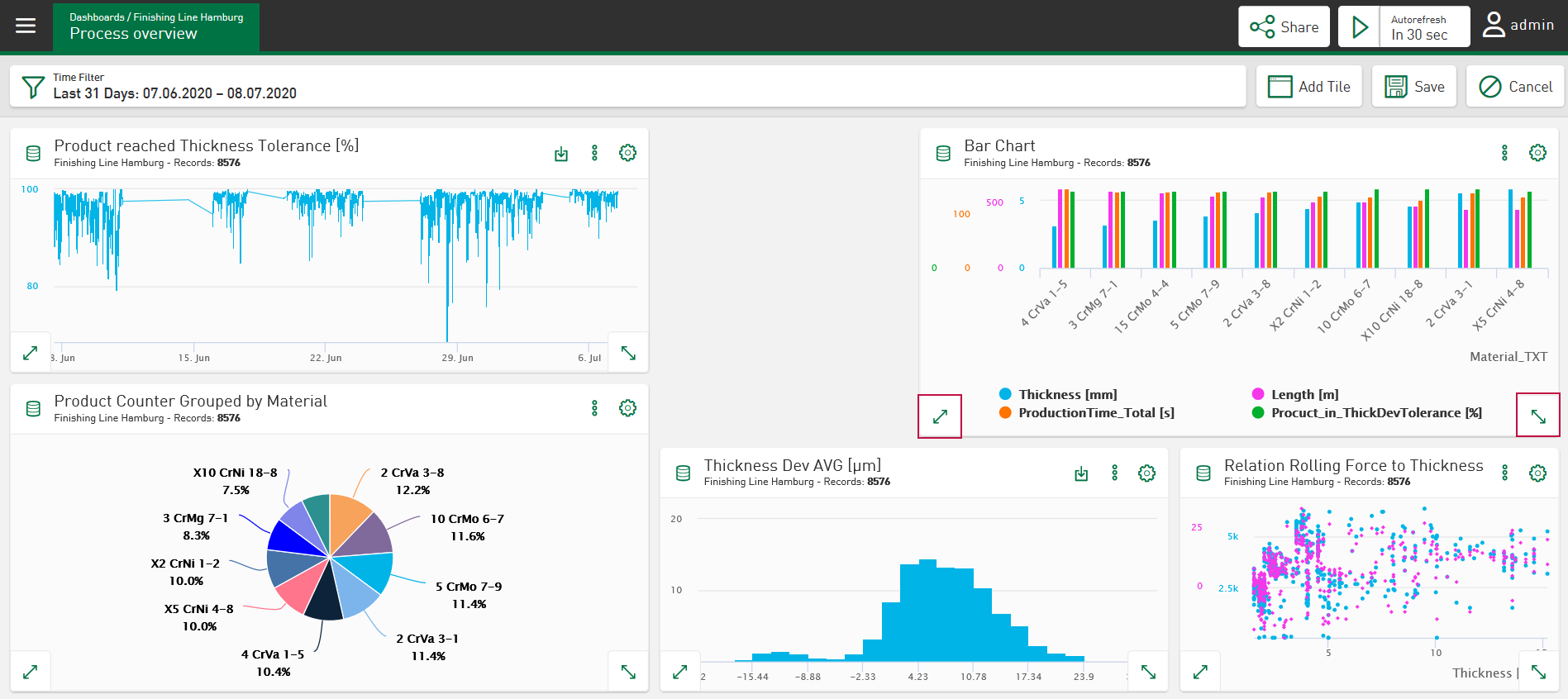
If Free tile positioning is enabled in the dashboard settings, you can adjust the tile size as desired. Otherwise, the tile size will be adjusted to a defined grid.
-
Confirm the changes with <Save>.
