The alarm list is a view which shows all open alarms of specific plant tree items.
Open the alarm list by clicking on the corresponding button in the menu bar.

Simply drag & drop the desired plant tree item into the alarm list in order to see the open alarms (Open tab).
In the alarm list, you can acknowledge all alarms at once or individually and add comments. The acknowledged alarms together with the comments are shown in the Acknowledged tab.
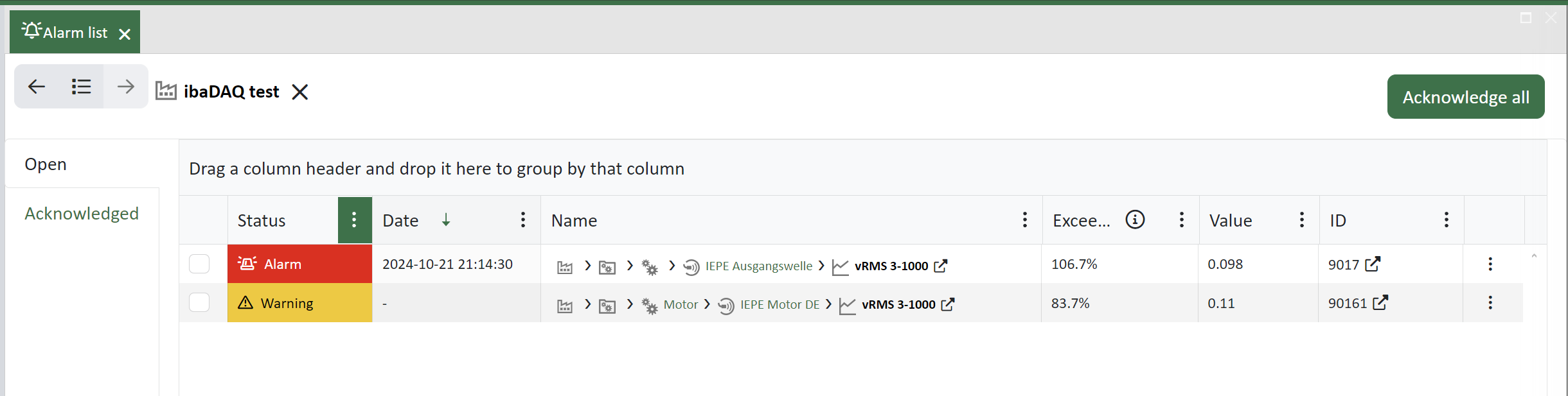
The figure above shows warnings and alarms of different plant tree items.
List of open alarms
The table has columns and functions as follows:
Alarm selection
Here, you can select specific alarms to either acknowledge them or open the trend analysis of the corresponding item.
Status
This is the alarm status (warning, alarm, critical alarm) As long as the conditions for an alarm status persist, the status is maintained even if you acknowledge the alarm.
Name
This is path and name of the plant tree item.
Exceedance value
This column shows the percentage by which the corresponding threshold value was exceeded or undershot. The undershoot value can be shown in a separate column if needed. This column can be enabled through the context menu of the corresponding column.
Value
This is the trend value which tripped the alarm.
ID
This the ID of the trend. By clicking on the icon you get to the trend in the plant tree.
Acknowledge alarms
By clicking on the button <Acknowledge all> above the alarm list you can acknowledge all alarms at once. The alarms are then moved to the Acknowledged tab.
If you only want to acknowledge a few alarms, check them in the first column and then click on the button <Acknowledge selected> that then appears.

Furthermore, another button <Open trend analysis> appears, if you have checked one or more rows. When you click on this button, a trend analysis opens, containing the corresponding trends.
If you want to acknowledge single alarms, open the context menu at the end in the alarm row and choose Acknowledge.

Moreover, you can use this context menu to jump to the corresponding signal analysis or trend analysis or to open the alarm history.
Acknowledged alarms
If you acknowledge alarms, they are moved to the Acknowledge tab.

The table has columns and functions as follows
Status
This is the status at the time of acknowledgement. The status will not be changed anymore.
Date
This is date and time of the alarm occurrence (tripping).
Comment
This is the comment which has been entered when acknowledging the alarm. The comments are linked to the logbook where they can be seen as well.
Once made, comments can only be edited later in the logbook view.
Acknowledge by
This is the name of the user who has acknowledged.
Acknowledge date
This is the date of acknowledgement
ID
This the ID of the trend. By clicking on the icon you get to the trend in the plant tree.
Alarm history
For each current alarm in the alarm list, you can view its alarm history.
To open the alarm history, click on the three-dot menu at the right end of the alarm row and select Open history.
You will get a tabular view with all previous alarms of this specific component in a History tab.

This tab is only available if you open the history as described above or if you draw a single trend from the plant tree into the alarm list window.
The table shows the alarms with their status, date, configured threshold value and actual signal value.
By using the three-dot menu at the end of the row you can open the corresponding trend or signal analysis.