You can perform "symbolic browsing" with “sniffer” modules for PROFIBUS configurations of S7-CPUs, which have been configured under Step 7 V5.x and contain the symbols of the PROFIBUS peripherals in the symbol table. This function cannot be used for TIA Portal projects.
An export file *.cfg of the hardware configuration from Step 7 has to be available when creating the address book.
-
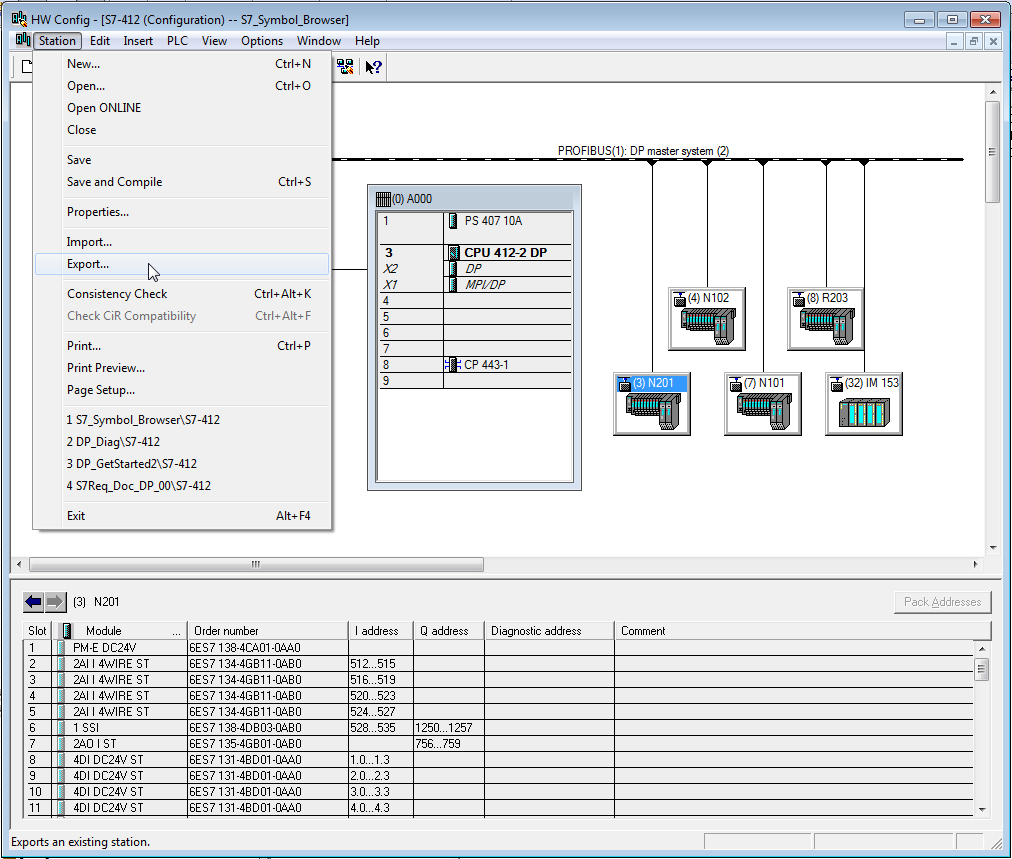
For generating such an export file, open the hardware configuration of your S7-CPU in Step 7.
-
Under the menu item Station - Export..., you can generate an export of the configuration:
-
Please select the following settings for Options and Format:
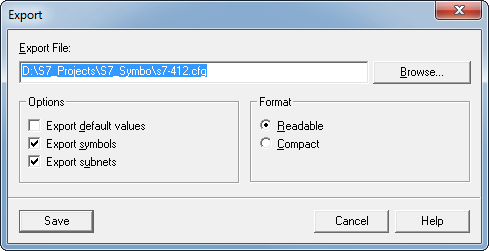
Any path can be defined for the export file.
-
Close the dialog with <Save> and switch over to ibaPDA.
-
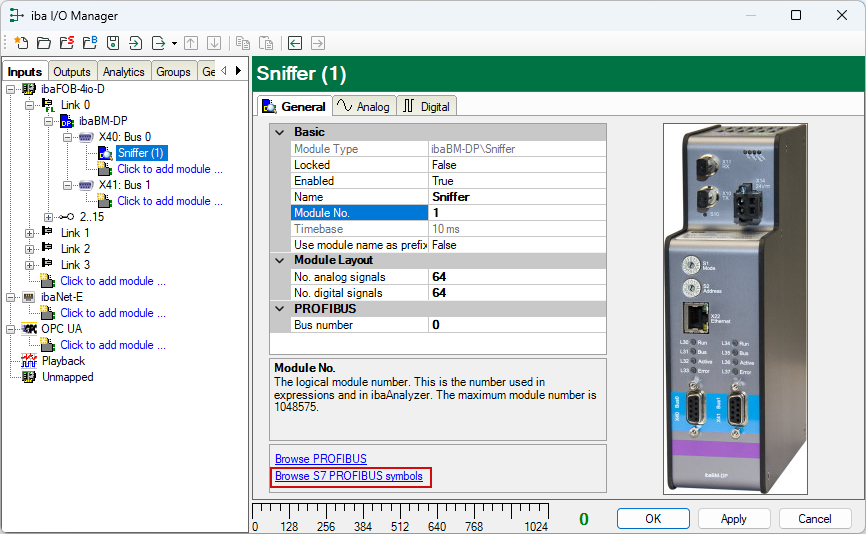
For creating the address book in ibaPDA, select the General tab of a sniffer module and click on the blue link "Browse S7 PROFIBUS symbols".
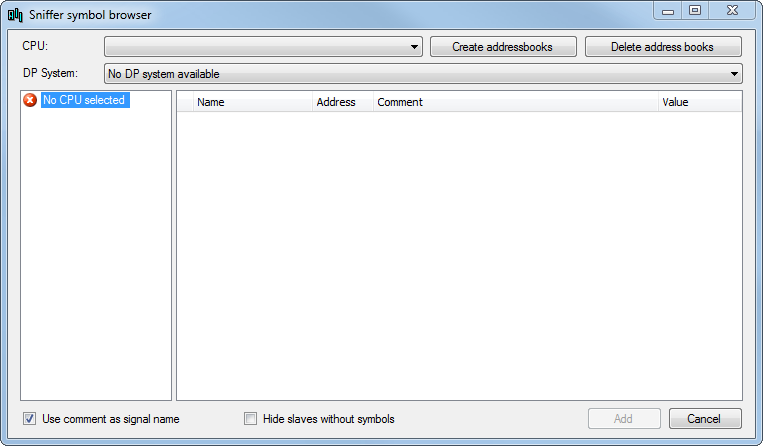
The sniffer symbol browser is opened. Currently, no CPU and no DP system are available.
-
To open the S7 address book generator, tap the <Create addressbooks> button.
-
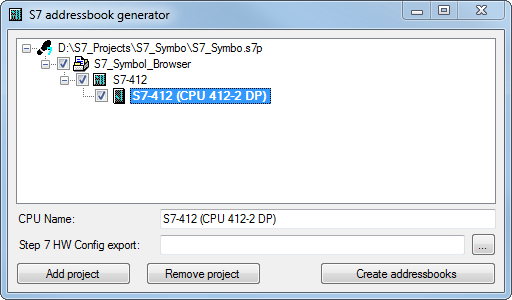
Add your Step 7 project by clicking on the <Add project> button and selecting the *.s7p file of your Step 7 project in the file browser. In the example below the Step 7 project is stored under the path
D:\S7_Projects\S7_Symbo\and the *.s7p-file is namedS7_Symbo.s7p.The available S7-CPUs are displayed automatically.
-
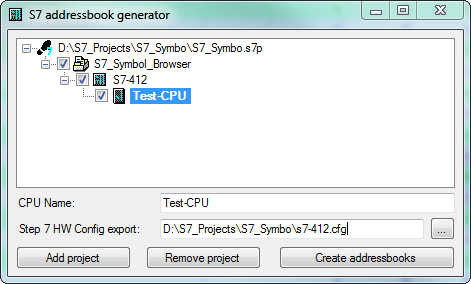
Enter now the path to the exported hardware configuration file in the field "Step 7 HW Config export".
In the CPU Name, you can enter a meaningful name for the CPU. The default setting is the original name which is used in the Step 7 project.
-
Then, click on the button <Create addressbooks>.
Now, an addressbook including the PROFIBUS symbols is generated.
-
Now, you can choose a CPU and a DP system in the sniffer symbol browser.
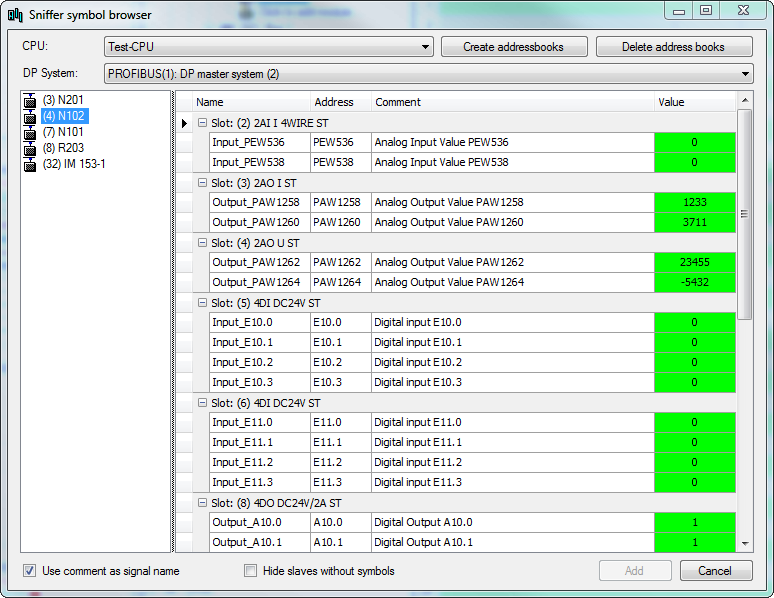
On the left-hand side, the PROFIBUS slaves available in the DP system are displayed. On the right-hand side, you see the structure of the marked slaves with the individual I/O signals. If ibaBM-DP is connected, you see a preview of the current value in the Value column.
-
To use the signal comment from the Step7 symbol table as the signal name in the "Sniffer" module, activate the Use comment as signal name option.
-
To hide slaves for which no symbols have been defined in Step7, activate the option Hide slaves without symbols to hide slaves.
-
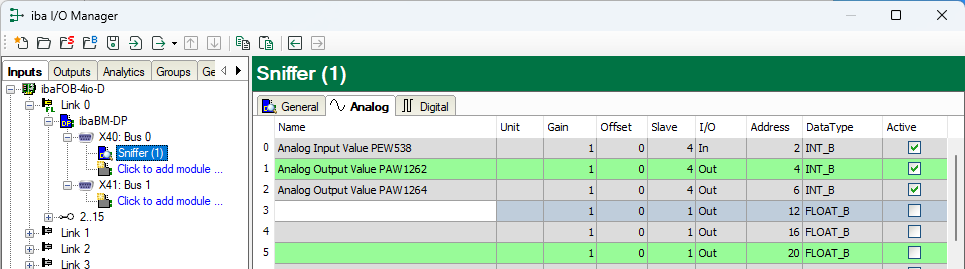
If you want to add signals for recording to the sniffer module, mark the signals on the right and click on <Add>.
Now the marked signals are inserted with the correct data for slave, I/O, address and data type in the sniffer module.
Tip

If you keep the <Ctrl> key pressed in the sniffer symbol browser, you can mark and add several signals at once.


