You can use text fields in a various ways in the report. Using the report title as an example, this chapter explains how to work with text fields.
-
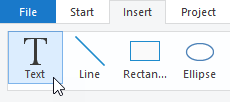
From the Insert menu, select the Text object.
-
Use the mouse to drag a rectangle in the workspace where you want to place the title.

The Edit Text dialog opens.
-
In the Text tab, enter your text, e.g., "Thickness Report." Click <Insert>, and then click <OK>.
Your text is in the text field.
-
To format the text, double-click the text field.
The Paragraph Properties dialog opens.
-
Format the text in the properties on the right.
-
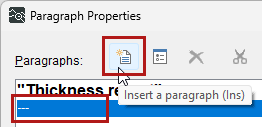
To insert another paragraph, click the Insert a paragraph icon or double-click the empty paragraph "---".
The Edit Text dialog opens.
-
To use variables, on the Data and Functions tab, in the Variables/Fields section, select the ibaAnalyzer fields that were previously configured. Double-click a variable to insert it.
You can also enter text in the input field.
Note

In this input field, always enclose all text characters, including spaces, in quotation marks, such as "Coil-ID: ".
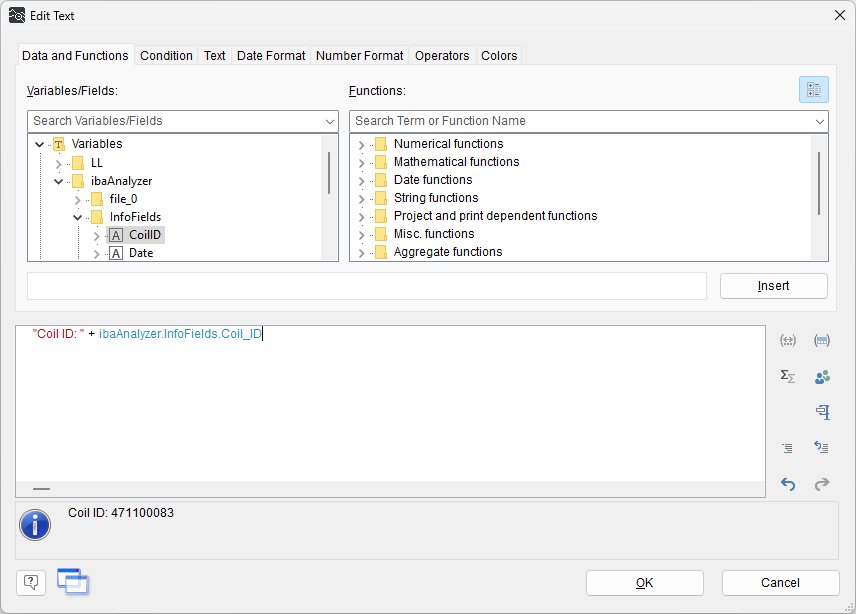
The conversion to a string occurs automatically.
-
Confirm with <OK>.
-
If necessary, resize the text field using the anchor points on the object frame.


Further options
In the workspace, you can move and resize any object. Double-clicking on the object itself always opens the Properties dialog of the object.
In general, all variables on the right-hand side are available in the Report Designer. However, it is recommended that you use the Data and Functions tab in the editing dialog, which is available for most objects.