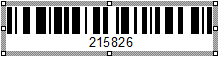
You can use text or dynamic content as a barcode in the report. For example, a scanner can quickly read the coil ID on the report.
-
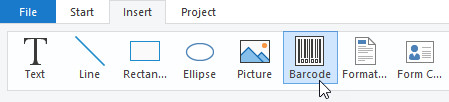
From the Insert menu, select the Barcode object.
-
Use the mouse to drag a rectangle in the workspace where you want to place the barcode.
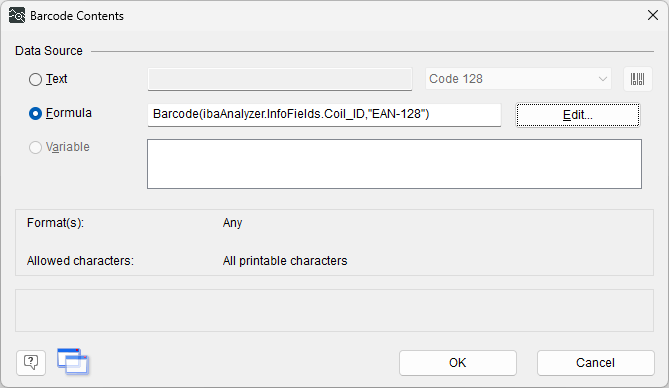
The Barcode Contents dialog opens.
-
To generate the barcode from the current coil ID, select Formula and click <Edit>.
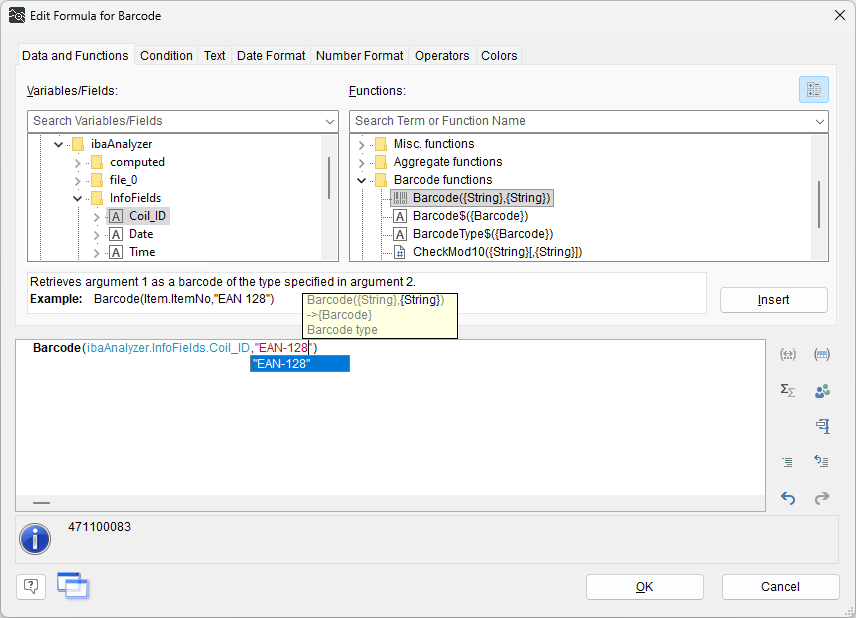
The Edit Formula for Barcode dialog opens.
-
On the Data and Functions tab, in the Functions section, select the barcode variable, for example, under Barcode Functions. Double-click on a function to insert it.
-
On the Data and Functions tab, in the Variables/Fields section, select the coil ID that was previously configured from the ibaAnalyzer fields as the first argument. Double-click a variable to insert it.
-
As the second argument, specify the barcode type, such as "EAN128". If you click on the second argument field, a list of possible barcode types opens.
-
Confirm your changes in both dialogs with <OK>.
-
If necessary, resize the barcode using the anchor points on the object frame.