If you do not need a table for the desired information, you can also use a simple text field with separate paragraphs and tab stops between the information.
-
When you have inserted a text field and a paragraph, open the Text tab in the Edit Text dialog.
-
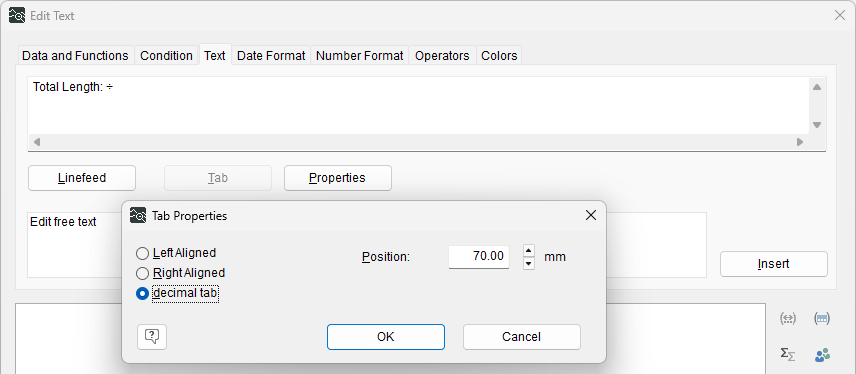
Enter the desired text in the input field above and click the <Tab> button.
-
In the dialog, select the Decimal tab option and specify a position, such as "70 mm".
-
Click the <Insert> button to use the text.
Tab stops in the text are indicated by the symbol ÷.
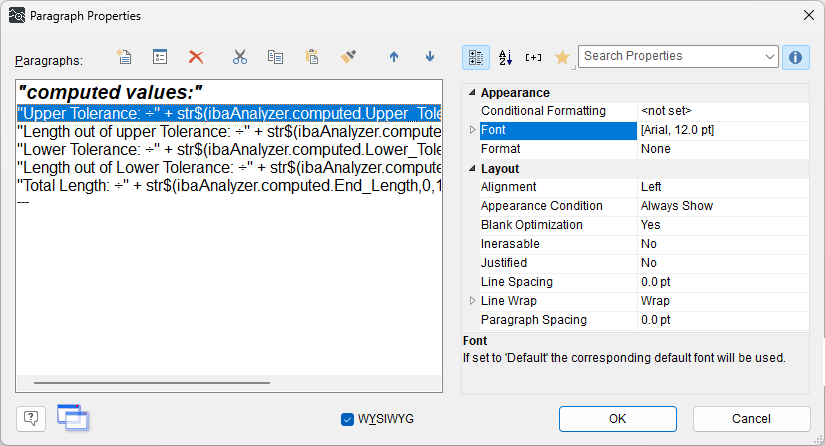
To align the second part of each paragraph consistently, you must set the same tab stop in each paragraph.
Note

You can use only one tab stop per paragraph.
-
Insert the variables in the Data and Functions tab.
Paragraphs are displayed with tab stops in the Paragraph Properties dialog.
-
Confirm with <OK>.
-
If necessary, resize the text field using the anchor points on the object frame.

