In the Info columns tab of the Report dialog, you define the info fields to be displayed in the report. Info fields are additional details from the "Info" section of a DAT file that are displayed in the lower area on the left. You can use all the info fields available in the DAT file, as well as any specially configured info fields.
Using info fields
You have two options for adding info fields to the table so you can use them.

First select a line for the field information in the table (2).
-
Click on the source field. The field information is transferred to the processing field (1). Select the range of characters with the mouse and click on <Apply>. Your selection is transferred to the table (2) and the processing field. The Function column shows the character selection.
-
Double-click on the source field. The field information is completely transferred to the table (2) and the processing field (1).
Selecting a character range
You can also select a range of characters from the contents of the info field.
-
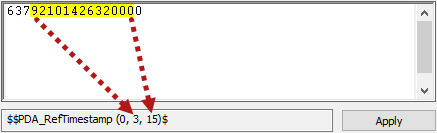
Click the first required character, drag the selection to the last required character.
-
Click on <Apply>.
The excerpt from the source string is transferred to the column field.
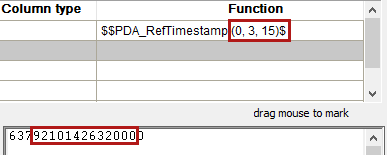
Alternatively, you can also enter the position of the first and last character manually in the Function column.
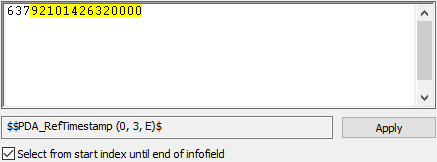
Select from start index to end of info field
If you enable this option, all characters from the selected start point to the end of the info field are selected.
Customizing the info fields in the table
In the table, you can manually rename the Column name.
Note |
|
|---|---|
 |
Avoid using special characters when manually renaming the column name. The Report Designer converts spaces and hyphens into underscores. A period "." in the field name creates a directory in the Report Designer, see the example in Data naming. |
Select the Column type from the drop-down list. You can choose between text and numeric . These settings affect how the info columns are displayed in the report. The Function characters can be changed in the processing window.
Use the Show column to specify whether the info columns are also displayed in the ibaAnalyzer interface in the Report info window, see Display of report information.
For further adjustments, see Editing the info columns.
Display in Report Designer
The selected info columns are available in the Variables/Fields list in the Report Designer.
