For remote access to the SQL server, you have to configure three inbound rules in the Windows firewall. These inbound rules address the following:
-
Executable file
sqlservr.exe -
TCP-Port 1433
-
UDP-Port 1434
To configure these rules, open the dialog for the advanced firewall settings Windows Defender Firewall with advanced security, if necessary via the Windows Defender Firewall settings.
After configuring these rules, test the connection to the database in ibaAnalyzer.
Creating an inbound rule for sqlservr.exe
-
Define a new inbound rule.

-
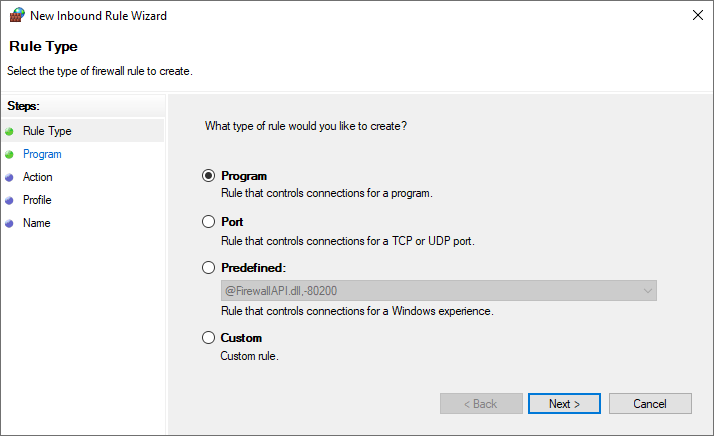
In the rule wizard, select the Program rule type and click <Next>.
-
Select This program path and enter the path to
sqlservr.exeClick <Next>.
-
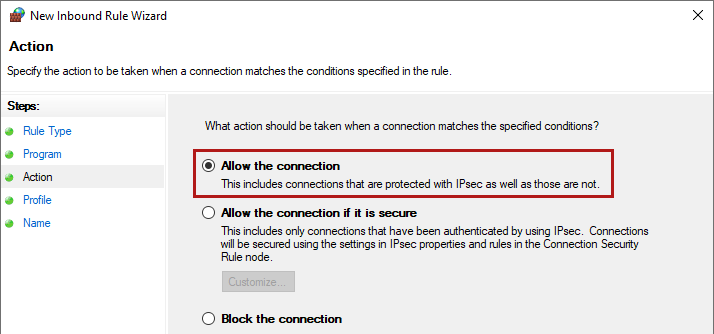
Select the operation Allow the connection and click <Next>.
-
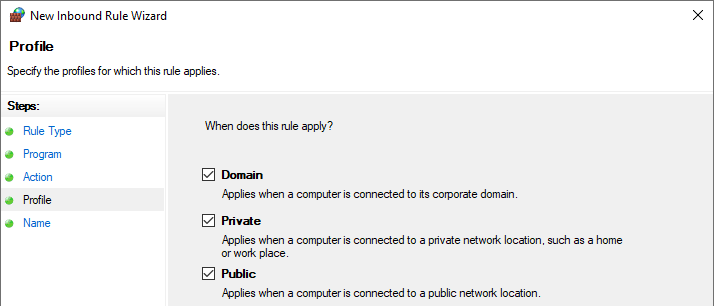
Select the profiles and click <Next>.
-
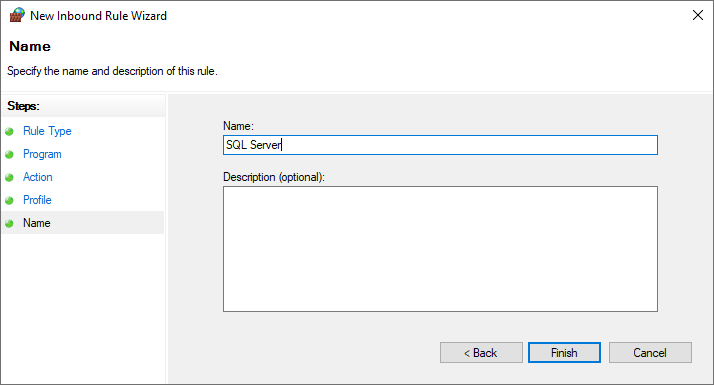
Specify a name for the rule and, if needed, a description. Click <Finish>.
Creating inbound rules for TCP port 1433 and UDP port 1434
Carry out the following steps once for the TCP port and once for the UDP port.
-
Define a new inbound rule.
-
Select the Port rule type and click <Next>.

-
For the TCP port: Select TCP and enter the port "1433" in Specific local ports.
For the UDP port: Select UDP and enter the port "1434" in Specific local ports.
Click <Next>.

-
Select the operation Allow the connection and click <Next>.

-
Select the profiles and click <Next>.

-
Specify a name for the rule and, if needed, a description. Click <Finish>.
