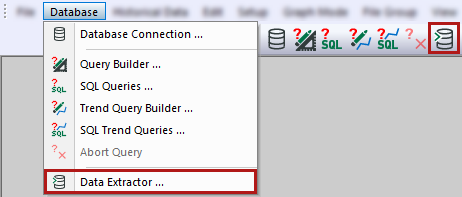
You can open the data extractor either via the Database – Data Extractor menu or via the corresponding button in the toolbar.
The Extractor output tab appears automatically corresponding to the database provider.
Settings for data extraction in the database
In the Extractor output tab, select the Extract to database option.

All tabs then adapt the respective settings to the data extraction into a database.
ibaAnalyzer automatically connects to the configured database.
If no database connection has been configured yet, configure a database connection using the <Database connection> button, see Configuring the database connection.
The following chapters describe the individual tabs of the data extractor with the Extract to database option selected.
Buttons on each tab
All tabs have the following buttons:
-
<Extract now> ibaAnalyzer fills the database tables based on the current settings in the data extractor.
-
<OK> ibaAnalyzer saves all current settings in the data extractor window and closes the window without filling the database tables.
-
<Cancel> ibaAnalyzer discards all changed settings and closes the window.