Use the Info columns tab to create info columns in the database table. You can extract additional information from the DAT files into these columns. The data is located in the "deFile" file table in the database.
Using info fields
You have two options for adding info fields to the table so you can extract them.

First select a line for the field information in the table (2).
-
Click on the source field. The field information is transferred to the processing field (1). Select the range of characters with the mouse and click on <Apply>. Your selection is transferred to the table (2) and the processing field. The Function column shows the character selection.
-
Double-click on the source field. The field information is completely transferred to the table (2) and the processing field (1).
Selecting a character range
You can also select a range of characters from the contents of the info field.
-
Click the first required character, drag the selection to the last required character.

-
Click on <Apply>.
The excerpt from the source string is transferred to the column field.

Alternatively, you can also enter the position of the first and last character manually in the Function column.
Select from start index to end of info field
If you enable this option, all characters from the selected start point to the end of the info field are selected.

Customizing the info fields in the table
In the table, you can manually rename the Column name. Please note the restrictions for the column names of the database.
CAUTION |
|
|---|---|
 |
The names must comply with the naming conventions of the used database system. Avoid spaces, hyphens, special characters etc. and check the permitted length. When highlighting the characters in the processing field, make sure that the correct row is selected in the table above. The last highlighted excerpt before exiting the row or closing the window is valid and will be saved. |
The Column type can be selected from the drop-down list, which contains the available data types of the currently active database provider.
The Function characters can be changed in the processing window.
For further adjustments, see Editing the info columns.
<Check database columns>
This button opens the dialog for checking the database schema, see Validation of the database schema. After the info columns have been configured, it is recommended to synchronize these definitions with the columns in the file table. If the desired column does not exist, you have to confirm its creation.
Location of the info columns in the database
 |
 |
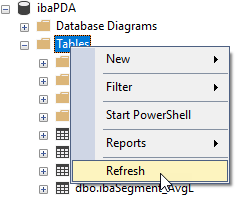
Remember to refresh the tables in the database for display e.g. in SQL Server.