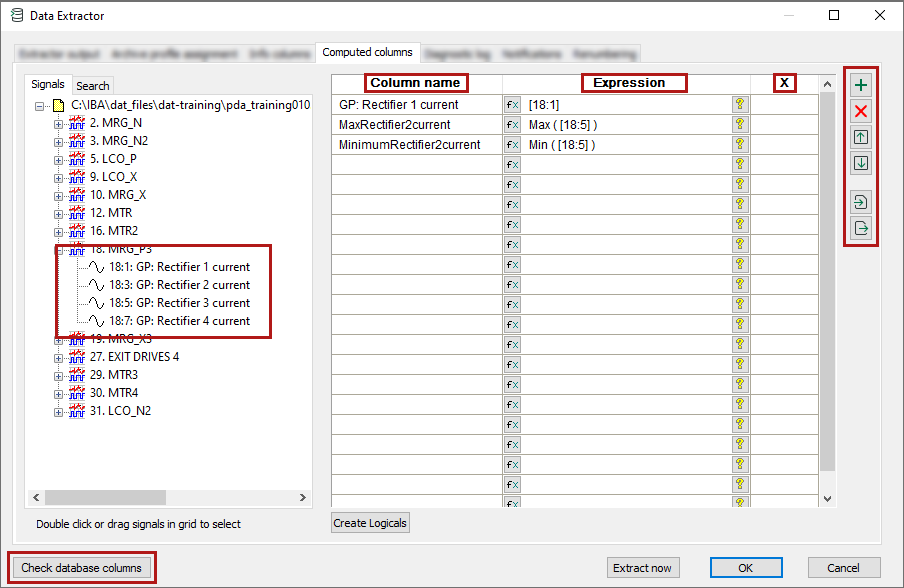
The Computed columns tab is used to specify operations for the individual signals. These operations create one value for the associated signal (e.g. the average, maximum or minimum of all data of one signal). These values are defined as Computed Columns and are saved in the database file table, see Database table "deFile". Therefore, you can use the values as part of a query condition or for long-term trend analyses.
Selecting and preparing signals
Add the desired signal to the table either by double-clicking on the signal or using drag & drop. You can also select multiple signals in the signal tree by the standard Windows method of a mouse click + <Shift> or <Ctrl>, and drag them into the table with the mouse.
The Column name column initially contains the source signal's name, which you can change manually.
The Expression column initially contains the channel number of the source signal. You can either enter an expression or use the <fx> button to open the expression builder. The result of the expression should be a signal value. If you do not use an operation or group function for Expression, then ibaAnalyzer automatically extracts the average (AVG) from the signal data.
The X column automatically shows the X-axis mode of the source signal (time-based or length-based).
You can edit the computed columns in the same way as the info columns, see Editing the info columns.
<Create Logicals>
At different places in ibaAnalyzer, you can define and manage logical expressions. This button creates a group of logical expressions from the defined computed columns. You can then manage the created logical expressions via the Logical signals dialog. When renaming or moving the expressions, all references to them are automatically adapted.
If you have already used the same expressions or the same names elsewhere in ibaAnalyzer and they are not yet grouped, you can select how you want to proceed with these expressions: ignore, overwrite other expression or replace this expression with the other one.
<Check database columns>
This button opens the dialog for checking the database schema, see Validation of the database schema. After the info columns have been configured, it is recommended to synchronize these definitions with the columns in the file table. If the desired column does not exist, you have to confirm its creation.
Special feature: Text signals
Text signals can also be used in computed columns. A column with the name of the text signal and its first value is then created in the file table.
If you want to extract a specific value from a text signal with several values in the DAT file, you have to select this value explicitly using a suitable signal expression.
Example: Selection of the third value (counting starts at 0)
XCutRange([text signal], XFirst([text signal],2), XFirst([text signal],2) + 0.01)
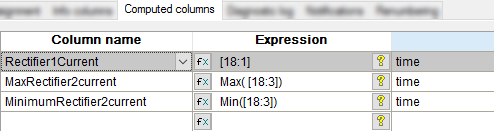
Location of the computed columns in the database
 |
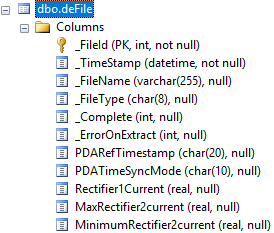 |
Additionally, for each computed column, a row is created in the file metadata table containing the name, comments, expression, etc., see Database table "deFileMeta".
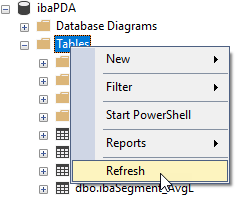
Remember to refresh the tables in the database for display e.g. in SQL Server.