You can open the database connection either via the Database – Database connection menu or via the corresponding button in the toolbar.

If the database connection has not been previously configured, ibaAnalyzer shows the following default configuration. Otherwise, the previously selected configuration is shown.

Setting up and editing database options
From the Data source drop-down list, select Create database connection. In the Database connection dialog box, select the required database provider under Database type.
To edit an existing connection, select the connection from the Data source drop-down list. Then click on the editing button.
Enter the other settings.
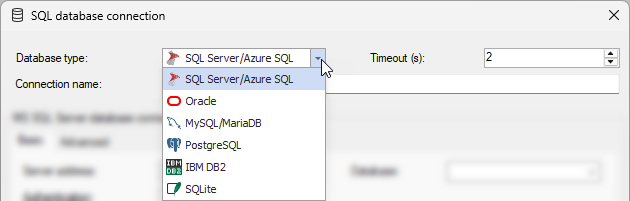
Information about the setup of the database connections can be found in the respective chapters:
-
SQL Server/Azure SQL, see Connection to SQL server/Azure SQL
-
Oracle, see Connection to Oracle
-
MySQL/MariaDB, see Connection to MySQL/MariaDB
-
PostgreSQL, see Connection to PostgreSQL
-
DB2-UDB, see Connection to IBM DB2
-
SQLite, see Connection to SQLite
-
ODBC database only for changing older PDO files, see Changing the connection to ODBC database
Note |
|
|---|---|
 |
ibaAnalyzer v8.4.0 or later no longer supports connections to MS Access databases. Migrate existing MS Access configurations to a different database system. |
Note |
|
|---|---|
|
ibaAnalyzer v8.0.0 or higher no longer supports any database connections via ODBC. Databases that have been configured in older PDO files via ODBC must be converted to the actual database provider in ibaAnalyzer and directly connected to the database. |
Testing the database connection in ibaAnalyzer
After set-up and before closing the Database connection window, test the database connection using the <Test connection> button.
Entering names of database tables
Enter the names of the database tables in the File table, Channel table and Segment table fields. The name of the file table also determines the name for the file metadata table, see Database table "deFileMeta". It is recommended to name these tables in accordance with the naming conventions of the database system you are using.
For test purposes, you can use the default names "deFile", "deChannel" and "deSegment".
Note |
|
|---|---|
|
The names must comply with the naming conventions of the used database system. Avoid spaces, hyphens, special characters etc. and check the permitted length. For example, if Oracle is used, the maximum length for the name of the segment table is 23 characters because 7 characters are required for the segment table suffixes "_CountT" and "_CountL". |
Note |
|
|---|---|
|
If the channel headers or segment tables are not needed, you can leave their names blank. The tables are then not created. This procedure is suitable if you are only working with trend data. |
Selecting schema mode for database
Select the schema mode for the database.
-
Standard, see Standard schema mode and Segment tables in standard format
-
Multi-column format, see Multi-column schema mode and Segment tables in multi-column format
Saving configuration
Exit the Database connection window using <OK> to save the settings.
Save the configuration in an analysis file (PDO) afterwards.
If you open ibaAnalyzer without an analysis file, ibaAnalyzer loads the latest configuration of the database connection in the same way as the other preferences.