Similarly to the default query builder, the trend query builder can assist in the creation of SQL statements to perform a trend query.
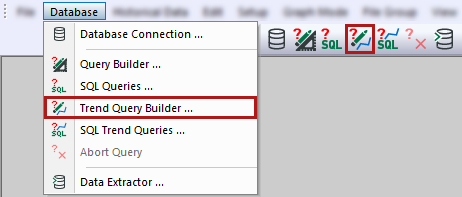
You can open the trend query builder either via the Database – Trend Query builder menu or via the corresponding button in the tool bar.
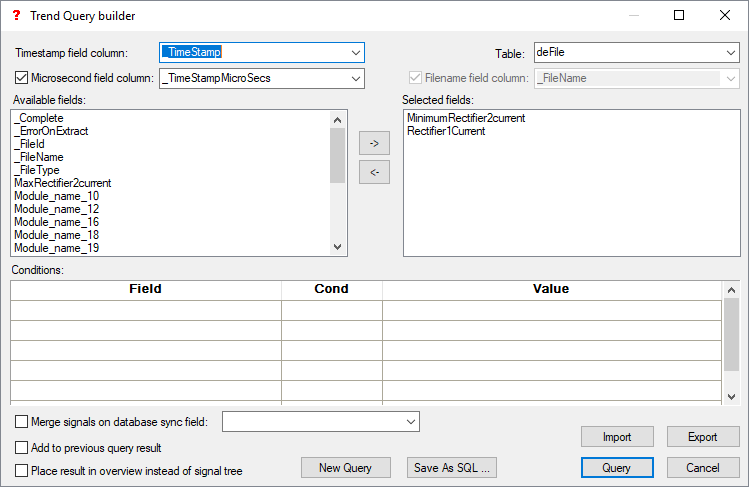
In the following window, you can configure trend queries.
Table
Select the table to be queried.
Timestamp field column
Trend queries require a time stamp. Select the appropriate column here.
Microsecond field column
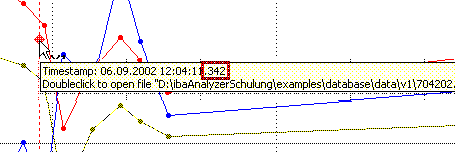
Enable this option if microsecond precision is required, see Database table "deFile". Specify the column in which microseconds are available. Hovering the cursor over the diamond in the Overview window also displays the microseconds.
Filename field column
This column contains the filenames. This option is only available if the Place result in overview instead of signal tree option is enabled.
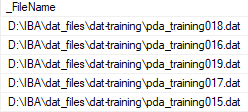
If you enable this option, you can open the original files using the markers in the Overview window that correspond to the extracted data in the database, see Markers. If the table to be queried has the iba database layout, the correct column is preselected.
You can disable this option if the original files are not required or no longer present, as the query speed is then increased.
Available fields
All the fields which are available in the selected table (type "deFile") are displayed.
Selected fields
Using the arrow buttons, you can select the fields required for the query.
Table conditions
Configure the conditions in the same way as for default queries, see Query builder.
Connect signals to database synchronization field
This function is similar to the function for default queries, see Query builder.
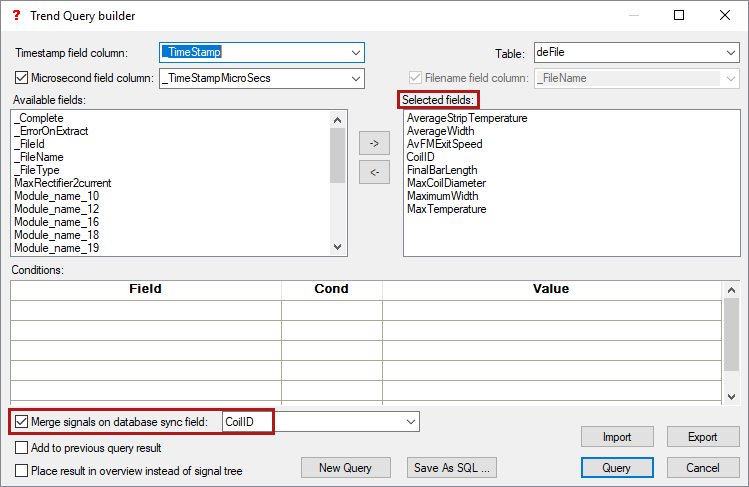
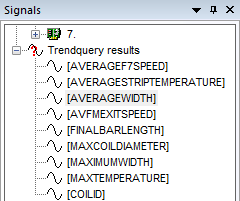
If you enable this option and select a synchronization field in the drop-down list (e.g. "CoilID"), all rows with the same value in the synchronization field column are merged and displayed as a single data point in the trend query. The selected fields appear under Trend query results in the signal tree or in the Overview window.
 |
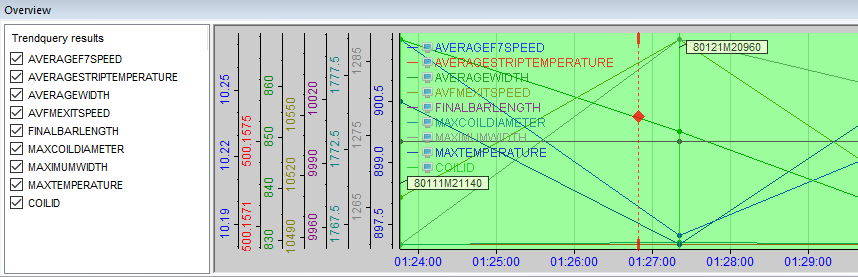 |
The trend query results display shows the values for the selected measured variables that have the oldest time stamp and are not "0". If the DB values are "0" or "NULL" (empty), "0" is displayed.
Place result in overview instead of signal tree
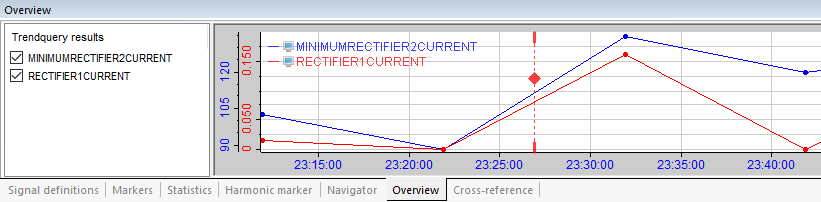
If you enable this option, the trend query results appear in the Overview window instead of the signal tree.
Note |
|
|---|---|
 |
Note that the Add to previous query result option is grayed out when this option is enabled. This is because there can only be one query result (possibly from several signals) present at a time in the overview. Any trend query result already displayed in the overview will be replaced by the next query. |
<Execute query>
Each field in the set of results generates a signal with a name that is identical to the field name. The signal appears in the signal tree under the Trend query results node.
<Import>
You can re-import previously exported trend query builder settings. The current settings are overwritten.
<Export>
Trend query builder settings are exported as an INI file.
For more information on the following settings, see Query builder:
-
Conditions
-
Add to previous query result
-
<New query>
-
<Save as SQL>
-
<Cancel>