You can use the query builder to create standard queries without any knowledge of SQL (structured query language).
You can open the query builder either via the Database – Query Builder menu or via the corresponding button in the toolbar.
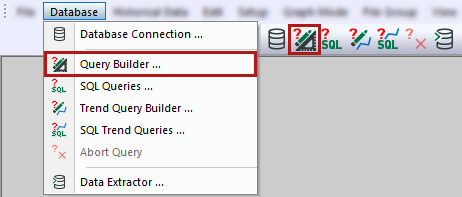
In the following window, you can configure the default queries.
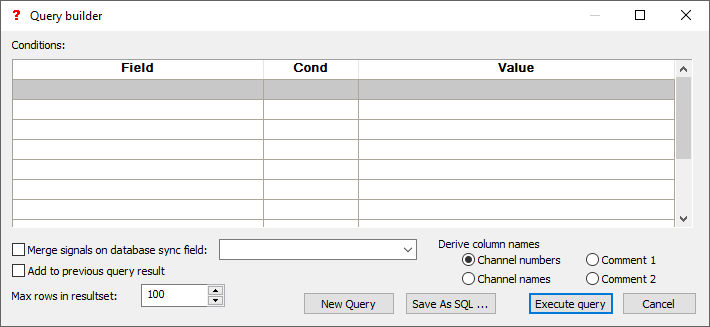
Conditions
You can define the conditions in the query builder based on the content of the main fields in a file table. When you open the drop-down list in the Field column, you can select the available fields.
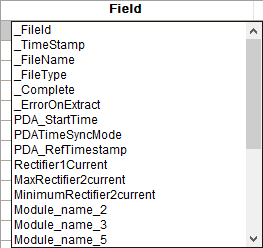
These fields are the same as in the database file table. In addition to the default fields such as _FileID, _TimeStamp, _FileName or _FileType, you can also select custom fields from the info column, e.g. "STRIP_ID".
When you open the drop-down list in the Cond column, you can select a condition.
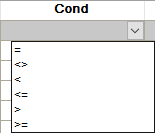
In the Value column, enter the value to be compared, which must be compatible with the database format. You can enter several rows of queries, which are then automatically combined with AND keywords.

If the database field type of the selected field is Date or DateTime, a calendar is automatically shown when you open the drop-down list.
Merge signals on database sync field
If data from different DAT files (e.g. from different ibaPDA systems, ibaLogic systems or ibaFiles applications) are linked by a common identifier, such as the material ID, and these are to be merged, you can define a synchronization field, see Segment tables in multi-column format.

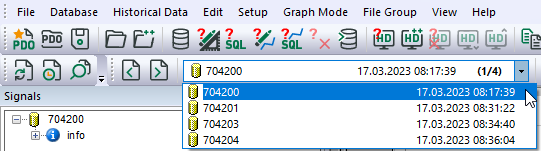
If you enable this option and select a synchronization field, all queried datasets (files) that belong to this field are merged. After the query, the query results are shown in the drop-down list of the DAT file group (toolbar) sorted by the values of the synchronization field.
Add to previous query result
If you enable this option, the result of this query is added to previous query results. The option corresponds to the Add data file function when working with DAT files. If you do not enable this option, all previous query results are deleted.
Max. rows in resultset x
To prevent unmonitored use of system resources (database server, network, etc.), enter a suitable value here. For example, using a value of "10" selects data from 10 DAT files. The value "0" disables this restriction.
Derive column names from
<New query>
Use this button to delete all entries in the query builder. Then you can define a new query.
<Save as SQL>
You can save the SQL command from the query builder as a text file. This function is useful to obtain a basic statement that you can customize or extend. In the SQL queries window, you can then execute this statement.
<Execute query>
Use this button to execute the query via the configured database connection. If successful, a message appears with the number of datasets queried.
Note |
|
|---|---|
 |
If the Max. rows in resultset parameter has been exceeded, two messages are displayed. Confirm these messages and reconfigure the query. |
<Cancel>
The window closes without saving the query and any running query is canceled.