This interface is used to replay one or multiple iba data files (*.dat). Every data file recorded in ibaPDA, ibaQDR or ibaLogic, even from older program versions, can be replayed.
The playback interface is one of the few interfaces, which are always available even without a license key (dongle). Thus, it serves as a data source for the demo mode of ibaPDA if no real signals are available.
With a regularly licensed ibaPDA system, signals from a data file can be replayed and recorded along with real, current measurement signals.
The replay can be controlled by digital signals (pause/reset).
Possible applications are, for example:
-
Training of personnel in using ibaPDA
-
Anonymizing recorded data (removing customer-specific terms and names)
-
Creating multilingual data files with the same contents but in different languages
-
Sharing experience in the process
-
Simulation and test
Using playback
-
Open the ibaPDA I/O Manager.
-
Click on the "Playback" branch in the I/O Manager tree.
-
Check the Active option.
-
Select the data file(s).Either enter the name of the data file that you want to play or look for it in the browser. If necessary, enter the name and password to gain access to the network drive.If the data file(s) has been protected with a file password, enter the password in the field File password.The data files will be entered in the Dat files field in the order of their selection. If you select multiple files in the browser, the order will follow the sorting of the files in the browser (by name, by date etc.). You may change the order of the files in the Dat files field afterwards by editing the file names in this field.
-
Click button <Read dat files>.This instructs the ibaPDA server to read out the data file and generate the modules and signals that are available in the data file. If you select multiple data files, these will be appended without gaps and displayed in the preview window.
-
Now choose how to proceed.There are multiple options available, depending on whether or not playback modules already exist in the configuration:
If no Playback modules are available, choose from:
-
Add playback modules If there already are modules in your I/O configuration, this option keeps the existing modules and adds the data file modules as playback modules. If a module number is already used by another module, which is no Playback module, then the Playback module is assigned a new number. This is useful if you also want to monitor the actual values beside the replayed data.
-
Remove all modules If there already are modules in your I/O configuration, this option removes all modules currently available from the configuration. Only modules from the data file will still be available as Playback modules, using the same order and with numbering as in the data file.
If there already are Playback modules, choose from:
-
No changes The data file is read only. Existing modules and module structure remain unchanged.
-
Replace playback module Existing playback modules are removed and replaced completely with modules from the data file.
-
Remove all modules See above
Example of a configuration dialog of the playback interface with signals
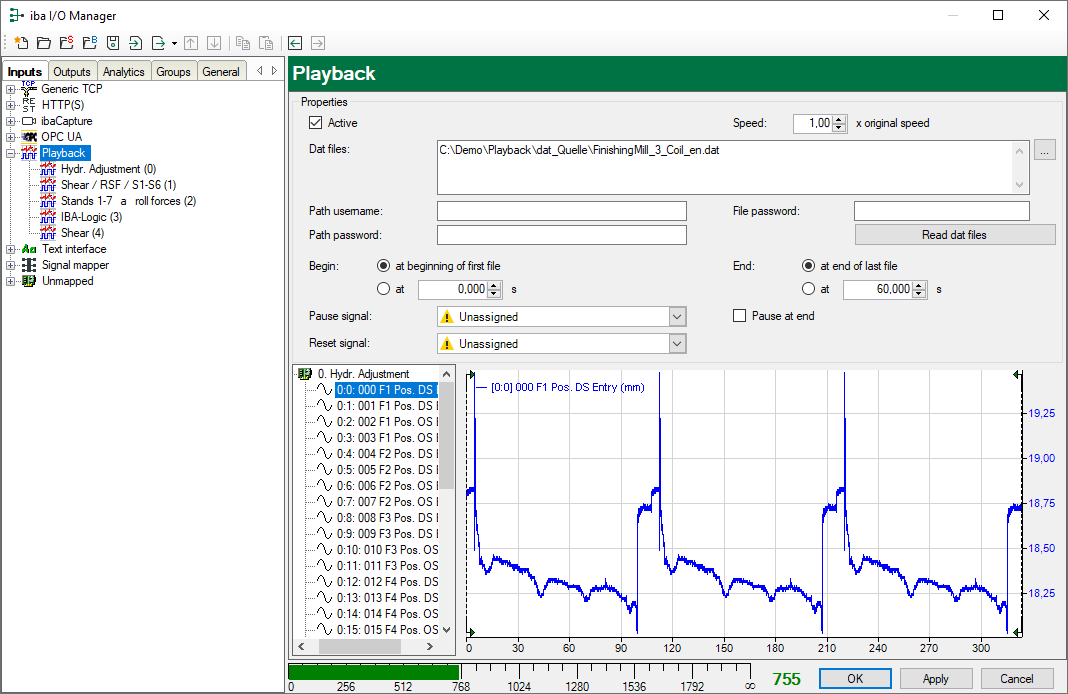
After loading the data file, a signal tree and a preview of the first signal of the data file appear in the lower part of the dialog. You can select any signal from the signal tree for preview.
Note

The playback interface skips length-based signals and signals with a 3-level channel number like [0.0.0] (e.g. dig512 modules or QDR data files).
-
-
Setting up the data areaBy default, ibaPDA continuously replays the file(s) from start to end. You can change the start and stop position by moving the green start and stop marker with the mouse or by entering the start and stop position manually.
-
Select the control signals if you want to control the replay. If you don't select control signals, the range between the two markers will be replayed continuously without interruption as long as the acquisition runs. You can select two signals for controlling the replay:
-
Pause signalThe replay stops when the selected digital signal is true and it runs when the signal is false.
-
Reset signalThe replay starts again from the beginning i.e. from the configured starting point when the selected digital signal gets a rising edge.
-
-
During acquisition, a third marker appears on the graph. This is the red progress marker. It is positioned at the current playback time.As for all other modules, you can change all properties and signals for the playback module.
-
Set the playback speedYou can also define the playback speed in the input field on top of the dialog. By default, the speed is set to 1.00, which is the original speed. The original speed is determined by the timebase of the data file at its original recording.
Irrespective of the timebase currently set in ibaPDA, the timebase of the playback module is specified according to the timebase of the original data file.
The following example shows the differences between varying playback speed settings.
-
End the configuration by clicking <OK>.The acquisition is automatically restarted; you can now see the playback module and the signals of the data file in the signal tree of ibaPDA. Proceed with the playback signals as with any other signal.
Example: Results of differently set playback speeds
An extract of a data file with a length of exactly 10 seconds (red signal) is replayed continuously at the following speeds:
a) original speed
b) double original speed
c) half original speed
The blue signal is a real signal of 1 Hz, sampled with 1 ms.
The timebase of the data file is 20 ms. The current timebase of ibaPDA is 1 ms.
|
a) |
 |
Speed: 1.0 Red curve: 1 sample every 20 ms Blue curve: 1 sample every ms |
|
b) |
 |
Speed: 2.0 Red curve: 1 sample every 10 ms Blue curve: 1 sample every ms |
|
c) |
 |
Speed: 0.5 Red curve: 1 sample every 20 ms, yet twice (value changes every 40 ms) Blue curve: 1 sample every ms |
Note |
|
|---|---|
|
Please note, that measured samples from the replayed file can get lost when increasing the replay speed. For example, if you set the replay speed to 2 x original speed, then only every second sample will be returned. If you would create a new data file based on the replayed data, the data file would be half as long as the original file. |