General tab
For email modules, only the standard information must be entered in the general module settings.
For notes on the general module settings see General module settings.
Message tab
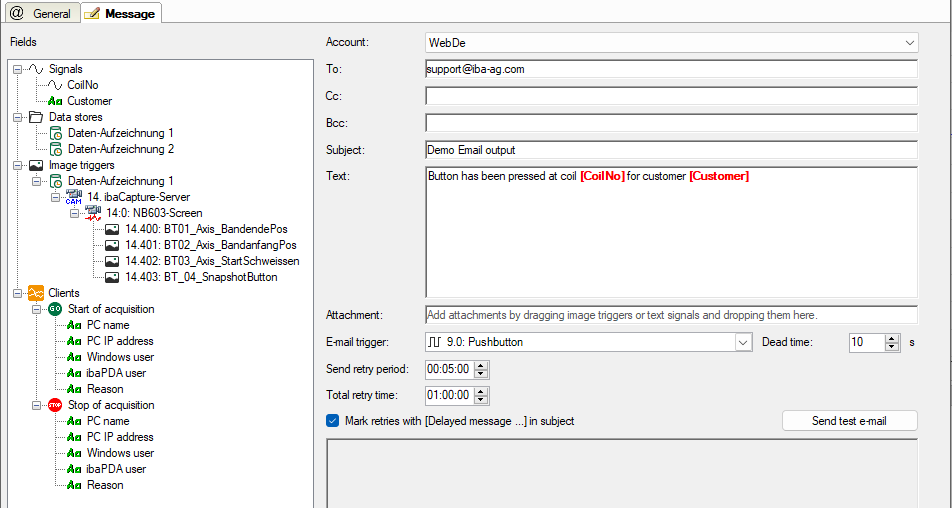
In this tab, you will create the actual message.
In the window on the left, the fields for the signals defined in the Fields tab are displayed in the form of a signal tree.
Below this, all projected data stores and image triggers are displayed. These data records and image trigger fields always refer to the path of the last data file or the last images.
These data stores and image trigger fields always refer to the path of the last data file or the last images.
Select the desired account and enter the standard information such as recipient, CC and subject as well as the message text. You can also use fields with text signals in the lines To, Cc and Bc, and can thus enter the addressees dynamically. For example, if an email is to be sent to a different recipient on weekdays than on weekends.
For the email trigger, select whether the sending of email should be triggered at the start or stop of acquisition or by a digital signal.
A dead time (default 10 seconds) prevents the email from being sent multiple times should the trigger signal be triggered several times in quick succession.
With the Send retry period and Total retry time settings, you can determine the intervals at which, and over how long in total, a failed transmission of an email is repeated.
If you enable the option Mark retries with [Delayed message...] in subject, then this note is automatically inserted in the subject line if the email could only be sent after several failed attempts.
With the <Send test email> button, you can send the email without the trigger signal being triggered or the measurement running. If the measurement is not running and the configured fields have no values then the names of the fields are entered in the email.
Using the fields
In addition to static input, you can add fields as placeholders in various places, thus dynamically shaping your email.
The following table shows where you can add which fields and what impact this has.
|
Field |
Use in... |
Result when sending the email |
|---|---|---|
|
Analog and digital signals |
Subject |
Value is applied |
|
Message text |
Value is applied |
|
|
Attachment |
Value is applied and interpreted as part of a path or file name. If the file exists, it is attached. |
|
|
Text signals |
To/Cc/Bcc: |
Text is applied |
|
Subject |
Text is applied |
|
|
Message text |
Text is applied |
|
|
Attachment |
Text is applied and interpreted as part or all of a path or file name. If the file exists, it is attached. |
|
|
Data storages |
Subject |
Name of the data file (full path) is applied. |
|
Message text |
Name of the data file (full path) is applied. |
|
|
Image trigger |
Subject |
Name of the image file (full path) is applied. |
|
Message text |
Name of the image file (full path) is applied. |
|
|
Attachment |
Image file is attached |
|
|
Clients |
Message text |
The information of the selected fields referring to the last start and/or last stop of the acquisition is applied. |
A field can be added at the desired location in the entry fields, Subject, Text and Attachment, in the following ways:
-
By double-clicking on the field; the field will be inserted in the text at the cursor position
-
By dragging and dropping
-
By manual entry of the field name in square brackets
The fields are highlighted in the text with red, bold characters to indicate that these points are later replaced by actual values.
Data storages cannot be added as an attachment as data files are often too large for emailing and have not yet been concluded by ibaPDA when the email is sent.
If you want to send multiple attachments, they must be separated by semicolons.
Entries in the Attachment field must always be the full path and file name of the files that you want to attach.
The path and file name can be formed in different ways:
|
Type |
Example |
Comment |
|---|---|---|
|
Entered fully without placeholders |
D:\xyz\agb.pdf |
Only useful if the path and filename never change. |
|
Only a text field |
[Report] [Imagetrigger_ABC] |
Full path and file name must be included in the text box. (Automatically the case for image triggers.) |
|
Combination of static text and text field |
\\DATASRV\reports\[Shiftreport] |
Text field only contains the file name. |
|
Combination of text and numeric fields |
[Destination] [Prefix] [Number] [Extension] |
[Number] is a numeric field with a consecutive number, [Destination], [Prefix] and [Extension] are text fields. |
|
Combination of static text and text and numeric fields |
D:\abc\[PathA]\[Reportname]_[No].pdf |
- |
Example for a message about the last start and last stop of acquisition
The message can be sent at the time when the acquisition was started or stopped, in order to send an immediate notification, or at any time.
Dedicated fields related to the client where the last start or stop of acquisition was initiated provide more detailed information.

-
PC name: Name of the client computer
-
IP address: IP address of the client computer
-
Windows user: Windows user name that was used to log into Windows on the client
-
ibaPDA user: ibaPDA user name that was used to log into ibaPDA
-
Reason: Reason, why the acquisition started or stoppedPossible reasons are:
-
Interactive start (start by user operation)
-
Interactive stop (stop by user operation)
-
Interactive apply new configuration (I/O configuration changed and applied by user)
-
Automatic start (e. g. when a disconnected PLC returns)
-
Start after remote configuration
-
Start triggered by other synchronized system (e. g. in a Multistation network)
-
ibaPDA service is shutting down
-
PC is going to sleep (computer switches to power saving or standby mode)
-
Error occurred (unknown error)
-
License changed (license container disconnected or license changed)
-