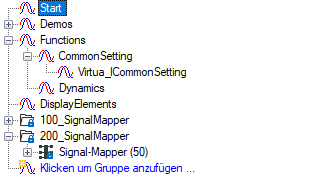
In order to add a new group, click Click to add group in the group tree. Alternatively, right-click in the group tree area and select Add group from the context menu.
You can also form a divided structure consisting of groups and subgroups. To create a subgroup, right-click on a group and select “Add group” from the context menu that appears.
You can give the group a name in the "Group name" field.
If you are using ibaInSpectra modules then you can adjust the configuration of the ibaInSpectra interface that groups should automatically be created for the ibaInSpectra modules. All signals of the ibaInSpectra modules are included in this group.
After the text, "Group linked to:", the interface or module name will appear as a hyperlink for certain group types.
For groups of ibaInSpectra modules, for example, you can select a desired group and then click on the blue hyperlink. You are then directed to the module settings of the relevant ibaInSpectra module.
If you create folders in the interface tree of the I/O Manager, the folders are shown among the groups by default too. You can disable this function for each folder. Folders are not shown among the groups unless they have a content.
These folders have a lock symbol because they were created outside of the Groups tab and cannot be deleted here. However, it is possible to drag and drop signals or other folders inside.
Note |
|
|---|---|
 |
Names of groups, vectors and folders which are on the same level or sub-level have to be unique!
The ID of a group, vector or folder consists of path and name, e. g. ID = Functions/CommonSettings. |