In order to open the dialog for server configuration, click on the following toolbar
button  .
.
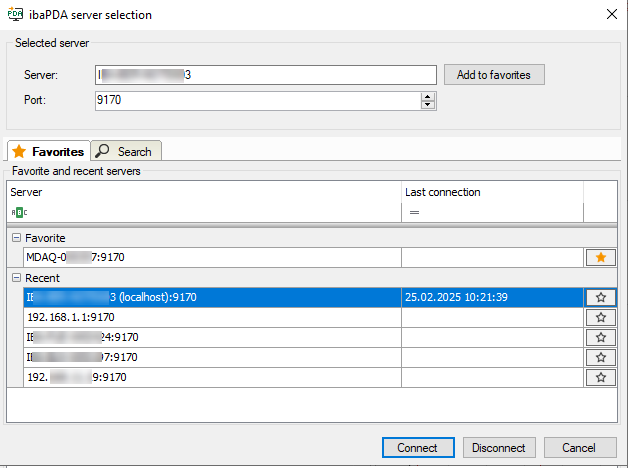
In this dialog, you can select the server to be connected with the client. All changes made in the I/O configuration and data storage configuration will also concern the selected server. You can always connect and disconnect a server in this dialog.
Use the client preferences to determine the behaviour of the client at startup in terms of server connection. For more information see Configure server connections for client startup.
If the client is already connected to a server, this server is indicated on top of the dialog in the area Selected server.
As soon as the dialog opens, ibaPDA automatically searches the local computer and the network for active ibaPDA servers for approximately 3 s. The found servers will be listed in the Search tab of the dialog, in the area Servers found in the network..
Search tab
Select this tab if you want to search for active servers locally or in the network.
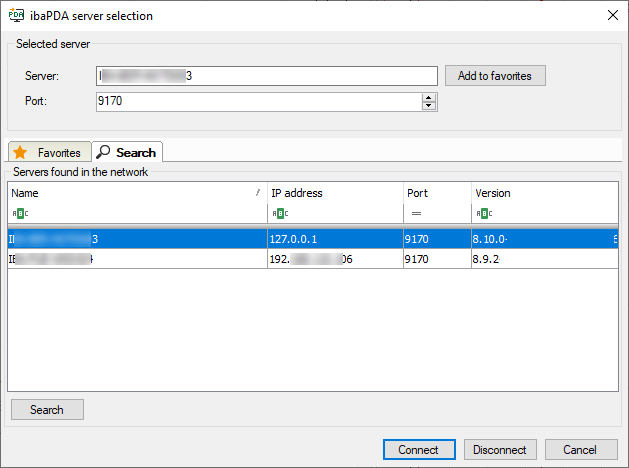
Click on the <Search> button to start a search for available servers.
The found servers will be listed in a table, which offers filter and sort functions in its header. If the right server is listed you can connect the client with this server by doubleclick on the corresponding row in the table or by selecting the server, followed by click on <Connect>.
Enter the server manually
You can also specify the server manually in the Server field in the upper part of the dialog. Enter the host name or the IP address of the server computer. If client and server run on the same computer, you may enter "localhost". If the server runs on a remote device, you may enter the host name or the IP address.
Tip |
|
|---|---|
 |
Some cases may occur where the name resolution works not properly in a network and hence the server cannot be found under its host name. Enter then the IP address of the server computer instead. |
Port
The port number will be given automatically. (Default=9170)
Click on <Connect> to establish the connection. If the corresponding server is not accessible you will get an error message.
Favorites tab
In the Favorites tab you find an overview of preferred and also previous server connections. You may use this list to determine preferred servers (favorites). When you double-click on a server the client starts a connection attempt to this server.
This dialog can be helpful, especially in case of frequently changing sites (service), in testing environments or when configuring multiple distributed servers at a central desk.
The ibaPDA server can be selected either by double-click on the server in the list or by clicking on the server and pressing <OK>.
Favorite and recent servers
In the Favorites tab you find an overview of preferred and also previous server connections. You may use this list to determine preferred servers (favorites). When you double-click on a server the client starts a connection attempt to this server.
This dialog can be helpful, especially in case of frequently changing sites (service), in testing environments or when configuring multiple distributed servers at a central desk.
The table as well, offers filter and sort functions in its header.
Besides the column with host name or IP address there is a column Last connection showing date and time when the connection to this server was established for the last time.
Recent
The group Recent contains servers, the client was connected to in the past.
Favorite
The Favorite group is only available if at least one server out of the Recent group has been declared as favorite. Click on the star button in order to enable or disable the favorite status of a server.
If you want to add the currently connected server to the favorites, click on the <Add to favorites> button in the upper part of the dialog.
Configure server connections for client startup
In the client preferences you can define the server the client should connect to on startup. Therefore, select the node Connections in the client preferences.
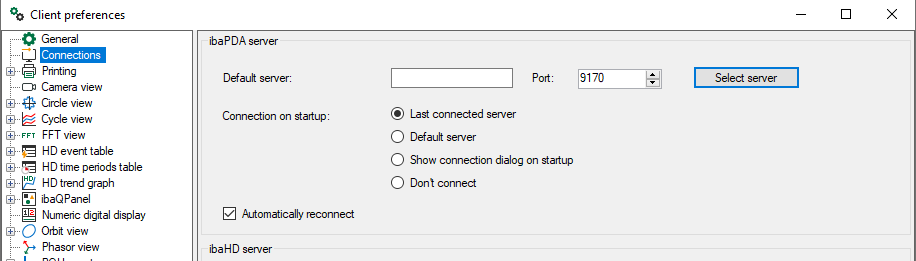
Default server
If there is a server the client should always connect to by default, then enter it here. Enter the computer name or the IP address of the server computer. Alternatively, you can click on the <Select server> button in order to open the Server selection dialog and select an available server of your choice.
Connection on startup
Choose one of the options for startup of the client.
-
Last connected server: The client connects to the same server it was connected to when it was last closed. This is not necessarily the default server.
-
Default server: The client connects to the server which is set as default server above.
-
Show connection dialog on startup: The dialog ibaPDA or ibaHD server selection opens. Here you can select the server manually.
-
Don’t connect: The client starts without connecting to any server.
Automatically reconnect:
If you enable this option, the client tries to reconnect to the server automatically, in case the connection is interrupted.