Since service accounts have restricted permissions, the application lacks the rights to make changes to specific files or directories. In this section, we use the example of ibaDatCoordinator to show how to set permissions for directories to enable the application to create configuration and log files, for example.
For the steps described here it is assumed that the user is logged in on the WKS1 system with administrator access and that a managed service account was previously created.
-
Open Windows Explorer and navigate to the following path:"C:\Program Files (x86)\iba"
-
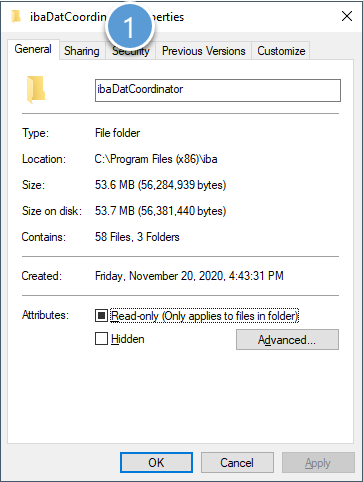
Open the properties for the ibaDatCoordinator folder using the context menu in Explorer and select the Security tab (1).
-
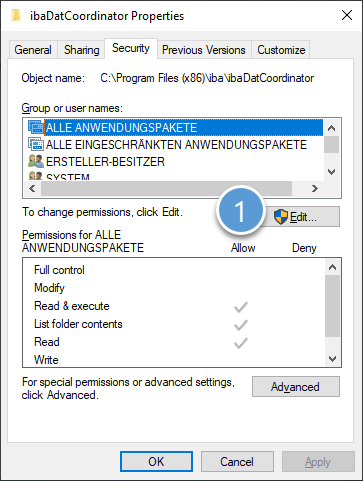
Click <Edit> (1) to change the group and user permissions or add new ones.
-
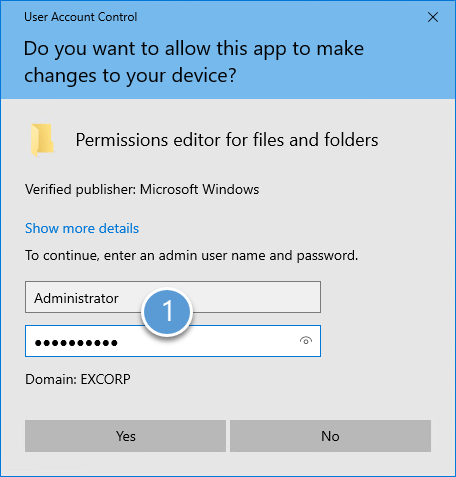
As a normal user, you will still need to initiate authorization (1) to edit the settings.
-
After successful authorization you can add the new service account as a user with <Add...> (1).

-
First, change the selected object types (1) so that only "Service accounts" is selected. Click on <Advanced> (2) to open the advanced dialog function.

-
Click on <Find Now> (1) and all existing service accounts in the domain will be listed. Subsequently, the corresponding account can be selected from the list (2) and the dialog can be exited by clicking <OK> (3).

-
Confirm the following dialog with <OK> to add the service account.

-
Now grant the new user the following permissions(1):
-
Modify
-
Read, execute
-
List folder contents
-
Read
-
Write

-
-
Close the dialog with <OK> (2).
-
To complete the configuration and save the properties, also exit the next dialog with <OK> (1).
