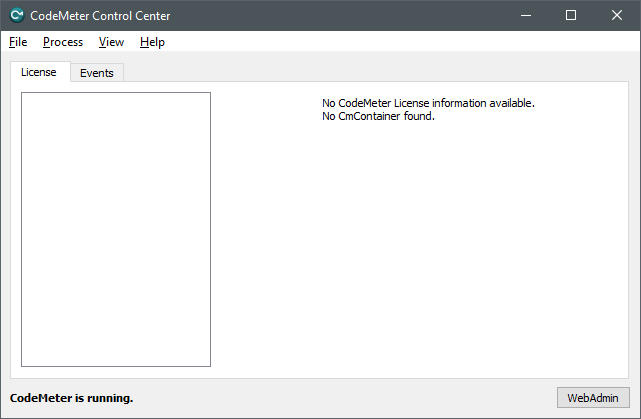
You can view connected USB dongles and existing soft licenses in the CodeMeter Control Center.
-
To open the CodeMeter Control Center, click on the icon in the system tray, see CodeMeter Control Center in the system tray.
If no license containers are available, the License tab is empty and a corresponding message is displayed.
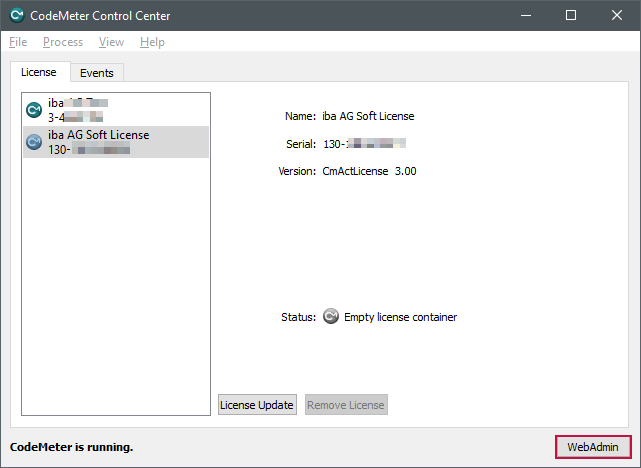
If license containers already exist on the PC, they are listed under License. The following image shows entries for a USB dongle (starting with 3-xxx) and two soft licenses (starting with 130-xxx).
-
To display the content of a license container, select the container in the License tab and click on the <WebAdmin> button.
CodeMeter WebAdmin opens in the standard browser and displays an overview of the licenses it contains.
Note

It is no longer possible to display WebAdmin via Microsoft Internet Explorer.


CodeMeter WebAdmin interface

The licenses officially issued by iba are displayed in tab section 6000506 iba AG in tabular form (License Monitor). After clicking on the respective product number in the Product Code column, additional detailed information about the corresponding license entry is shown.
The "iba License Identifier" entry contains information about the buyer, for example. If individual license entries are provided with an expiration date, this is shown in the Valid Until column.

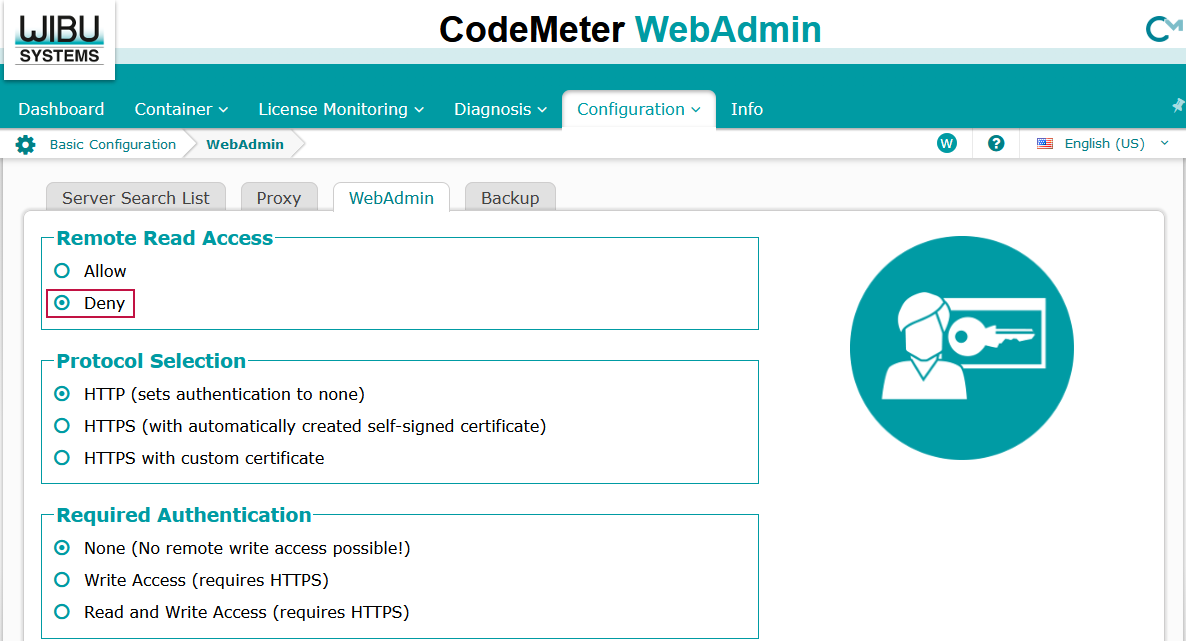
Disable remote read access
By default, remote read access in the local network is permitted for the WebAdmin tool. This is useful, for example, if you are deploying licenses via a license server on the network and want to allow clients to access available and assigned licenses, see View available licenses on the network.
If this is not desired, the corresponding setting must be individually made for each computer:
-
To do this, select Settings tab – Basic menu item – WebAdmin tab.
-
Enable the "Deny" option under Remote Read Access.