Copy or transport the license request file you have created (see Creating a license request file) to a PC with Internet access. There you work with the WebDepot.
Licenses for iba software are delivered as a ticket number in the following format:XXXXX-XXXXX-XXXXX-XXXXX-XXXXX
You can use this ticket number to view your existing licenses in the iba AG WebDepot.
-
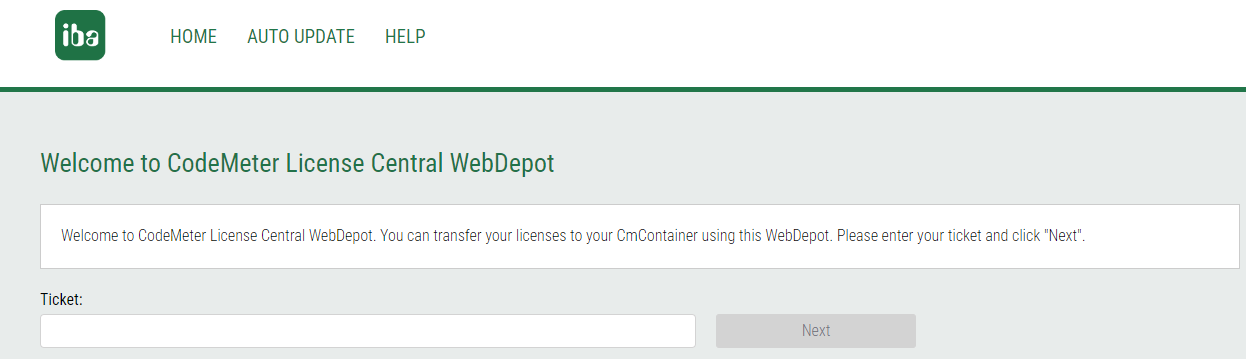
Open the iba AG WebDepot under https://license.iba-ag.com.
-
Enter the ticket number you received in the field under Ticket.
-
Click on <Next>.
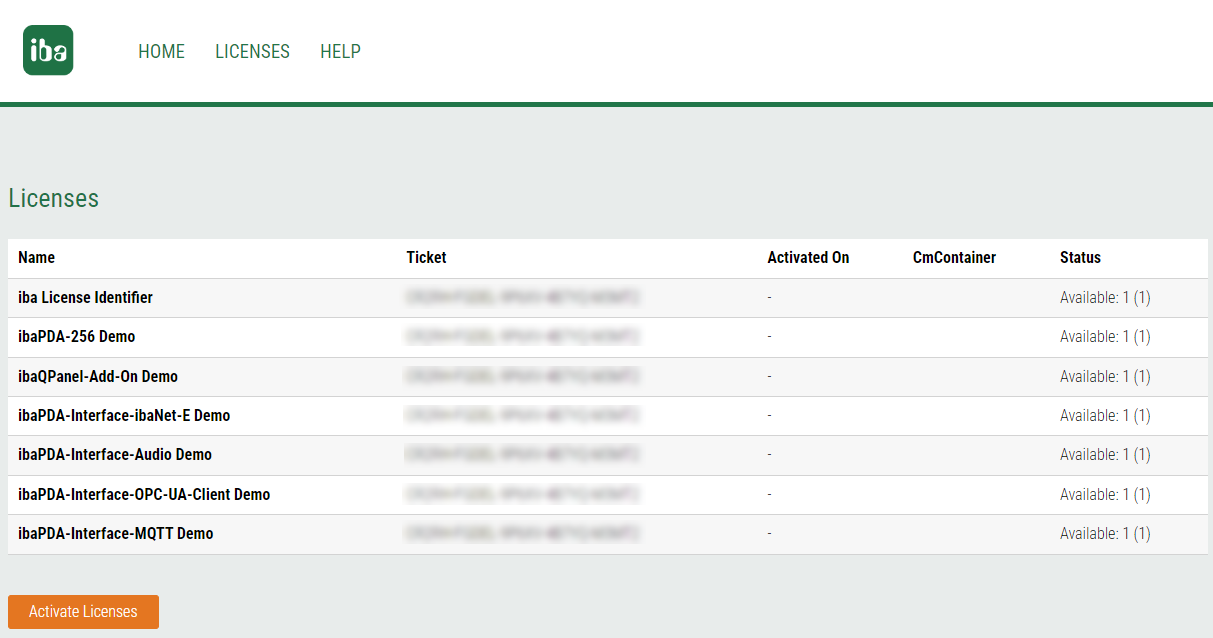
All available licenses are listed.
Note

The ticket number is often integrated directly into the link to the WebDepot when iba is delivered. In this case, you will see an overview of the available licenses immediately after clicking on the link.
Note
If the message "No available licenses were found. All licenses in this ticket are already activated" is displayed, click <Licenses> (My licenses) to continue with the transfer.
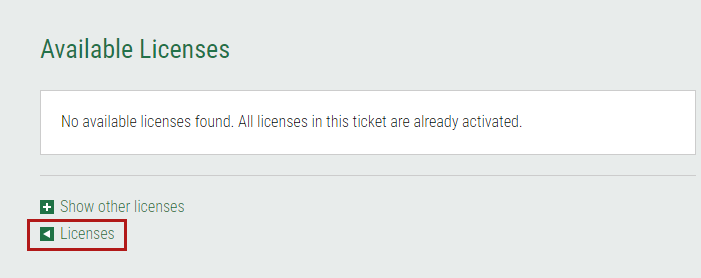
Alternatively, you can also execute the <AUTO Update> function.
-
Click on <Activate Licenses> to continue.
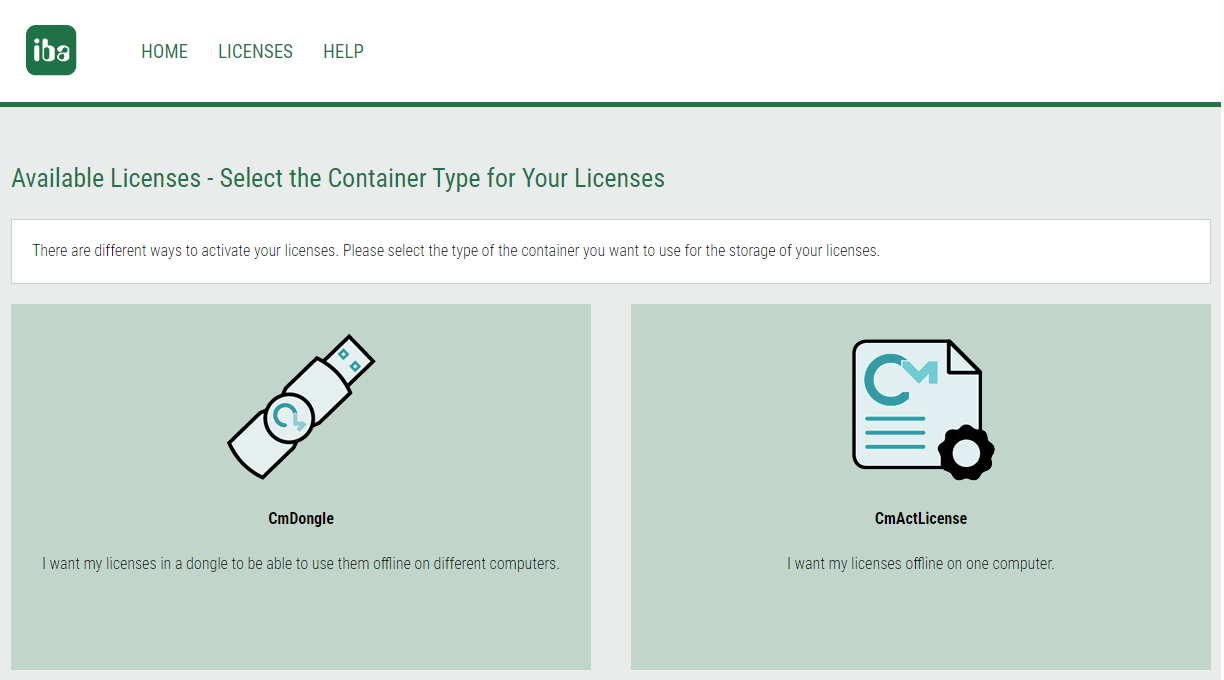
The following view appears:
-
Depending on whether you want to have the licenses written to a USB dongle (CmDongle) or to a computer-bound soft license (CmActLicense), select the corresponding option.
-
CmDongle: Select the option “I want my licenses in a dongle (CmDongle) to be able to use them on different computers.”
-
CmActLicense: Select the option “I want my licenses offline on one computer”.
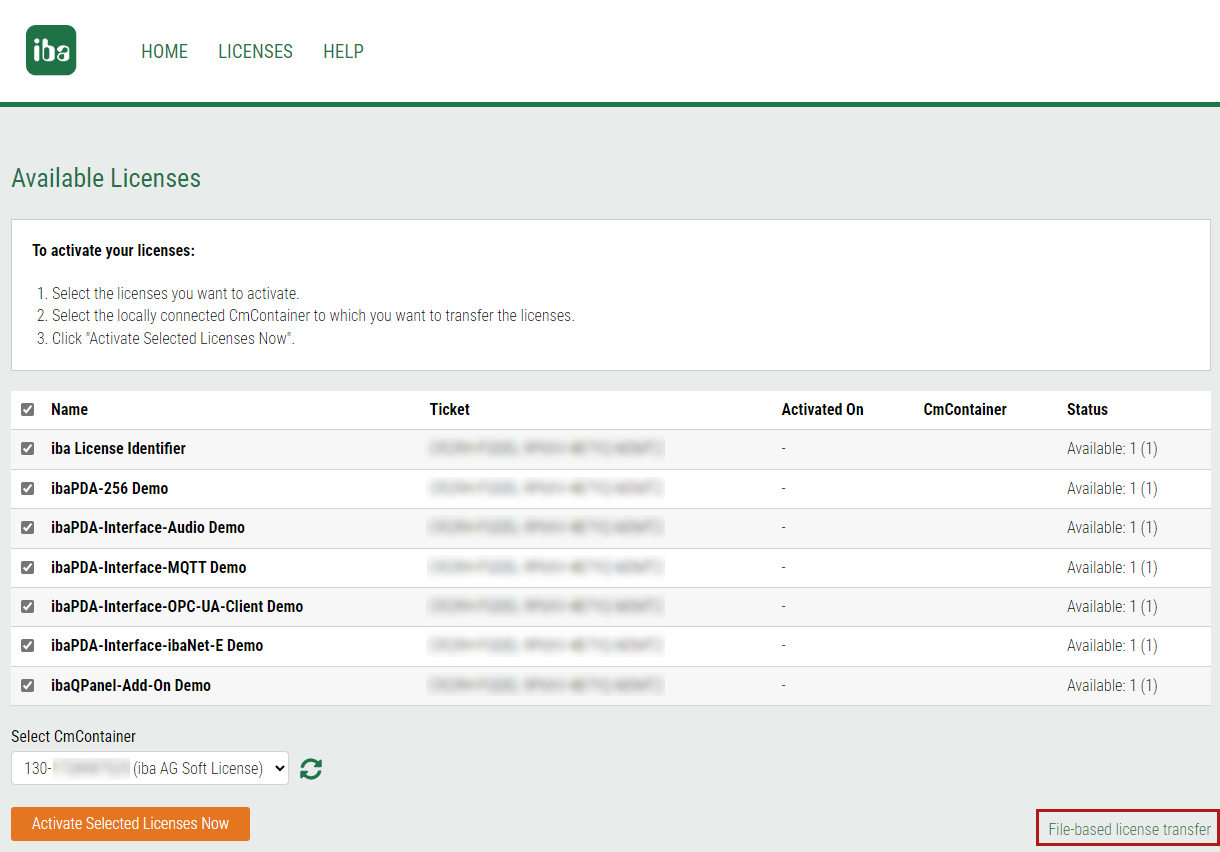
The licenses available on the ticket are displayed again.
-
-
Click on <File-based license transfer>.
-
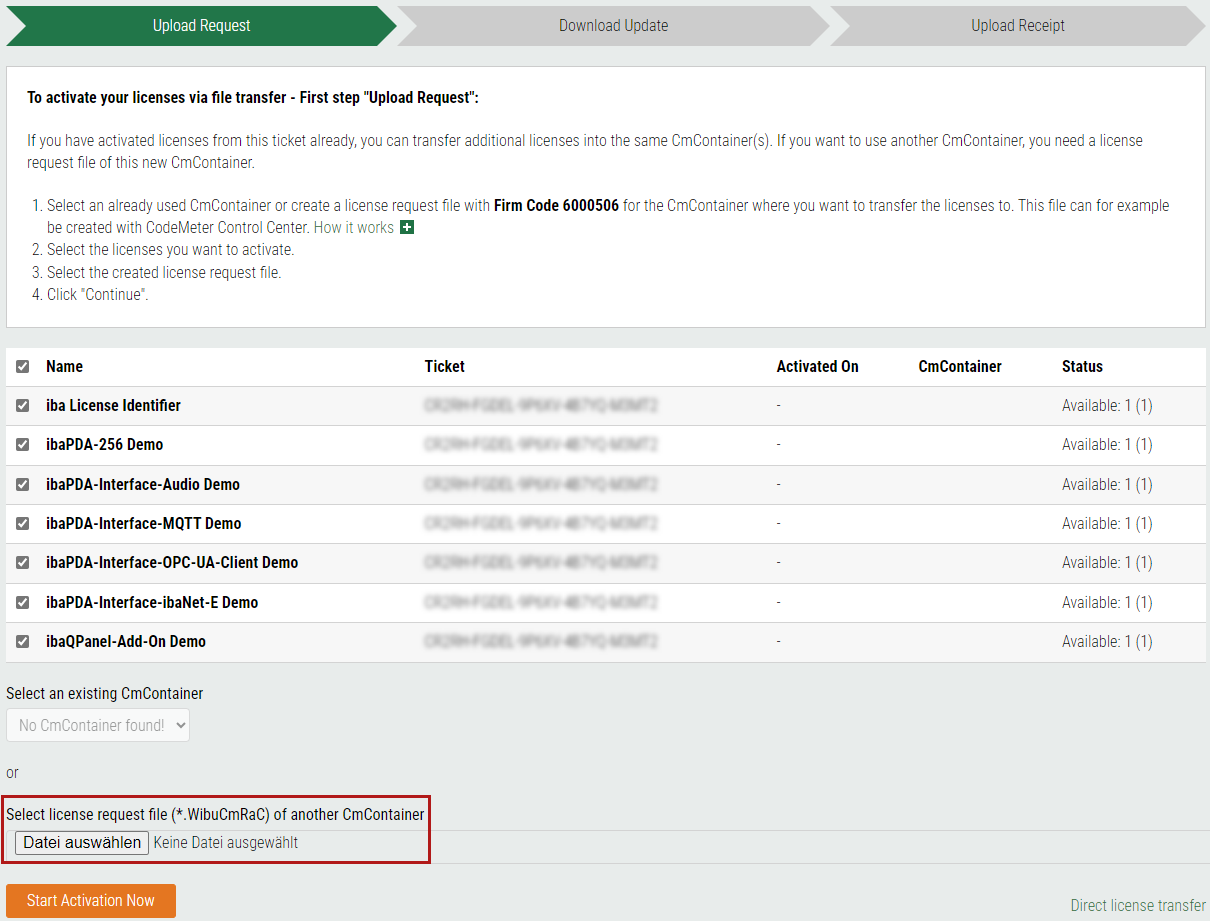
On the next page, under Select license request file (*.WibuCmRaC) of another CmContainer, select the license request file you have created (see chapter Creating a license request file). Depending on the browser used, the dialog may look different.
-
Click on <Start Activation Now>.
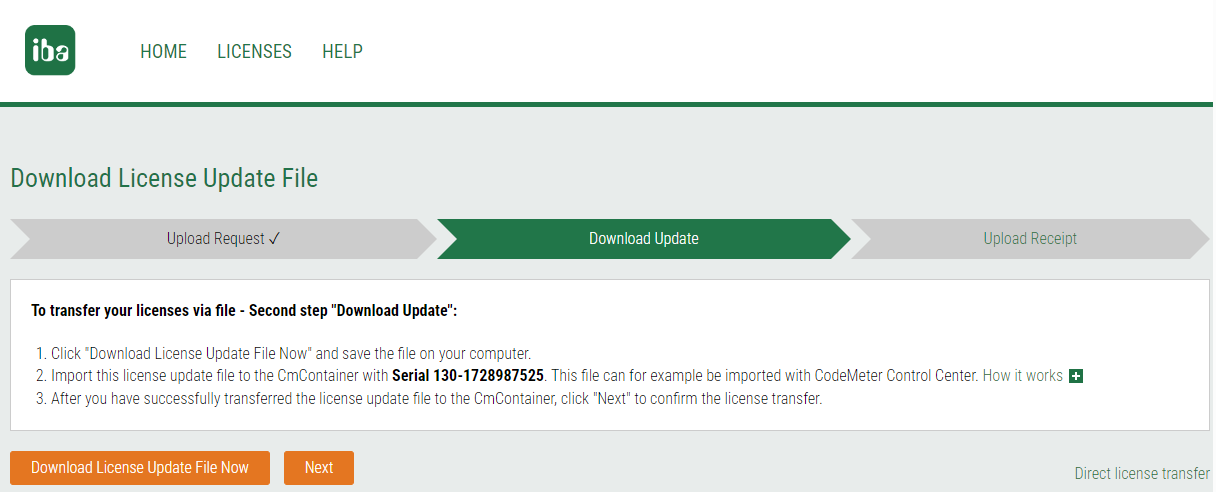
A new dialog box appears from which you can now download the license update file.
-
To do this, click on <Download License Update File Now> and save the file (*.WibuCmRaU) under a path of your choosing.


You will need this file to update the license container, see chapter Importing the license update.