In advanced mode, access to available licenses for multiple license clients can be managed centrally. This enables selected licenses to be used by several clients simultaneously.
Note |
|
|---|---|
 |
For example, enabling individual licenses for multiple clients is used for extensions to ibaAnalyzer. |
-
To do this, click on "Add new Firm Code..." under Advanced Mode Settings.
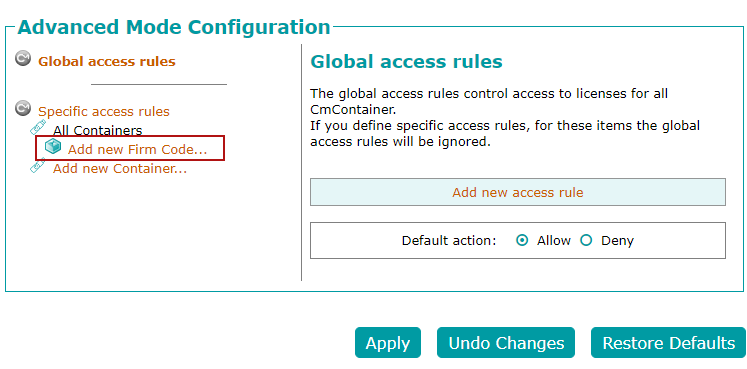
-
Select the entry "6000506 - iba AG" from the drop-down list.
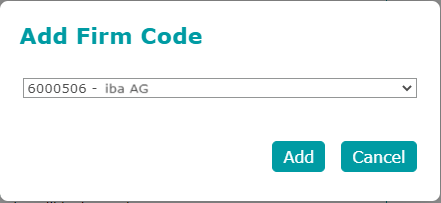
The entry is now visible under "Specific access rules" and the licenses to be shared can be added.
-
To do this, click on "Add new Product Code...".
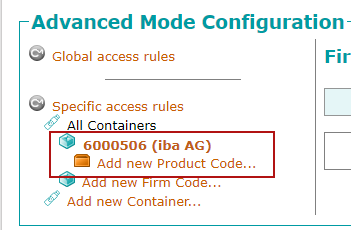
-
To be able to display the source of the licenses and the name of the owner in the iba software, first add the entry that begins with "1000 - iba License Identifier".
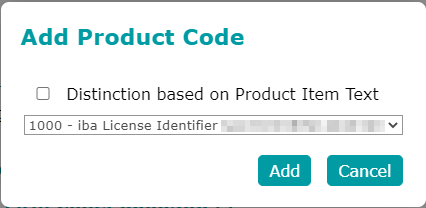


Setting up product-specific license sharing
-
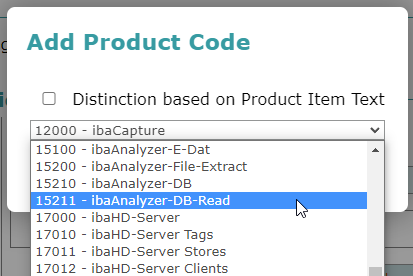
Click on "Add new Product Code..." again and select the relevant product license from the drop-down list.
The following example shows a license sharing using the "ibaAnalyzer-DB-Read" license.
-
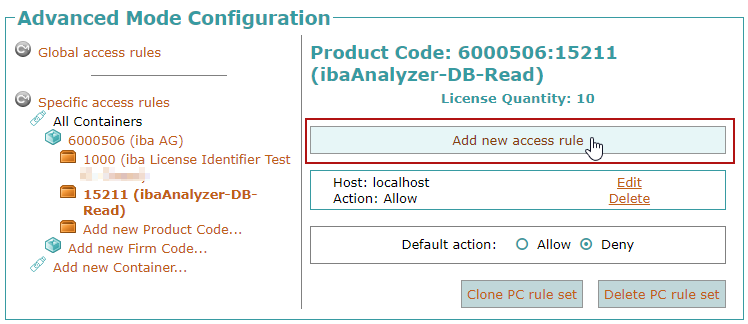
To determine the access permissions for a license, first set the respective default action to "Allow" or "Deny".

Default action "Deny"
If you select the "Deny" option as the default action, no client can initially access this product license and the access permissions are only defined selectively later in the process.

-
Click on "Add new access rule".
-
Activate the "Allow" action in the following dialog box to specify access for defined clients based on the rules.
In the example shown, a total of 10 product licenses are available, but the maximum number of licenses for the client "lizenz-client01" should be limited to "1".
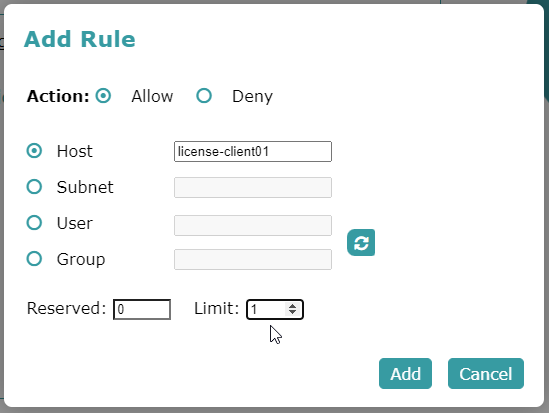


The following parameters can be defined:
Action
-
Allow: Access to the license is allowed
-
Deny: Access to the license is denied
Host
Host name or IP address of the system to which the rule relates
Subnet
The permission can be assigned not just to an individual system but also to an entire subnet (e.g. In the format 192.168.123.0/24).
User
If the users are logged into the systems via Active Directory, the permission can be linked to the user account.
Group
If the users are logged into the systems via Active Directory, the permission can be linked to the user group.
Note |
|
|---|---|
|
The <Refresh> button enables all known Active Directory users and groups to be retrieved. They are then available in a drop-down list. |
The available licenses can still be subdivided for the individual entries:
Reserved
A number of licenses to be reserved for the computer/subnet/user/group so that the license cannot be occupied by other clients.
Limit
The maximum number of licenses that the computer/subnet/user/group is permitted to use.
Standard action "Allow"
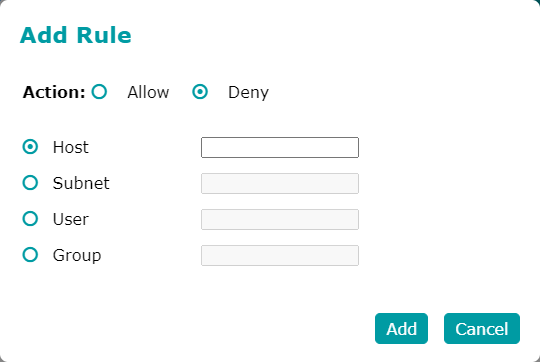
If you select the "Allow" option as the default action, you initially allow all clients to access the product license in order to be able to specifically exclude certain clients later on.

-
To do this, click on "Add new access rule" and activate "Deny" as the action in the subsequent dialog box to explicitly cancel access for a client based on the rules.

Note |
|
|---|---|
|
Multiple rules can be defined for each product code, e.g. for multiple PCs, subnets, users or groups. |
After completing the configuration settings, click <Apply> to save all changes.