Licenses for iba software are delivered as a ticket number in the following format:XXXXX-XXXXX-XXXXX-XXXXX-XXXXX
You can use this ticket number in iba AG WebDepot to transfer licenses to your CmContainer and view existing licenses.
-
Open the iba AG WebDepot under https://license.iba-ag.com.
-
Make sure that the connection from your browser to locally installed applications and services is enabled.
Other documentation

For detailed information on various browsers, see: https://www.youtube.com/@WIBUSYSTEMSAG/videos
-
Enter the ticket number you received in the field under Ticket.
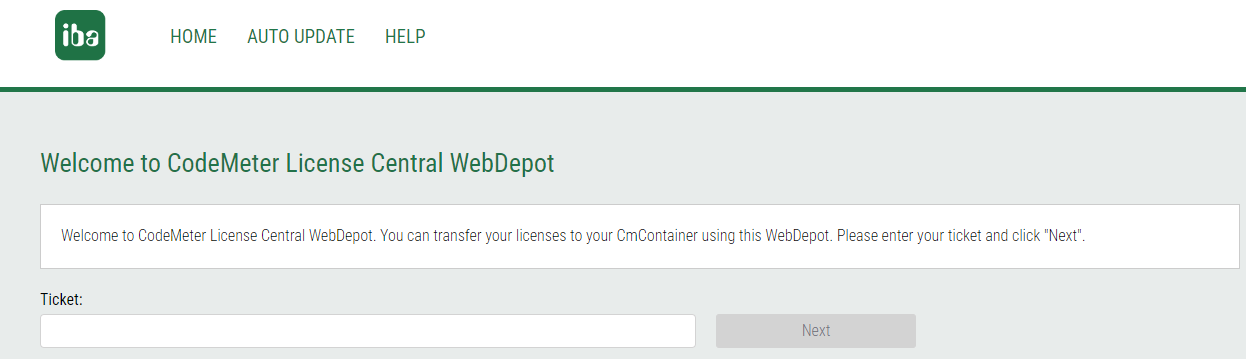
If the link to the iba AG WebDepot already contains the ticket number, the number no longer needs to be entered manually; this step is then skipped.
Note

If you get the message “No available licenses found. All licenses in this ticket are already activated.”, you can click the <AUTO UPDATE> link at the top of the page without entering the ticket information. All licenses that have been issued for your container can then be transferred. In this case it is not necessary to provide further information.
-
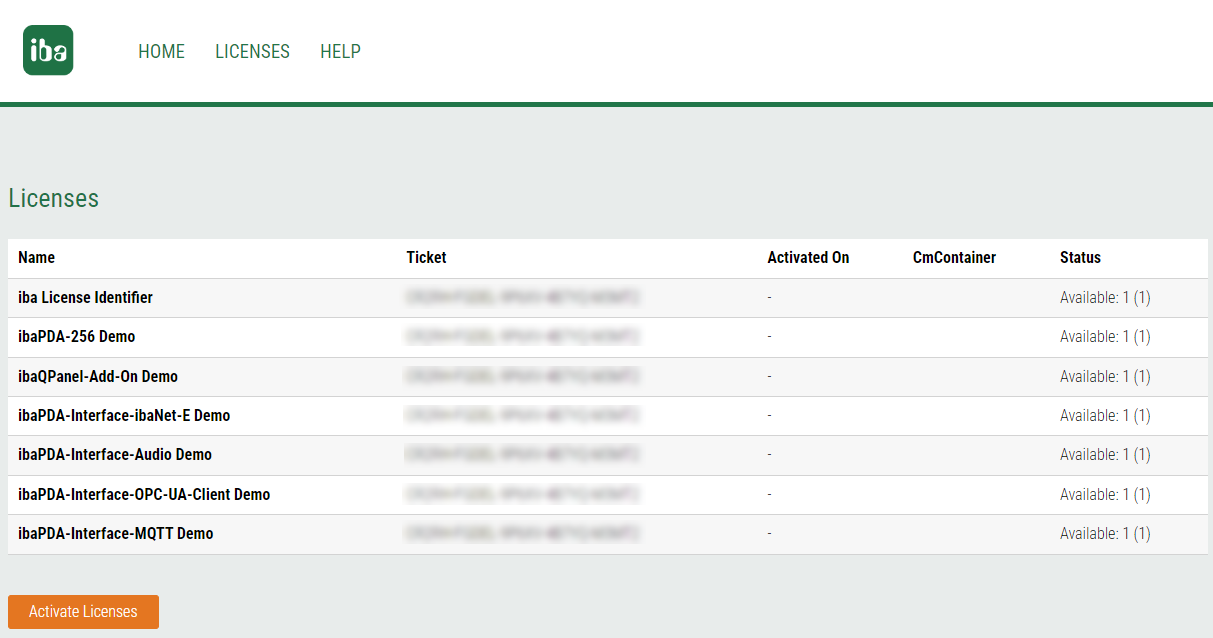
Click on <Next>.
All available licenses are listed.
-
Click on <Activate Licenses> to continue.
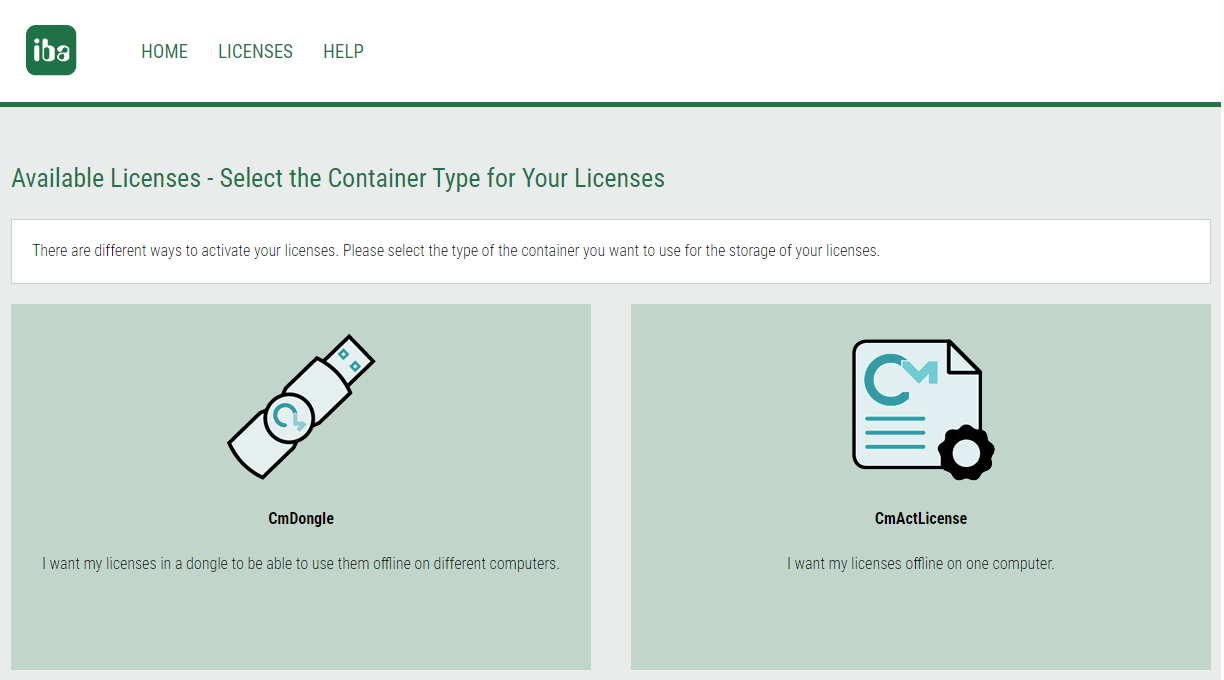
The following view appears:
-
Depending on whether you want to have the licenses written to a USB dongle (CmDongle) or to a computer-bound soft license (CmActLicense), select the corresponding option.
-
CmDongle: Select the option “I want my licenses in a dongle (CmDongle) to be able to use them on different computers.”
-
CmActLicense: Select the option “I want my licenses offline on one computer.”
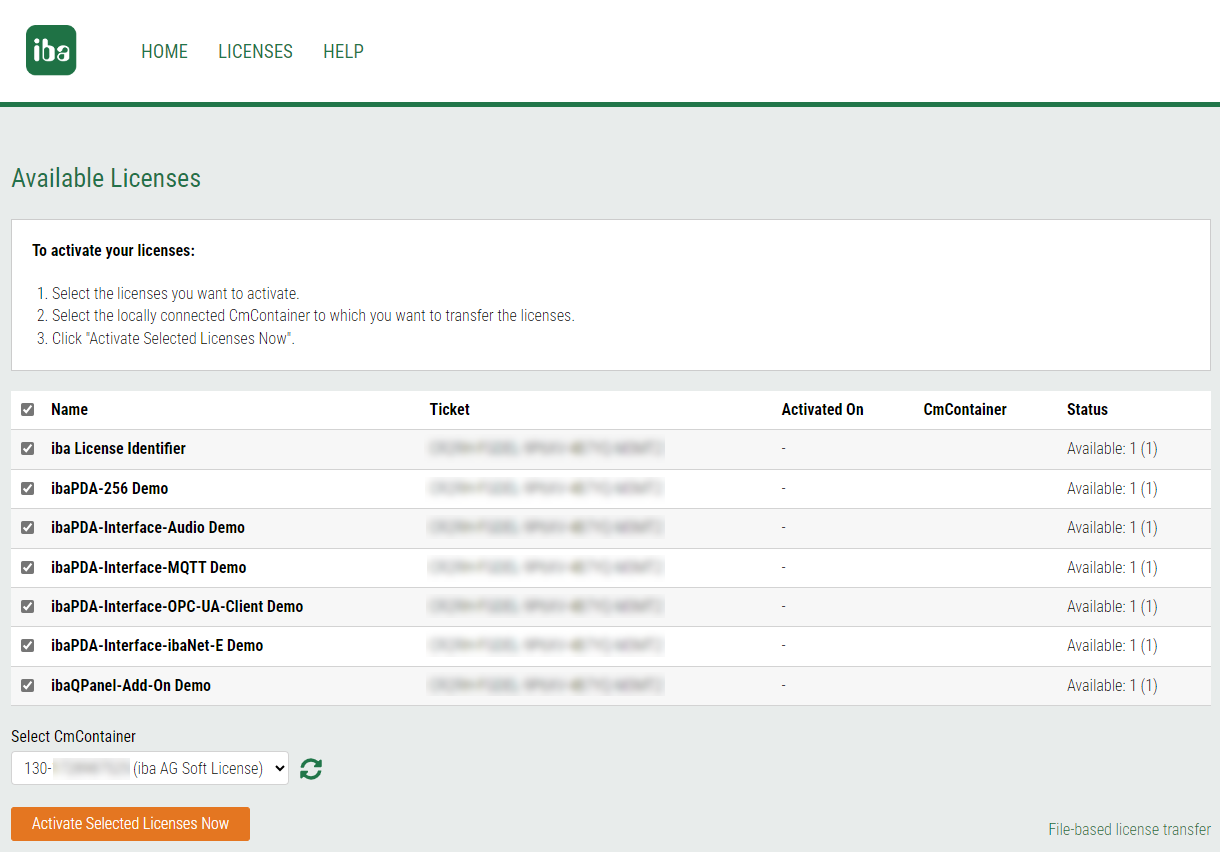
The licenses available on the ticket are displayed again.
-
-
If several license containers are currently active on the computer, make sure that the correct CmDongle or the correct soft license is selected under Select CmContainer.
-
To start the actual transfer of licenses to the selected license container, click <Activate Selected Licenses Now>.
The licenses are "booked out" from the ticket and "booked in" to the license container. The process is shown in a status window. This process can take a few minutes.
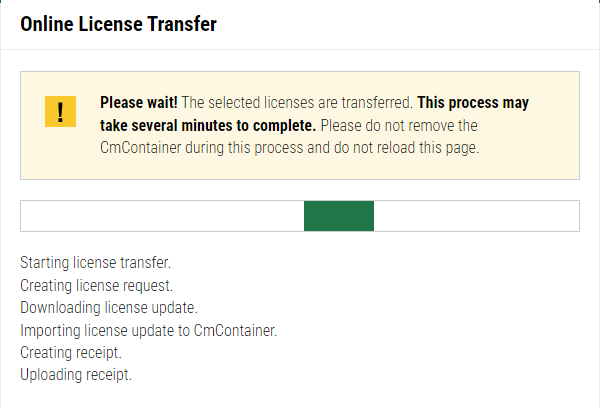
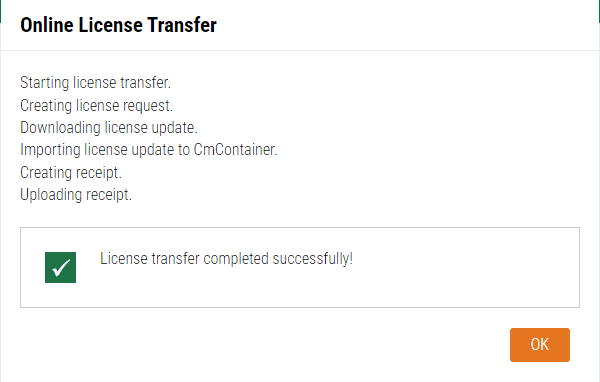
When the transfer is complete, the successful transfer of the licenses is confirmed.


You can display the licenses now available on the license container in WebAdmin, see chapter Viewing existing licenses.