This step confirms the successful completion of the license transfer.
Note |
|
|---|---|
 |
With the online license transfer, the process for license receipt is carried out automatically. See chapter Transferring licenses directly. Manually uploading the license receipt file is only required if an update file (WibuCmRaU) has been imported via the CodeMeter control center (see chapter Importing the license update). |
Creating the receipt file
-
Open the CodeMeter Control Center.
-
Click on<License Update>.
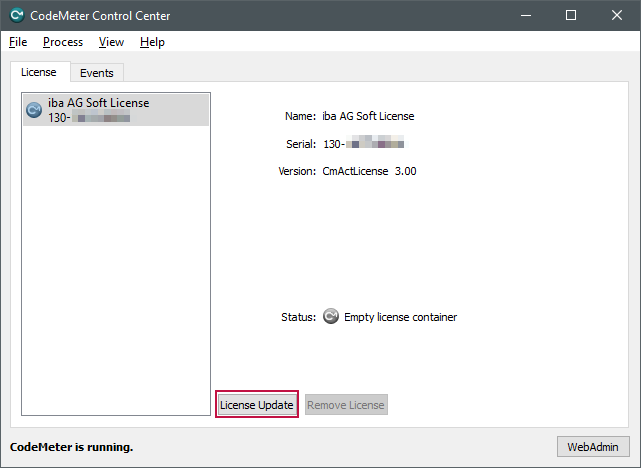
The welcome window of the CmFAS (CodeMeter Field Activation Service) wizard opens.
-
Click on <Next> and in the next window select the option “Create receipt.”
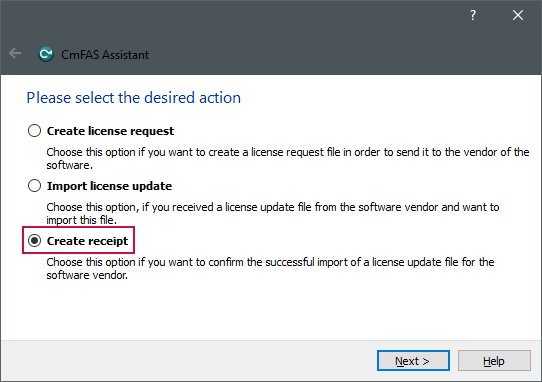
-
Click on<Next>.
-
Select the path where the receipt file is to be saved.
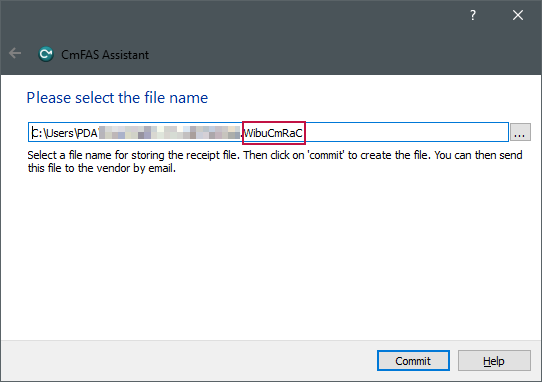
The license receipt file again has the ending *. WibuCmRaC. You can overwrite a previously created license request file. See Creating a license request file.
-
Click on<Commit>.
A confirmation that the receipt file has been successfully written appears.


Uploading the receipt file to the WebDepot
If you still have the WebDepot page open from which you downloaded the license update file, you can upload the receipt file directly from there.
See Transferring licenses file-based.
-
Click on <Next>.
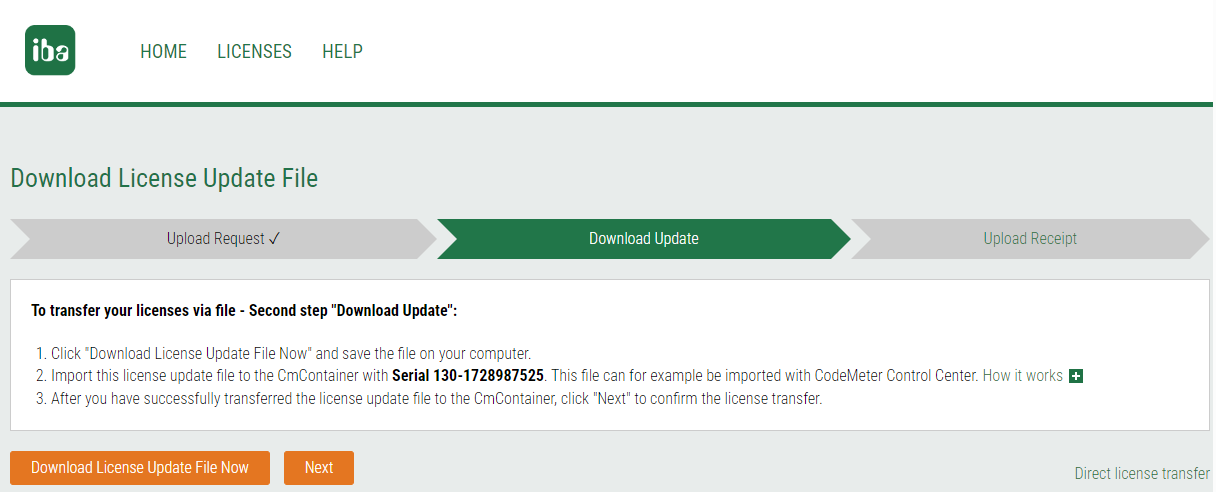
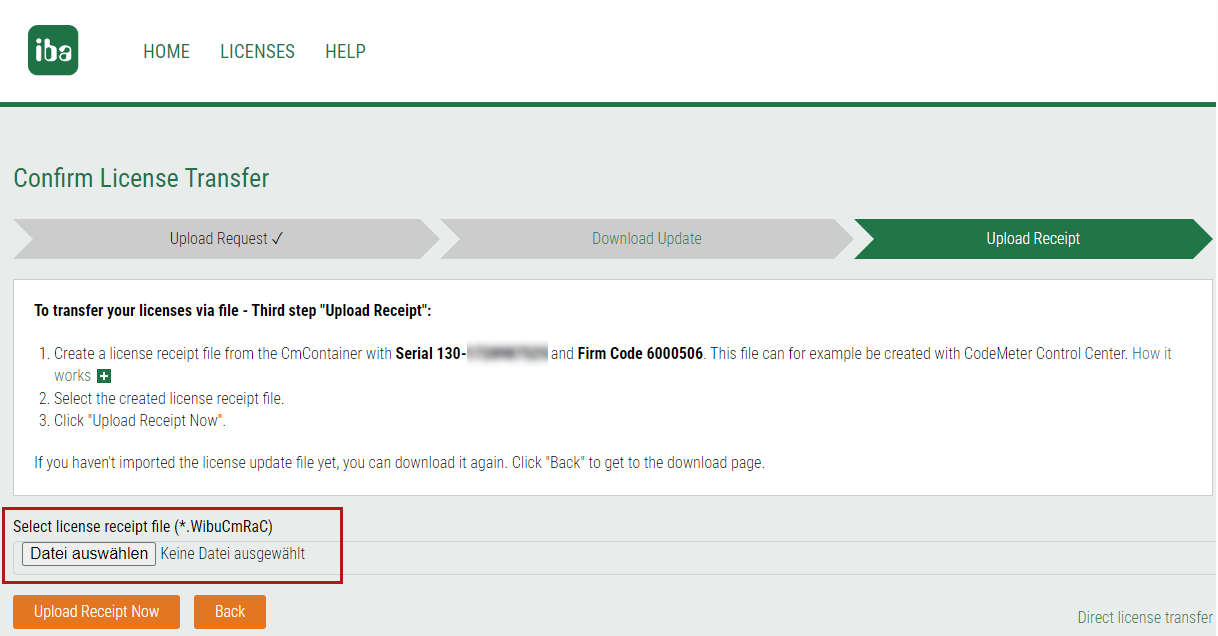
Depending on the browser used, the buttons for selecting the file may look different.
-
In the example shown, go to Select license receipt file (*.WibuCmRaC) and select the saved receipt file.
-
Click on <Upload Receipt Now>.
A confirmation window appears.
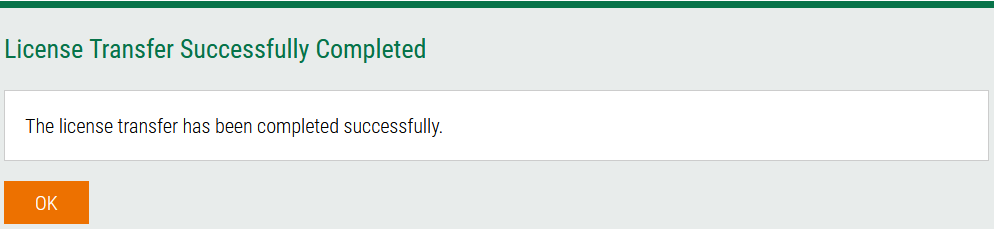


The offline license transfer is now complete.